

Annotate PDF
Use this free PDF annotator to highlight text, draw, add notes, insert links and images, place shapes, sign, and whiteout visual areas. Processing runs locally in your browser, and Frisqoo does not upload the source file for processing.
100% private. Your files are processed entirely in your browser and never uploaded.
Annotate a PDF in one workspace
Text markup
Highlight, underline, strike through, or add a squiggle to text-layer words.
Drawing tools
Use a pencil, freehand highlighter, or eraser with color and opacity controls.
Shapes and text
Add text, rectangles, ellipses, lines, arrows, checkmarks, and crosses.
Comments and links
Place review notes and clickable web links without changing source text.
Images and signatures
Insert an image or place a visible signature or initials on the page.
Local processing
The PDF is read and rewritten in the browser without upload to Frisqoo.
How to annotate PDF documents
- Choose one PDF. A digital PDF opens in the editor, while an encrypted file asks for its known open password first.
- Select Text, Markup, Draw, Shapes, Whiteout, Sign, or Insert. Add the annotation, then use Select to move, resize, restyle, or delete it.
- Select Save and download. Open the file ending in
-annotated.pdfin another reader and review every changed page.
The source PDF stays unchanged on the device. Keep it when the review may need another round.
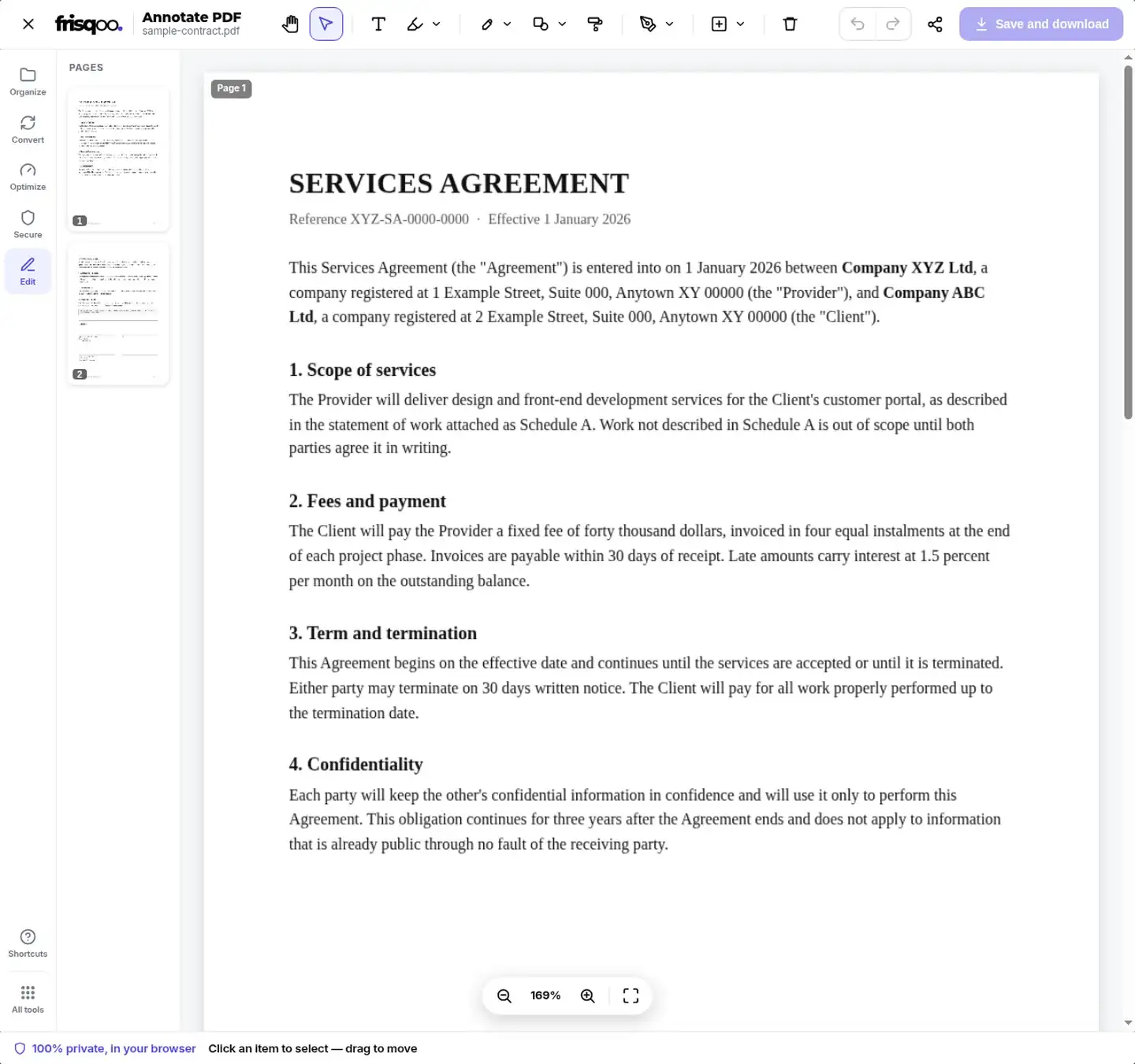
PDF markup tools in the editor
The toolbar starts with Hand for moving around the page, Select for working with an annotation, and Text for placing new words. Markup holds Highlight text, Underline text, Strikethrough text, and Squiggle text. Draw holds Pencil, Highlighter, and Eraser. Shapes includes rectangle, ellipse, line, arrow, checkmark, and cross.
Whiteout places an opaque visual cover. Sign creates a visible signature or initials. Insert adds an image, comment, or link. Clear all removes editor additions from the session, while Undo and Redo step through recent changes. These controls make the page useful as a PDF markup online workspace without exposing the heavier text-editing, form, crop, watermark, or page-management controls from Edit PDF.
A contextual toolbar appears after an annotation is placed or selected. Text controls include font, size, bold, italic, underline, color, background, opacity, and alignment. Drawing and shape controls expose the properties relevant to that object, such as stroke color, fill, thickness, and opacity. The Delete action removes only the selected editor object.
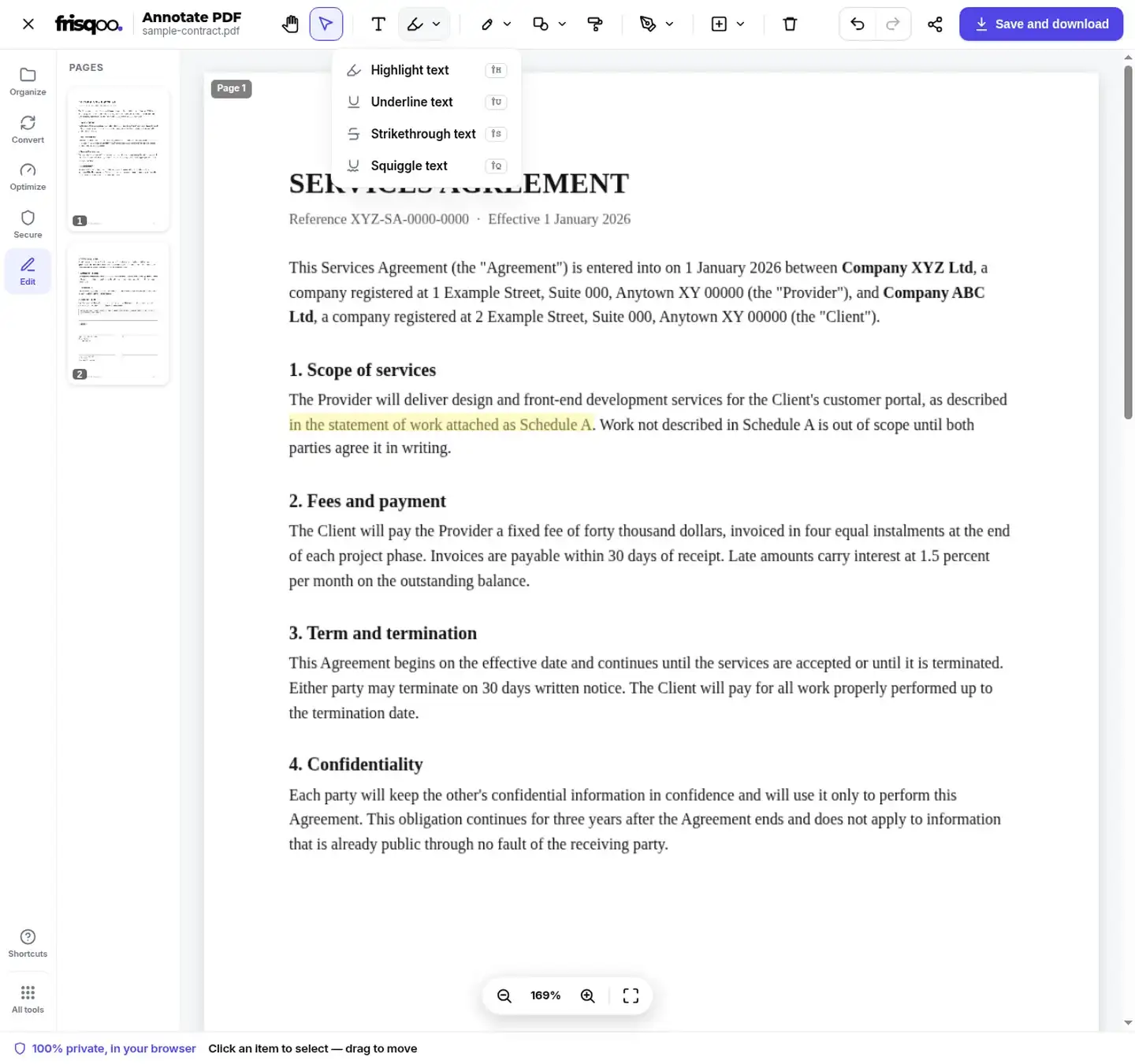
Highlight and mark up document text
Text-aware markup follows words in a PDF text layer. Choose Highlight text and drag across a phrase to add a translucent color band. Underline text places a line below the selection, Strikethrough text crosses it, and Squiggle text adds a review-style wavy line. Select the finished mark to change its color or opacity, or delete it.
A scan stores the page as an image, so it has no text runs for these four commands to follow. Run OCR PDF first when searchable text and text-aware markup are needed. The freehand Highlighter under Draw can still mark any visible area without OCR, but it follows the pointer rather than snapping to words.
Draw on PDF pages and add shapes
Draw uses a Pencil for freehand lines and a Highlighter for translucent strokes. Choose a color, line width, and opacity from the contextual controls. Eraser removes editor strokes without erasing source-page content. Use these tools to circle a figure, point at a clause, check an item, or sketch a short correction.
Shapes provide cleaner geometry for formal review. Add a rectangle or ellipse around an area, a line or arrow between two points, or a checkmark or cross beside an item. Each new object remains selectable during the session, so it can be moved, resized, restyled, or removed before export.
Add notes to PDF pages
Open Insert and choose Comment to place a note pin. Enter a question, approval, or change request without rewriting the underlying document. Comment display can vary by PDF reader, so open the saved copy in the reader used by the recipient and confirm that the note opens as expected.
Choose Link to draw a clickable area and enter a web address. Test the link after download. Insert can also place an image from the device. Use Select to position and size the image, and keep logos or signature images away from text that must remain readable.
Add text, signatures, and initials
Text places a new text box on the page. Its contextual toolbar controls font, size, bold, italic, underline, text color, background, opacity, and alignment. Added text sits on top of the source page; it does not rewrite the document's existing text objects.
Sign can create a signature or initials and place the result as a visible page element. It is suitable when the workflow accepts a visual signature. It is not a certificate-based digital signature and does not create cryptographic validation. Use the signing method required by the recipient.
Whiteout is different from redaction
Whiteout draws an opaque cover over a visible area. It can clean up a page for display or print, but it should not be used to remove private information because source text, images, or links can remain in the file. Use Redact PDF for sensitive content, then verify the exported file by selecting, searching, and copying around every marked area.
Save and review the annotated PDF
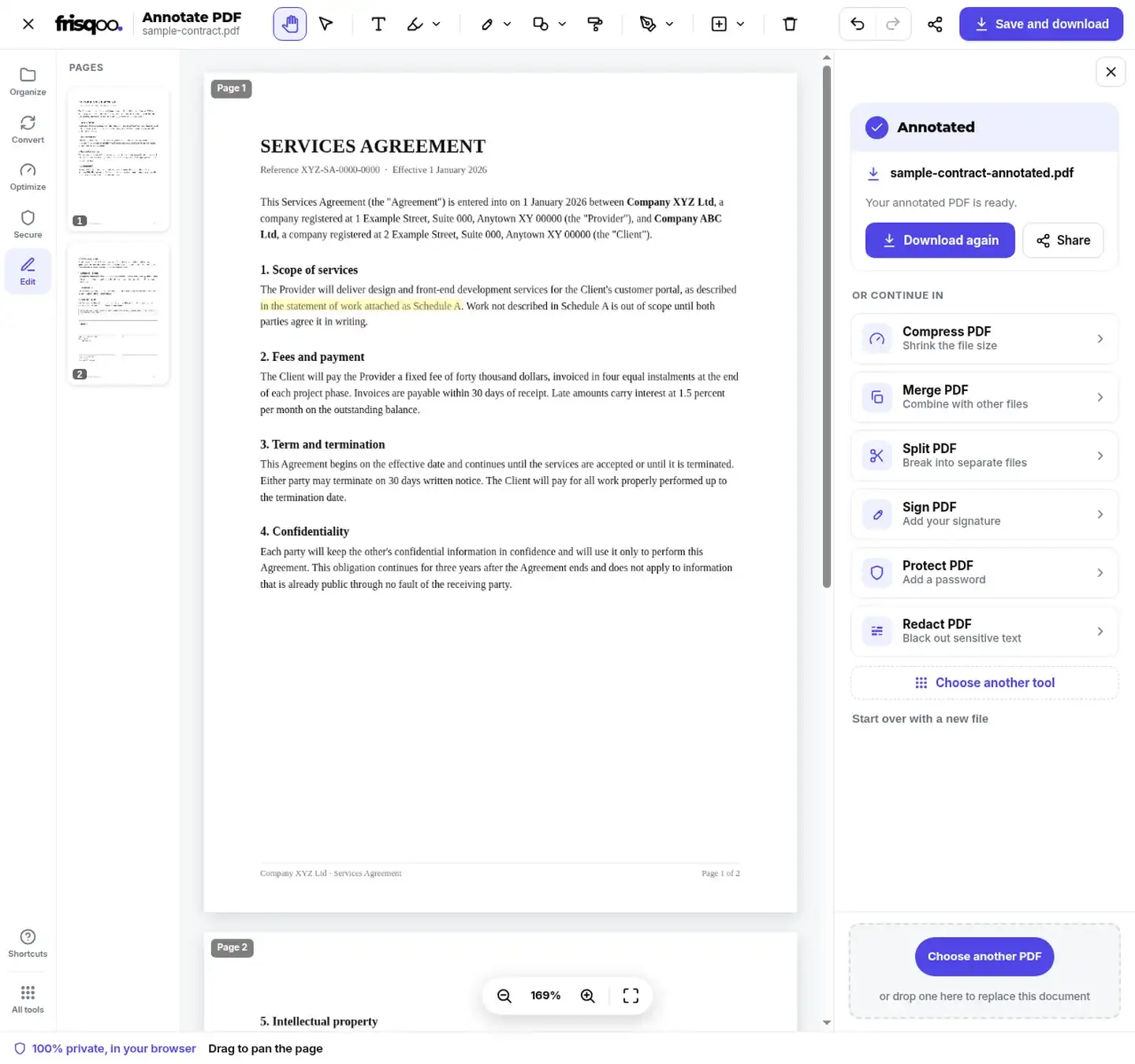
Select Save and download after the annotations are positioned correctly. The output keeps the source base name and adds -annotated.pdf. In the tested workflow, sample-contract.pdf became sample-contract-annotated.pdf. The original file remained unchanged.
Review the new copy in a separate reader. Check text markup, freehand strokes, shapes, comments, links, images, signatures, and whiteout areas. Confirm that annotations do not cover required wording and that comments and links behave in the reader used by the recipient. Check every page at a readable zoom before distribution.
Saving rewrites the PDF. Existing certificate-based digital signatures can become invalid after any document change, so apply those signatures after annotation when the workflow allows. Reader support for comments, links, and some annotation appearances can differ. A quick check in the recipient's reader prevents a review note or link from being missed.
Annotate password-protected PDFs
If the PDF requires a password to open, enter the known password in the inline unlock box. The file then opens in the annotation editor on the device. A PDF that only limits printing or copying may open without this prompt.
The annotated output is newly written and is not automatically protected with the source password. Use Protect PDF after reviewing the result when an open password or permissions settings are still required.


Browser limits and keyboard access
You can annotate PDF free without an account or an added watermark. Page count, page complexity, images, fonts, and available browser memory determine the practical file size. A computer provides more room for detailed markup, while touch input can be used for drawing and simple placement on a phone or tablet.
Common shortcuts include H for Hand, V for Select, T for Text, P for Pencil, B for the freehand Highlighter, C for Comment, K for Link, I for Image, and W for Whiteout. Text markup uses Shift plus H, U, S, or Q. Press the question-mark key or select Shortcuts in the side rail to view the current list.
Common annotation tasks
- Highlight a contract clause and add a comment for the next reviewer.
- Circle a number, draw an arrow, or add a checkmark to a report.
- Place a visible signature or initials on an agreed document.
- Add a clickable reference link or an image to a page.
- Mark up a scanned page with freehand drawing after visual review.
FAQs about Annotate PDF
Does Frisqoo upload the PDF?
No. Processing runs locally in your browser. Frisqoo does not upload the source file for processing.
Can I highlight text in a PDF?
Yes. Open Markup, choose Highlight text, and drag across words in a digital PDF. Underline, Strikethrough, and Squiggle use the same text-layer selection.
Can I annotate a scanned PDF?
You can draw, add text, place shapes, use a freehand highlighter, add an image, or sign a scanned page. Text-aware Highlight, Underline, Strikethrough, and Squiggle need a text layer, which OCR PDF can add first.
Can I add comments and links?
Yes. Insert includes Comment and Link. Comments place a note pin with review text, while links create a clickable area that points to a web address.
Can I draw on the PDF?
Yes. Draw includes Pencil, Highlighter, and Eraser. The contextual controls set color, thickness, and opacity for the active drawing.
Can I add shapes or an image?
Yes. Shapes includes rectangle, ellipse, line, arrow, checkmark, and cross. Insert can place an image from the device as a movable annotation.
Can I sign the PDF?
Yes. Sign can create a signature or initials and place them on the page. The result is a visible page mark. It does not create certificate-based validation.
Does Whiteout remove sensitive information?
No. Whiteout visually covers an area, but the original page content can remain in the PDF. Use Redact PDF for sensitive content and verify the downloaded result before sharing.
Can I undo an annotation?
Yes. Undo and Redo are available after changes. Select an annotation to delete it, or use Clear all to remove editor additions from the current session.
What is the downloaded filename?
The copy keeps the source base name and adds -annotated.pdf. For example, sample-contract.pdf becomes sample-contract-annotated.pdf.
Can I annotate a password-protected PDF?
Yes, when you know the open password. Enter it in the inline unlock box. The annotated output is newly written and is not automatically protected with the source password.
What limits the file size?
There is no displayed fixed page limit. Page count, page complexity, images, fonts, annotations, and available browser memory determine the practical job size. Large files usually work better on a computer.