

Protect PDF
Add a password to a PDF with AES-256 encryption in your browser. Set an open password, add optional printing or copying permissions, and download a separate protected copy. Single files and batches stay on your device.
100% private. Your files are processed entirely in your browser and never uploaded.
Why protect a PDF with frisqoo
Local encryption
The PDF and passwords stay in the browser. No protection server receives them.
AES-256
qpdf applies 256-bit encryption that requires the open password before the file can be read.
Password confirmation
Enter the open password twice, with Show controls available to check what you typed.
Optional permissions
Add a separate password and ask compatible readers to block printing or text copying.
Batch protection
Use one password for several PDFs or give each file a different open password.
Separate outputs
Download each protected PDF or collect completed batch files in one ZIP.
How to password protect a PDF
- Choose one or more PDF files, or drop them onto the box above.
- Enter and repeat the open password. Open the permissions section only when printing or copying limits are needed.
- Select Protect PDF, then save the protected PDF or download the completed batch as a ZIP.
Keep the original file and record the password safely. The password is not stored and cannot be reset from this page.
Start with one or more PDFs
Choose one PDF to open the editor flow. The first page is rendered beside the password panel, and the document name, page count, and file size appear in the workspace. Add two or more files when the same task needs a batch.
The original file is not overwritten. A successful output keeps the source base name and adds -protected.pdf. For example, contract.pdf becomes contract-protected.pdf.
An input that already has an open password is handled by the shared PDF gate first. Enter the existing password to unlock it in the browser, then set the new password in Protect PDF.

How do I add an open password?
Type the password in the first field and repeat it in the second. The Protect PDF action stays disabled until both entries are present and match. A mismatch produces the message The two passwords do not match.
Both fields are masked. Select Show beside either field when you need to check spelling, capitalization, symbols, or keyboard layout. The browser marks the inputs as new-password fields and does not use them as ordinary page text.
The open password is the key needed to read the encrypted content. Anyone who receives the protected copy must enter that value before a PDF reader can display the pages.
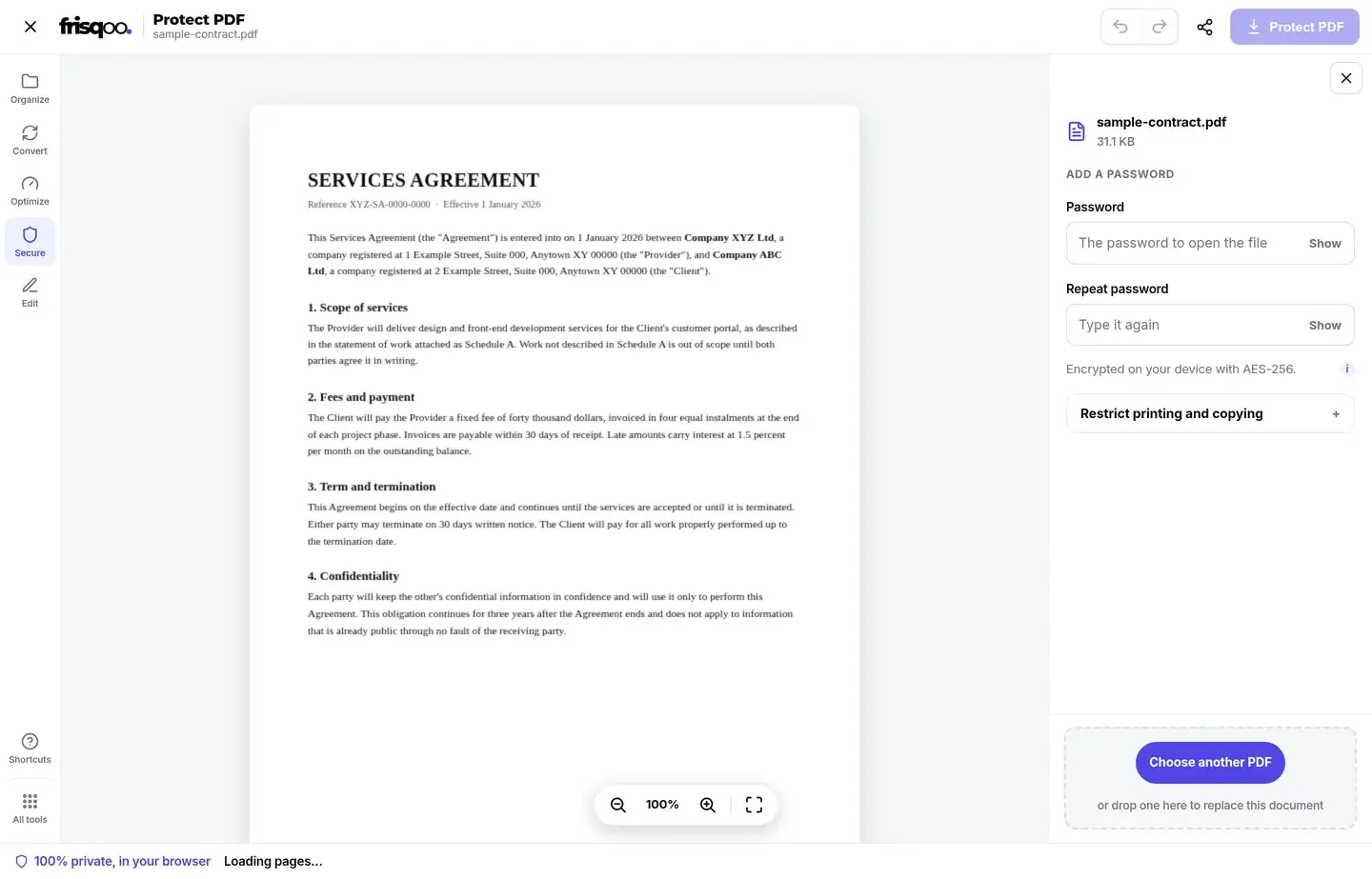
How does AES-256 PDF encryption work here?
The tool calls qpdf in the browser with 256-bit encryption. The open password becomes the user password required to read the document. A separate owner password is used only when optional permissions are configured.
A runtime check created a protected PDF that rejected an incorrect password and opened with the chosen one. Its encryption dictionary reported a 256-bit length. The output remained a normal PDF that a compatible reader could open after the correct password was supplied.
Encryption does not send the password anywhere. qpdf runs as WebAssembly on the device, writes the protected bytes in memory, and hands the resulting file to the browser download.
Add optional printing and copying permissions
Open Restrict printing and copying to reveal the advanced controls. Enter a permissions password that is different from the open password, then select either or both reader requests.
Ask readers not to print the file writes a no-print permission. Ask readers not to copy text out of it writes a no-extract permission. The same permissions password controls both settings.
The interface warns when the permissions password matches the open password. In that case, anyone who can open the file also has the password that grants full rights, so the restrictions do not create a useful second boundary.
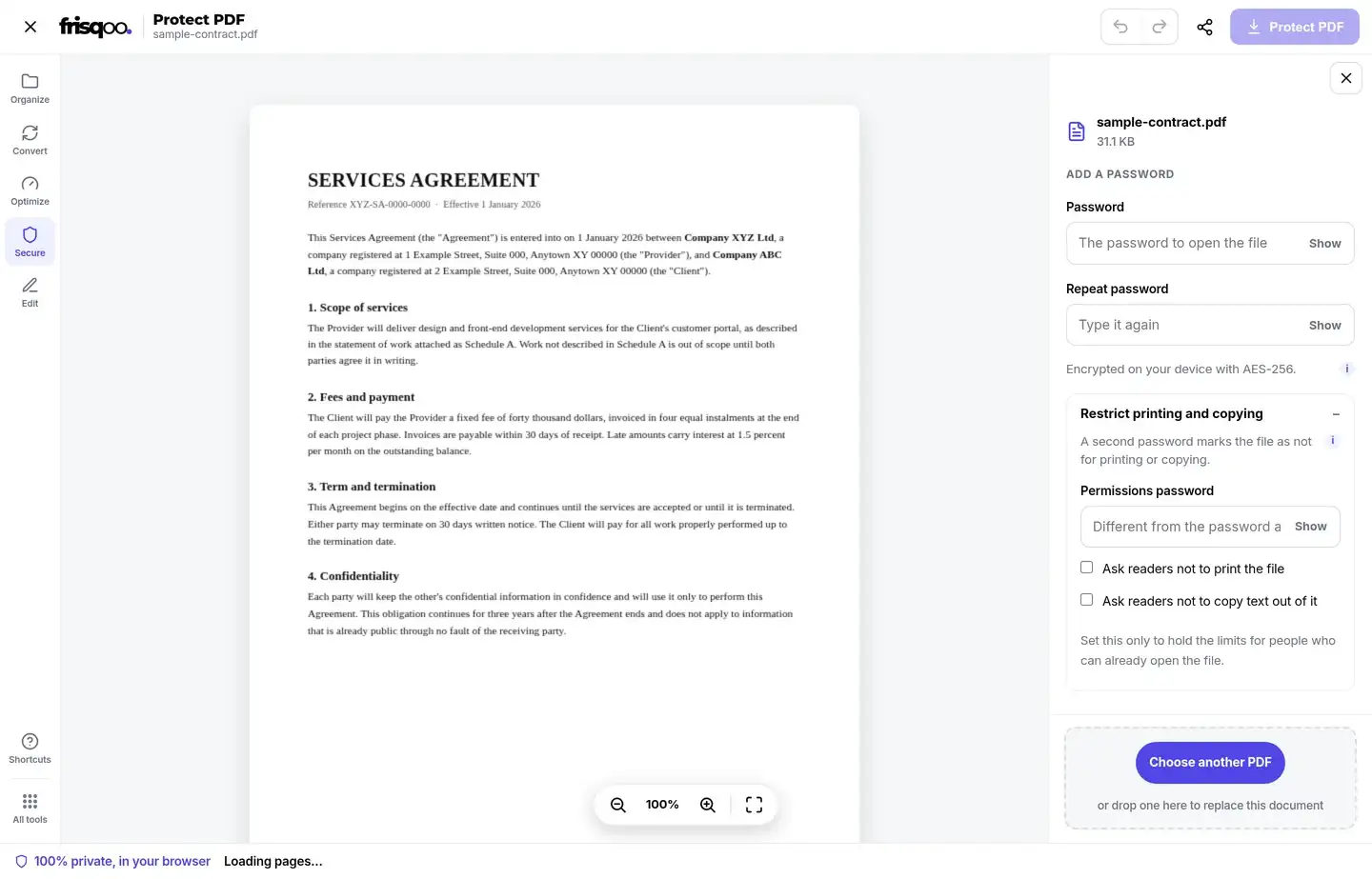
What do PDF permissions actually prevent?
PDF permissions ask compatible readers to disable printing or text extraction. They do not encrypt the visible page again, and they do not stop screenshots. A program may also ignore the flags or remove them.
Use an open password when the pages must stay unreadable to anyone without the key. Use permission flags when an authorised reader may view the file but should receive a clear no-print or no-copy instruction in software that honours it.
The permissions password belongs to the person who may change those settings later. It is optional and separate from the password used by ordinary readers to open the document.
What happens after protection succeeds?
The result card says Your PDF is protected, displays the new filename, and offers Download again. The initial download starts when encryption finishes.
The verified sample changed from sample-contract.pdf to sample-contract-protected.pdf. An incorrect password could not open it, while the password entered in the form opened both pages.
The original PDF remains unchanged. Keep that source until the protected copy has been opened in the reader you expect recipients to use and the password has been recorded safely.
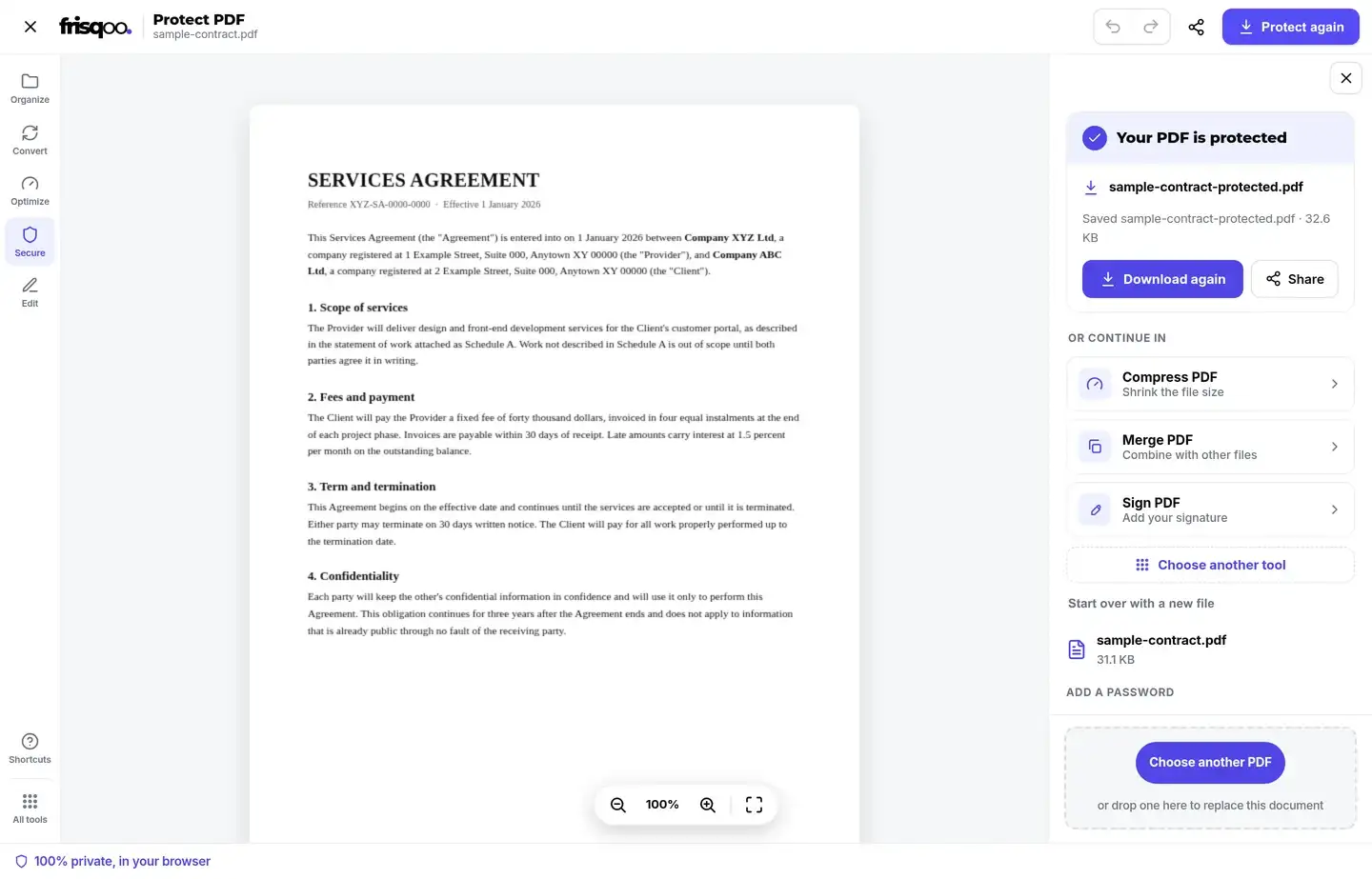
Protect several PDF files in a batch
Add two or more PDFs to open batch mode. The default form uses one shared open password for the set and asks you to repeat it. Enable Use a different password for each file when the files are intended for different recipients.
The optional permissions password and printing or copying choices apply across the batch. Each file is encrypted on the device, one after another. A failed item is reported on its own row rather than changing any source file.
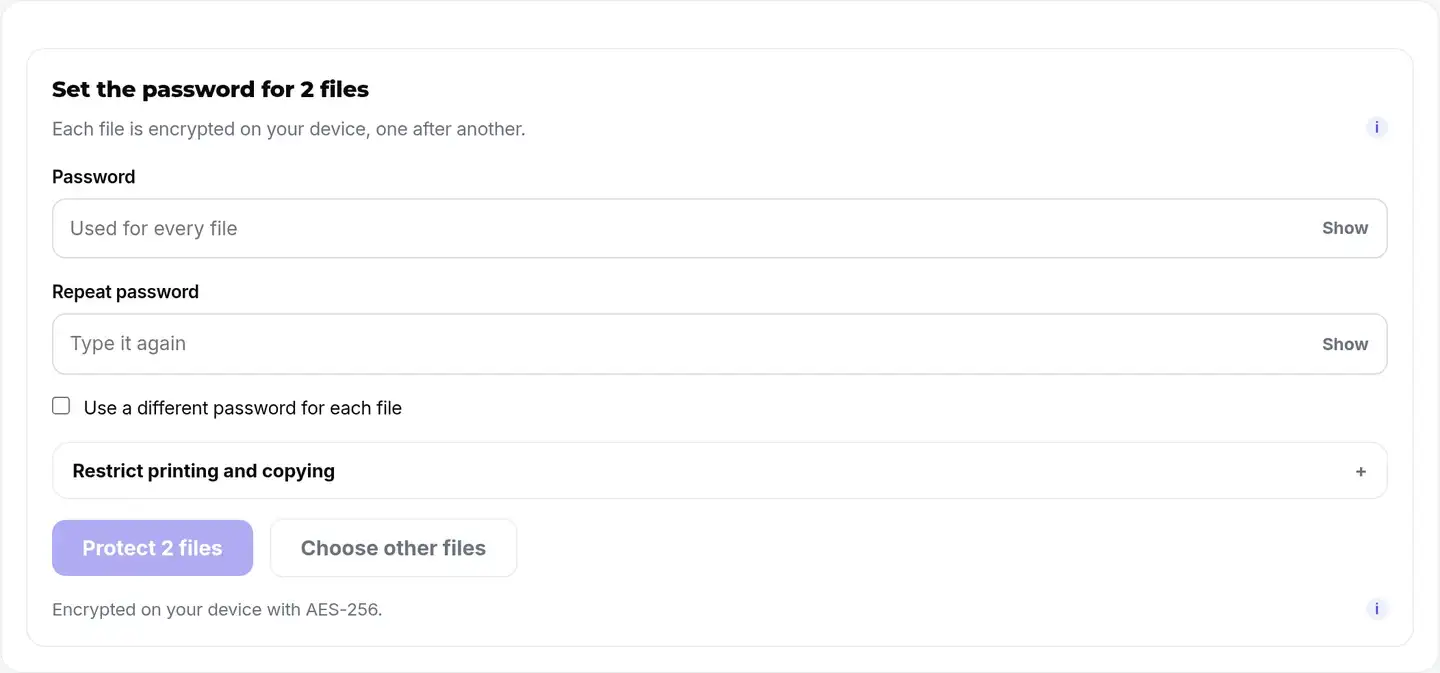
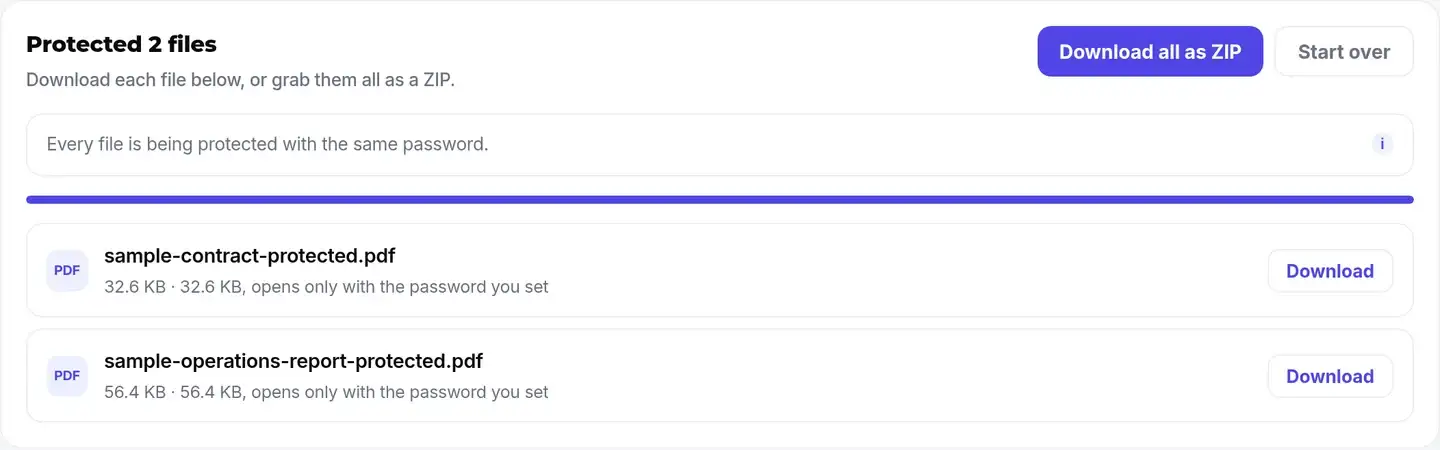
Completed rows show the output name, size, and a note that the file opens only with the password you set. Select Download for one result or Download all as ZIP to save frisqoo_protected.zip.
What stays in the protected PDF?
Normal encryption wraps the existing PDF content instead of turning every page into a picture. Page size, order, visible text, and images remain available after the correct open password is entered. Selectable text remained selectable in the verified sample.
Review features that matter to the document before sending it. Open several pages, test links, forms, bookmarks, and signatures when present, and confirm any permissions in the target reader. PDF producers and readers do not all handle every extra in the same way.
The downloaded copy gains encryption and any requested permission flags. The unprotected original on your device does not change.
Share the protected PDF without sharing the key beside it
Send the protected PDF and its open password through different channels when the document is sensitive. For example, email the file and send the password through a trusted messaging app or a phone call. A password placed in the same message as the attachment offers little help if that message is exposed.
Tell the recipient which password opens the file and which application to try if their current viewer does not ask for it correctly. The protected output is a PDF, so it should not need a format conversion before opening.
When printing or copying permissions are included, describe them as reader rules rather than a guarantee. The recipient can still view the pages after entering the open password, and some software may ignore optional permissions.
Before sending, close the completed editor and open the downloaded copy in a separate reader. Enter the password from your saved record instead of memory. Check several pages and the features that matter, then send the tested output. Keep that tested copy separate from drafts so the wrong version is not attached later.
How are damaged PDFs handled?
If qpdf refuses a readable file, the tool performs one structural rebuild with pdf-lib and tries encryption again. The rebuild rewrites PDF objects rather than rasterising the pages, so it is different from printing the document to images.
A rebuild may affect interactive extras even when the visible pages survive. Keep the source and verify forms, links, bookmarks, attachments, or signatures that matter. If the second encryption attempt also fails, the tool reports the refusal and points to Repair PDF.
No success message appears unless an encrypted output is produced. A damaged file is not labelled protected merely because its pages could be previewed.
Is it safe to password protect a PDF online?
Protection is private here because the PDF and passwords remain in the browser. The file is not uploaded with the key that will protect it, and no account is needed to receive the output.
Local work reduces exposure for contracts, statements, tax records, identification scans, and internal reports. The recipient still needs the password through a suitable separate channel. Sending the PDF and its password in the same message removes much of the access benefit.
Use a password manager or another secure record for the key. Closing the page removes the only working copy held by the tool, so there is no server-side reset later.
Choose a password you can keep safely
Use a long, unique password that is not reused for email, banking, or another document. Avoid names, birth dates, short PINs, and common words when the PDF contains private material.
Keep the original unprotected PDF until the protected copy has been tested. Record the new password before sending the file, and share it through a different channel when practical. Use a clear filename or folder so the protected output is not confused with an earlier draft.
If the password is lost, Recover PDF Password may test weak or supported document patterns, but it cannot guarantee access to a strong unknown password. Unlock PDF removes protection only when the open password is known.
FAQs about Protect PDF
How do I password protect a PDF?
Add the PDF, enter the same open password in both fields, and select Protect PDF. The encrypted copy downloads with -protected added to the original filename.
What encryption does Protect PDF use?
It uses AES-256 encryption through qpdf running in the browser. A verified output reports a 256-bit encryption length and rejects an incorrect open password.
Does my PDF or password get uploaded?
No. The PDF is read, encrypted, previewed, and prepared for download on your device. The passwords are not sent to a protection server.
What is an open password?
The open password is required before the PDF can be read. Give it only to people who should be able to open the protected copy.
What is a permissions password?
It is a separate optional password that controls the printing and copying settings. It does not replace the open password and should be different from it.
Do printing and copying restrictions prevent screenshots?
No. They are permission flags that compatible readers may enforce. They do not stop screenshots or a program that chooses to ignore the flags.
Can I protect several PDFs at once?
Yes. Add two or more files to open batch mode. Use one shared open password or enable a separate password field for each PDF.
How do batch downloads work?
Each protected file has its own Download button. Download all as ZIP packages the completed PDFs in frisqoo_protected.zip.
What happens if I forget the password?
There is no reset because the password is not stored. Keep the original unprotected PDF and record the password in a secure password manager.
Can I protect a PDF that already has a password?
Yes. The shared PDF input first asks for the existing open password and unlocks the file locally. You can then apply the new password.
Will the protected copy keep selectable text?
Normal encryption does not rasterise the pages. The verified sample kept its pages readable after the correct password was entered, including selectable text.
Can I remove the password later?
Yes, when you know the open password. Use Unlock PDF to decrypt a copy in your browser.