

Edit Metadata
Use this PDF metadata editor to inspect and change document properties. Edit PDF metadata online for one file, apply selected values to a batch, or remove the document information dictionary and XMP packet before downloading a new copy.
100% private. Your files are processed entirely in your browser and never uploaded.
Why use this PDF metadata editor
Local processing
Edit metadata online while the source PDF is read and saved in your browser instead of being uploaded for processing.
Eight common fields
Change title, author, subject, keywords, creator, producer, and both document dates.
Two metadata stores
Update the Info dictionary and matching fields in an existing XMP packet.
Batch editing
Write selected values to several PDFs and leave empty batch fields unchanged.
Removal mode
Clear the Info dictionary and delete the document-level XMP packet in one action.
Named results
Save individual -metadata.pdf files or download a completed batch as a ZIP.
How to edit PDF metadata
- Add one PDF to load its current values beside a first-page preview, or add several PDFs for the batch form.
- Edit the fields that should change. Select Remove all metadata only when the Info dictionary and XMP packet should be cleared.
- Select Save changes for one file or Apply to files for a batch, then download the new copies.
Keep the original when signatures, archival conformance, password protection, or uncommon metadata must be preserved.

Edit PDF properties in the single-file editor
One PDF opens in the editor shell with page one visible and the current common metadata loaded into the side panel. Use this metadata editor online to change PDF metadata online without installing a desktop application. The eight fields are Title, Author, Subject, Keywords, Created with, Producer, Created on, and Modified on. The preview helps confirm that the values belong to the intended document before anything is changed.
The title is a document property and can differ from the filename. Created with maps to the PDF creator field, while Producer records the application or library that wrote the PDF. Keywords remain a comma-separated string in the classic document information store; an existing XMP packet receives a matching keyword value and subject list.
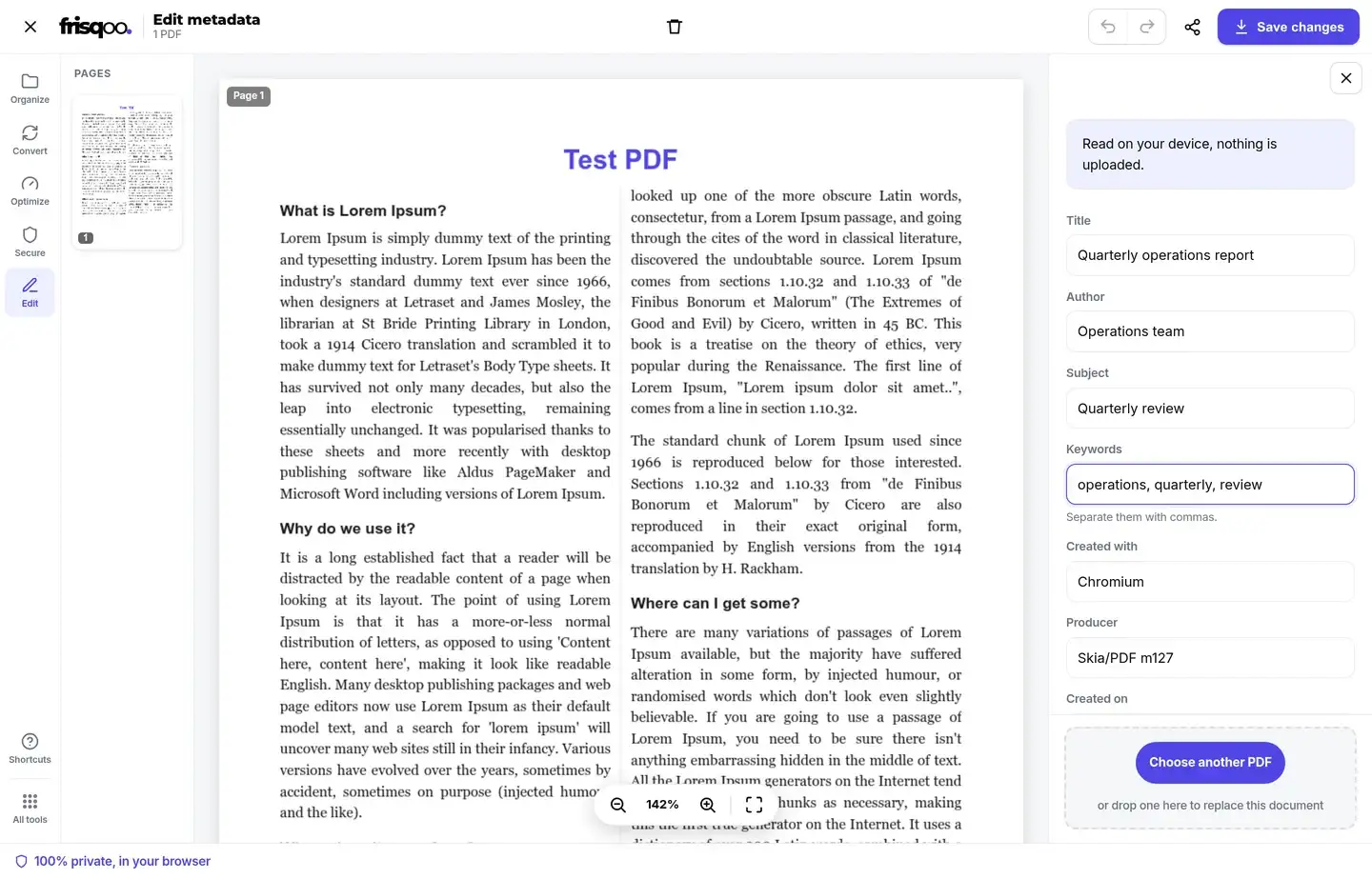
Only fields that differ from the loaded values are sent to the save path. Unchanged fields are omitted rather than deliberately rewritten. The reset control restores the loaded values before saving. Clearing a changed text field writes an empty value, but an empty date control does not erase an existing date individually.
The Info dictionary and XMP packet stay aligned
A PDF can carry common properties in two document-level stores. The older Info dictionary uses flat PDF strings. XMP stores XML and can include many additional namespaces and fields. Applications do not always choose the same source, which explains why an old title can appear in one reader after another program changed only the other store.
Edit mode writes the selected common properties to the Info dictionary. When the source already has a readable XMP packet, the tool patches the matching title, author, subject, keywords, creator tool, producer, and date elements there too. Unrelated XMP properties, namespaces, rights data, history, and PDF/A identification are left in the packet. A file without XMP does not receive a newly invented packet.
This alignment covers the fields owned by the tool. It is not a promise that operating-system indexes, cloud previews, or catalog software will refresh immediately. If a viewer still shows an earlier value, close and reopen the downloaded copy and confirm that the application is reading the new file.
Save and review the metadata copy
Select Save changes after reviewing the edited fields. A source named catalogue.pdf downloads as catalogue-metadata.pdf. The result panel reports Metadata saved, shows the output name and size, and offers another download plus follow-on tools such as Compress PDF, Protect PDF, Sign PDF, and Merge PDF.
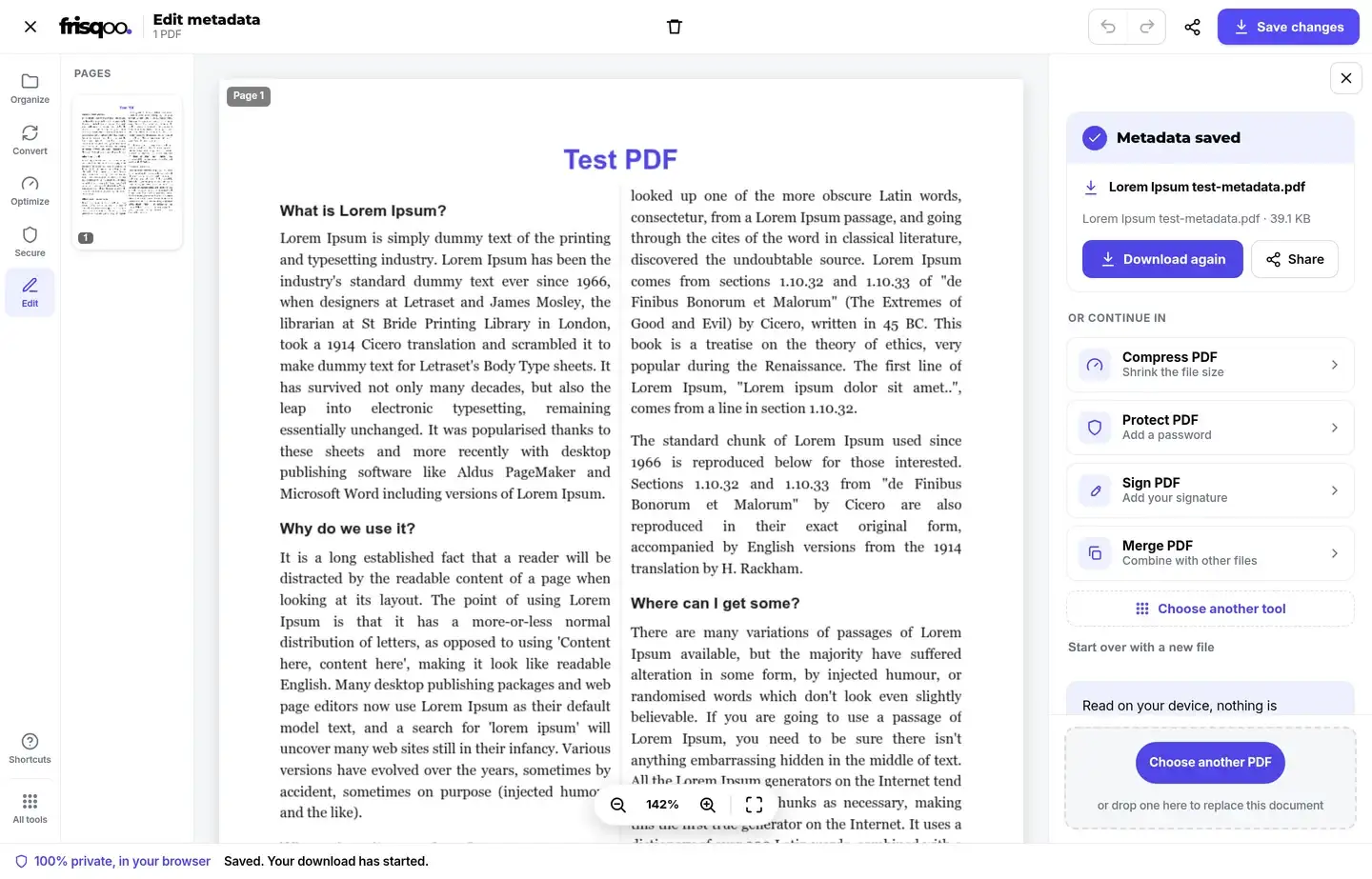
-metadata.pdf.Open the result in the reader used by the recipient. Check document properties, page count, visible content, links, forms, annotations, bookmarks, attachments, and accessibility features when they matter. Any save changes file bytes, so an existing digital signature can become invalid. Metadata work should normally happen before final signing.
Batch edit PDF metadata with selected values
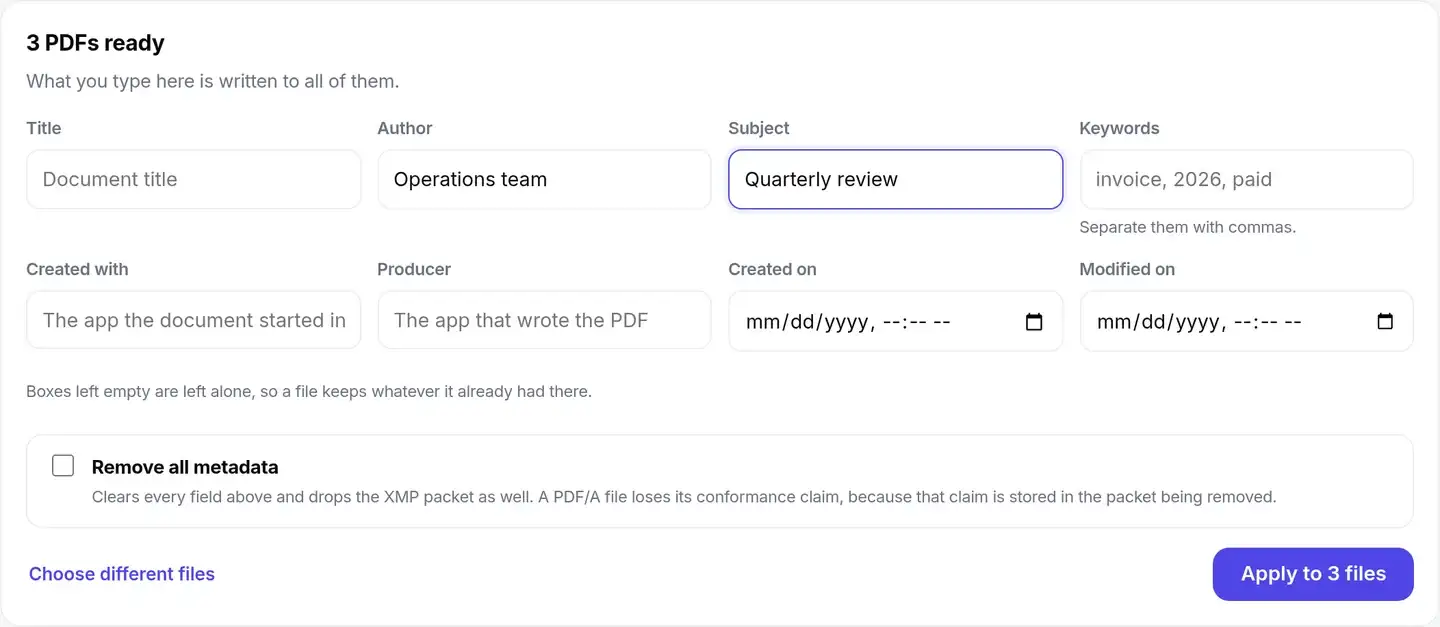
Add two or more PDFs to open batch mode. The fields begin empty because the files can hold different values. Enter an author, subject, keyword list, application name, producer, or date only when that value should be written to every file. Empty fields are left alone in each source, which prevents an untouched property from being blanked accidentally.
Batch mode suits bulk edit metadata work such as assigning one author to a report set or adding a shared subject to exported records. The same entered values are applied sequentially. The workable batch size depends on document complexity, browser memory, and available device resources.
Completed files appear in individual rows with download buttons. Download all as ZIP creates frisqoo_metadata.zip, while each PDF keeps its base name and gains the -metadata.pdf suffix.
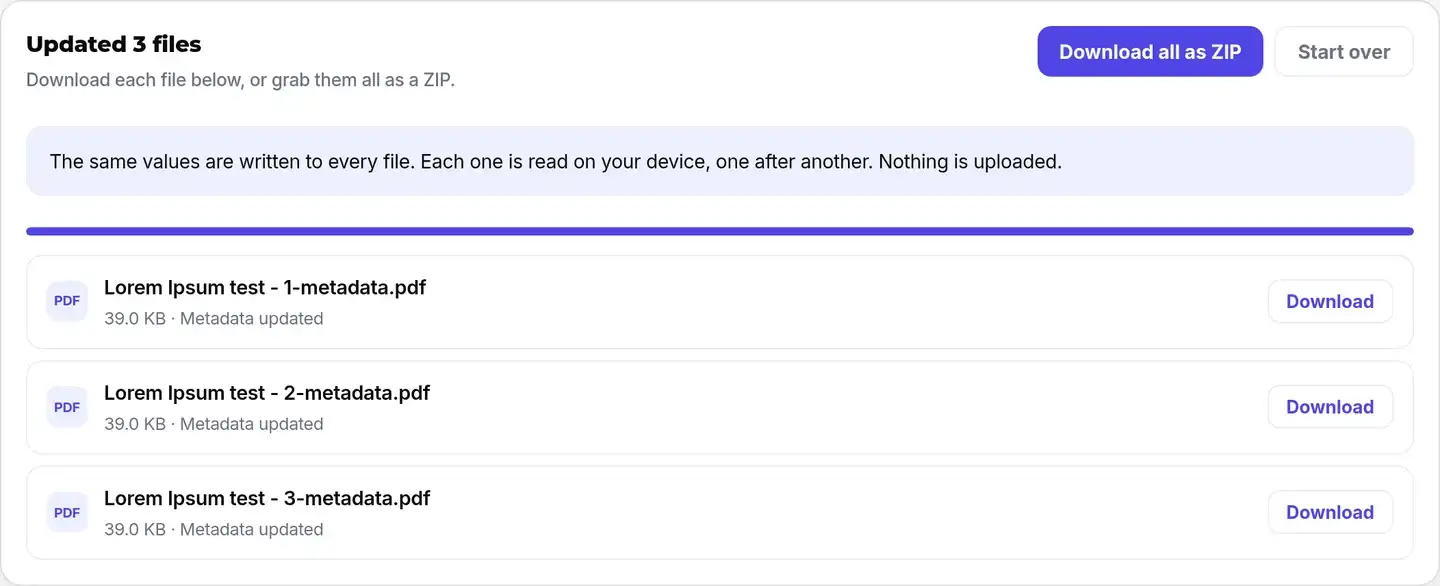
frisqoo_metadata.zip.Remove document metadata with clear limits
Use removal mode to remove PDF metadata from the two document-level stores this tool manages. Remove all metadata clears every entry in the classic Info dictionary and deletes the catalog’s document-level XMP packet. In single-file mode it disables the form because removal replaces field editing. In batch mode it performs the same document-level removal for every selected PDF.
The option is broader than clearing the eight visible boxes because custom entries in the Info dictionary are removed too. Its scope is still narrower than a forensic sanitizer. Text or names printed on pages remain visible. Information can also exist in annotations, attachments, embedded files, image data, form values, comments, layers, scripts, or other PDF objects outside these two stores.
Use Redact PDF when visible page content must be removed. Review attachments and annotations separately when disclosure requirements cover them. A cleaned metadata panel should never be treated as proof that every possible hidden object has been removed.
PDF/A and digital signatures need separate validation
Edit mode patches supported elements in an existing XMP packet and leaves unrelated XML in place. That design avoids replacing conformance identification or history merely to change a title. Even so, saving rewrites the PDF, and archival workflows should validate the result with their required PDF/A checker rather than relying on a page claim.
Removal mode deletes the XMP packet, including PDF/A identification stored there, so the result should not be presented as retaining the source conformance claim. Digital signatures are also byte-sensitive. Keep the signed source, edit metadata before signing, and re-sign only after the final output has been reviewed.
Edit dates and text fields carefully
To change a PDF metadata title, edit the Title box and save a new copy. To change a PDF metadata creation date, use the Created on control. The created and modified controls use the local time shown by the browser. A selected date becomes a JavaScript date for the Info dictionary. When XMP exists, the corresponding value is written in ISO 8601 form; an existing XMP MetadataDate is updated alongside the chosen modification date.
Text values are saved as entered. Keywords keep their comma-separated wording in the Info dictionary, while the XMP subject list is built by splitting the string at commas and trimming each item. If exact capitalization, commas, or dates are important to a records system, compare the downloaded properties with the intended values before filing the PDF.
Edit protected PDFs with a known password
If an open password blocks the source, the shared PDF gate can request a password before the metadata tool receives the file. Enter a password you are authorized to use. The local working copy is decrypted so its values and first page can be read.


The saved -metadata.pdf copy is not automatically protected with the source password. Use Protect PDF after reviewing the properties when the output still needs an open password. An unknown password cannot be bypassed by editing metadata.
Use the metadata editor on a phone or tablet
A current mobile browser can run the tool when it supports the required PDF and download features and has enough memory. The single-file form appears in the compact editor panel, while a batch keeps its shared form on the page. Date input appearance and the final download location follow the browser and operating system.
Large or complex PDFs may be more practical on a desktop. Keep the tab active while files are processed, use a modest batch, and verify the downloaded filenames. The browser may place results in Downloads, Files, or another location chosen in its settings.
Choose editing, removal, or redaction
- Edit fields when the title, author, subject, keywords, application names, or dates are wrong.
- Use batch mode when several PDFs need the same selected values.
- Use Remove all metadata when the Info dictionary and document XMP packet should be cleared.
- Use Protect PDF after review when the new copy needs an open password.
- Do not use metadata removal to conceal words, images, form values, comments, or attachments.
- Do not expect an existing digital signature to remain valid after saving.
FAQs about Edit Metadata
Are my PDFs uploaded to edit metadata?
No. The source files are read and rewritten locally in this browser for this task. Available memory and download behavior still depend on the browser and device.
Which PDF properties can I edit?
The form covers title, author, subject, keywords, creator, producer, creation date, and modification date. Creator is the application where the document began; producer is the software that wrote the PDF.
Why does a PDF store metadata in two places?
PDFs can have a classic Info dictionary and an XML-based XMP packet. Readers may prefer different stores. This tool updates the selected common fields in both when an XMP packet already exists.
What does Remove all metadata clear?
It clears the complete Info dictionary and removes the document-level XMP packet. It does not erase text printed on pages or guarantee removal of information in attachments, annotations, embedded images, or other PDF objects.
Can I batch edit PDF metadata?
Yes. Add two or more PDFs, enter values once, and apply them sequentially to every file. Empty batch fields are left alone. Use Remove all metadata when every file should lose its Info dictionary and XMP packet.
Can I use a password-protected PDF?
When the shared password gate recognizes an open password, enter a password you are authorized to use. The working copy is decrypted locally. The saved metadata copy is not automatically protected again.
Will the saved PDF keep its digital signature?
A metadata save changes the file bytes, so an existing digital signature can become invalid. Keep the signed original and make metadata changes before the final signing step whenever signature validity matters.
Is Edit Metadata safe for PDF/A?
Edit mode patches only supported fields in an existing XMP packet and leaves unrelated packet data in place. Remove all metadata deletes the packet and its PDF/A identification. Validate the downloaded file with the checker required by your workflow.
Can I clear one metadata field?
In the single-file editor, deleting text from a changed text field writes an empty value. Empty date inputs do not clear an existing date individually; use Remove all metadata when both date fields and the rest of the document metadata must be cleared.
Which time zone is used for PDF dates?
The date controls display and accept your device’s local time. When an existing XMP packet is patched, the selected date is written there in ISO 8601 form.
Why is Save changes disabled?
The single-file action stays disabled until a field changes or Remove all metadata is selected. In batch mode, Apply stays disabled until at least one field contains a value or removal mode is selected.
What are the output files called?
Each result keeps the source base name and adds -metadata.pdf. Download all as ZIP creates frisqoo_metadata.zip for a completed batch.
Is this PDF metadata editor free?
The tool is available without sign-up or an added watermark. Practical file and batch limits depend on PDF complexity, browser memory, and the device.