

Extract pages from PDF
Extract pages from PDF free. Extract pages in PDF files by selecting the material you need and downloading it together in one new document. Processing runs locally in your browser. Frisqoo does not upload the source file for processing.
100% private. Your files are processed entirely in your browser and never uploaded.
Keep only the pages you need
Local processing
The source PDF is processed in your browser rather than uploaded for the extraction job.
Visual selection
Numbered thumbnails help you find a chapter, invoice, form or appendix by appearance.
Pages and ranges
Click thumbnails or enter individual page numbers and complete ranges in the Select menu.
Document structure
The output follows source order and remaps supported bookmarks, links and form fields.
Desktop and mobile
Use the same selection workflow in current desktop and mobile browsers, subject to device memory.
One new PDF
The original stays unchanged and the result downloads with -extracted.pdf in its name.
How to extract pages from PDF
- Add one PDF by dropping it into the box above or clicking Choose PDF.
- Click the thumbnails you want to keep, or open Select and enter a list such as
1-3, 8. - Review every page with the colored outline. The main button updates to show the number selected.
- Click Extract pages, then download the new PDF containing only the selection.
The operation creates one new PDF and does not overwrite the source file on your device.

Select pages by thumbnail or page number
After the document opens, every page appears as a numbered thumbnail. The visual grid helps when you recognize the needed cover, invoice, chart, signature sheet or chapter by appearance. Click a thumbnail once to select it and again to clear it.
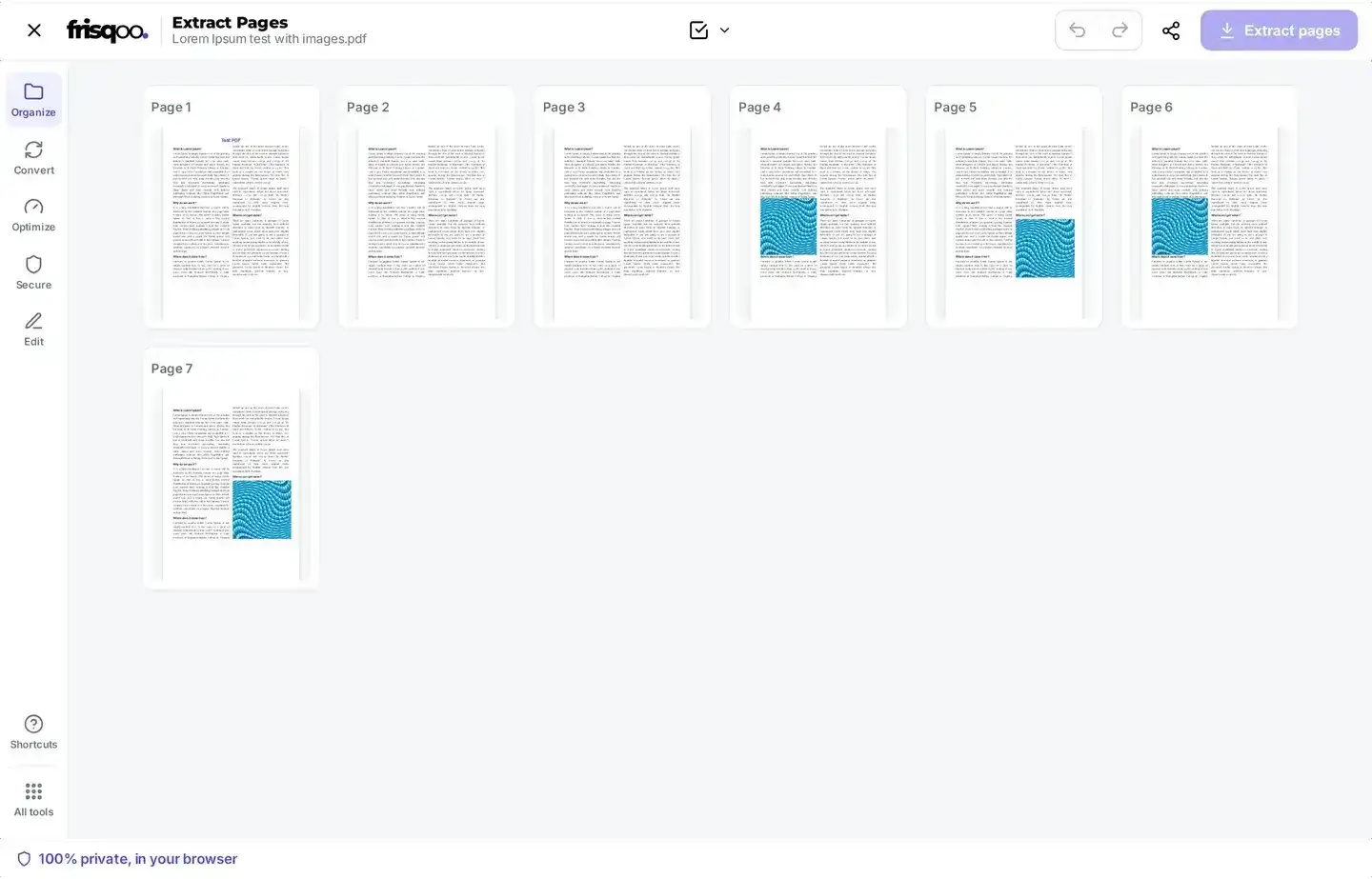
For a longer file, open Select and enter page numbers. Commas separate individual pages, and a hyphen defines a complete range. The entry 1, 4-6, 10 keeps pages 1, 4, 5, 6 and 10. Both endpoints are required, so use 5-12 rather than 5-. Values outside the PDF are ignored.
A reverse range such as 12-5 is interpreted as pages 5 through 12. The action button remains unavailable until at least one page is selected. Its label then reports the count, such as Extract 2 pages, giving you a quick check before continuing.
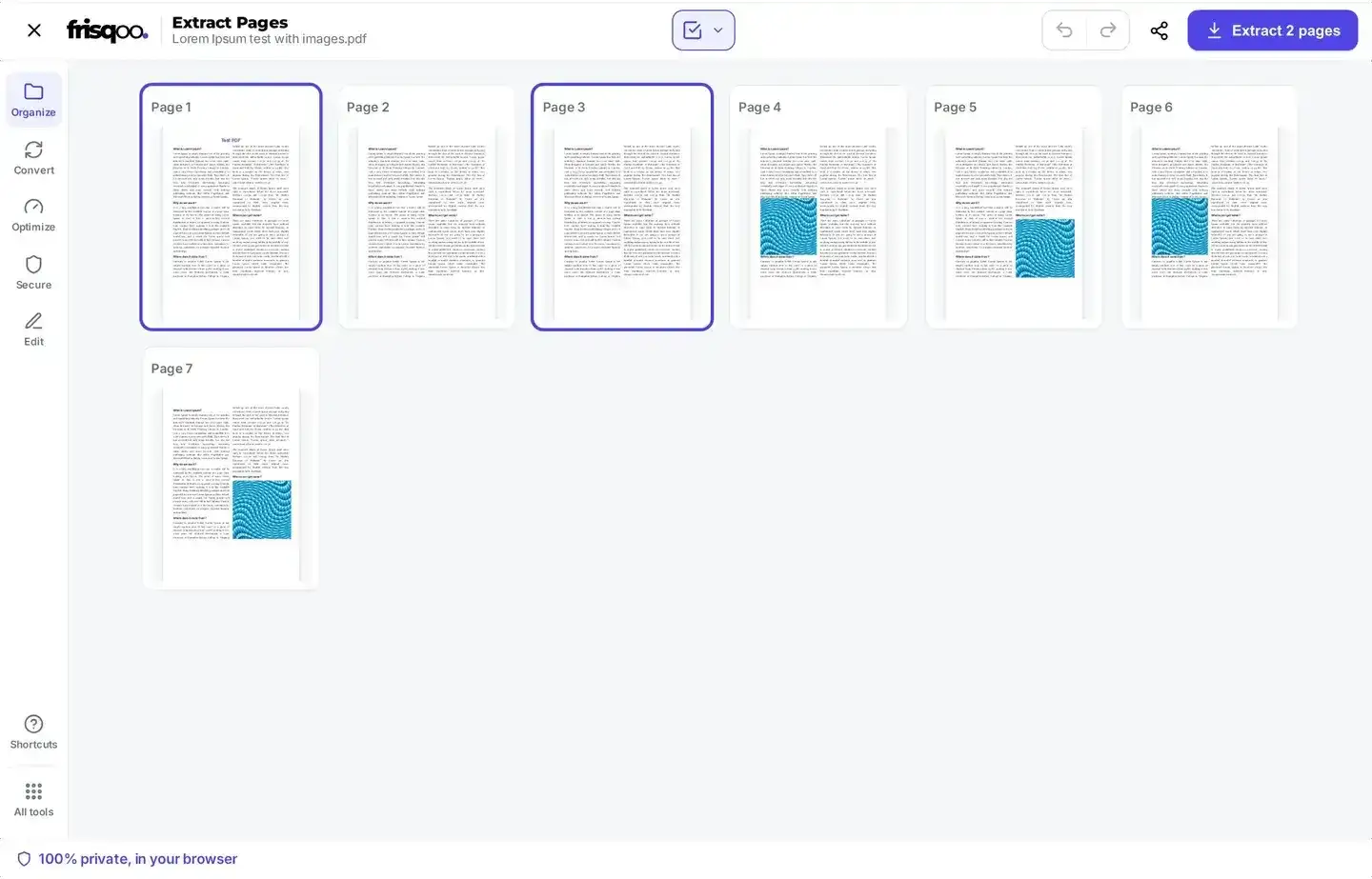
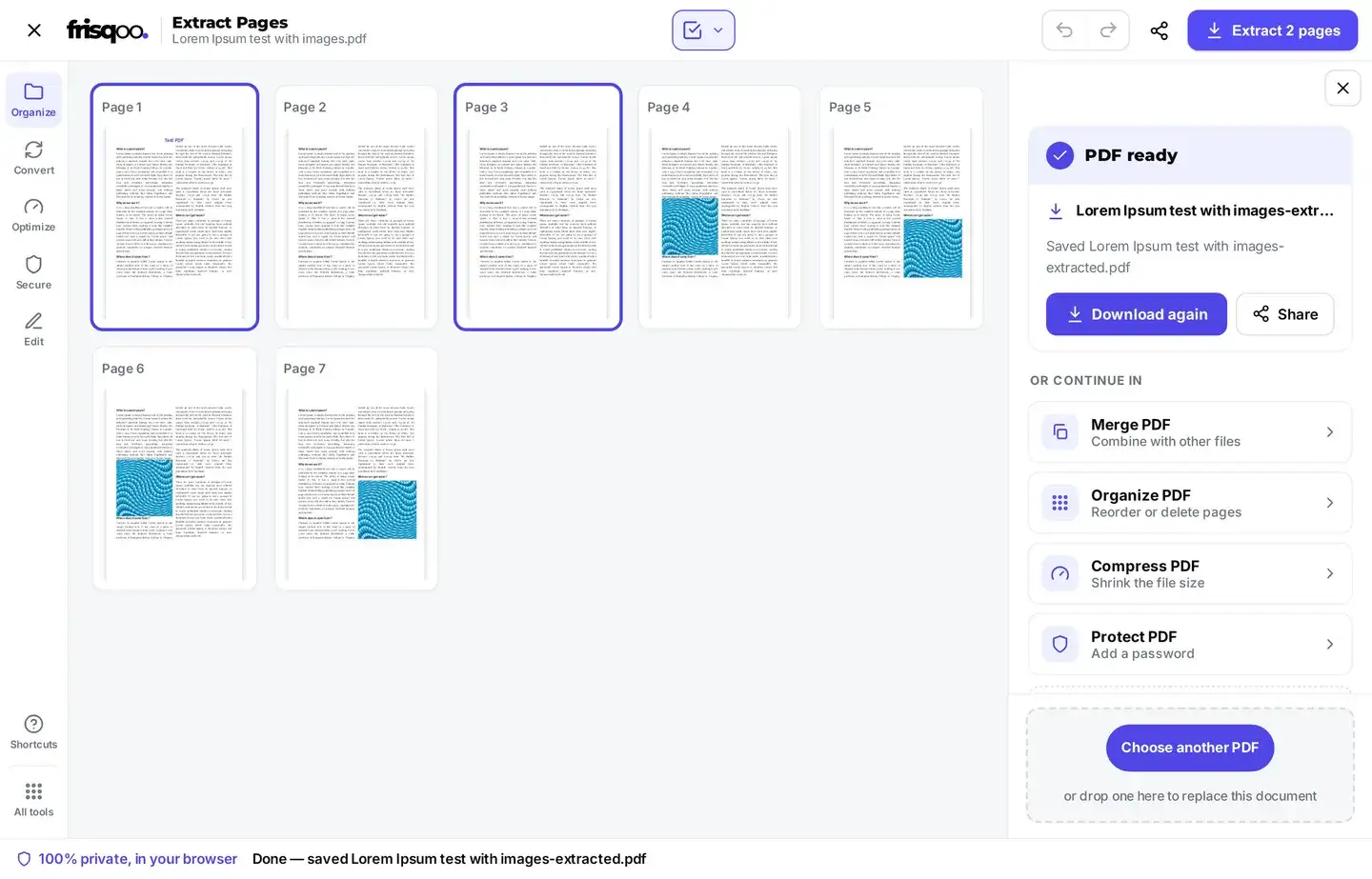
Run the extraction when the selection is correct. The editor copies the selected pages into one new PDF and opens a completion panel with the resulting filename and another download button.
Extract a single page from PDF
To extract single page from PDF, select one thumbnail and confirm that the button reads Extract 1 page. The result is a one-page PDF, useful for saving an invoice, receipt, form, certificate or signed sheet from a larger bundle. The source file remains available with all its pages.
For several non-adjacent pages, click each thumbnail or enter a comma-separated list such as 2, 7, 11. The same workflow can combine separate sections into one shorter document without changing their source order.
Selected pages keep their source order
The selection records the pages to keep while preserving their source arrangement. Selecting page 8 and then page 2 still produces page 2 before page 8. Entering 8, 2 behaves the same way, and selecting the same page more than once produces one copy. Use Organize PDF after extraction when the selected pages need a different order.
Page positions begin at 1 and refer to the PDF itself. They can differ from printed folio numbers in headers or footers. A report whose first visible label is iii or 25 still begins with page 1 in the thumbnail grid.
Plan selections in a long PDF
For a long document, note the first and last page of each needed section before selecting anything. Compare those positions with the thumbnail labels instead of relying only on printed page numbers. This reduces off-by-one mistakes around covers, contents pages and unnumbered inserts.
The Select menu is efficient when page positions are already known, while thumbnail clicks are useful when the choice depends on visual content. Both methods update the same selection. Enter the known ranges first, close the menu, and then adjust individual thumbnails. Before extracting, compare the button count with the total number of pages you expect in the shorter document.
Extract pages from PDF without uploading
The extraction operation runs locally in the browser. Frisqoo does not upload the source PDF for processing, and the selected page numbers remain in the current browser session. Local processing suits statements, contracts and internal reports that you prefer to handle on your own device. The website must load before the tool can start, while downloads remain controlled by your browser and operating system.
Keep the tab open until the ready panel appears. Refreshing or closing it clears the current editor state, so save the result before leaving. On a shared device, move the downloaded file to its intended folder and follow your normal local handling policy.
Separate PDF pages into the right kind of output
Extract Pages creates one PDF containing every selected page. It does not make one output file per page. Use Split PDF when the goal is several files or one file for each page. Use Remove pages when most pages should stay and only a few should be deleted.
A PDF extract pages workflow is most efficient when the desired selection is smaller than the source. If nearly every page is needed, removing the unwanted pages may take fewer clicks. If pages from several PDFs must be combined, extract from each source first and then use Merge PDF.
What the extracted PDF retains
The result is a newly assembled PDF, and the source stays unchanged. The engine copies selected page content and rebuilds supported document-level structures. Review complex interactive files after downloading.
- Selected page text, images, dimensions and visual page content.
- The source order of selected pages.
- Supported web links on selected pages.
- Bookmark entries that can be remapped to selected pages.
- Fillable form fields associated with selected pages.
- Available title, author, subject and keyword metadata from the source.
- Bookmarks that point only to pages left out of the result.
- Digital signature fields, because copying pages invalidates the original signature.
Extract pages from a password-protected PDF
You can extract pages from password protected PDF files when you know the password required to open them. The inline prompt appears before thumbnails are created. Enter the open password and click Unlock; the password is used locally to open the source for this operation.
The extracted PDF is not automatically protected with the source password. If the result still needs an open password, download it and then use Protect PDF to apply protection to the selected-pages file.


Extract pages from PDF on phone and tablet browsers
The workflow is the same in a current mobile browser: choose the PDF, tap the thumbnails, check the selection count and download the result. A larger screen makes a long document easier to review, while phone and tablet limits depend on the memory available to the browser. For a large scan, close unused tabs and keep the device awake until the ready panel appears.
Large files and browser memory
The interface does not set a fixed page-count cap. The practical limit comes from the memory available while the browser reads the source, renders thumbnails and creates the selected-pages PDF. Image-heavy scans usually require more memory than text-focused documents with the same number of pages.
If a large file is slow to open, close unused tabs and applications before trying again. A desktop or laptop may suit hundreds of scanned pages better than a phone. Keep the source until the extracted file has been opened and checked.
Check the extracted file before sharing it
Open the download and confirm the page count, first page and last page. Check transitions between non-adjacent selections so that the shorter document still makes sense. For files with bookmarks, forms or links, test the items that matter to the recipient. The output uses the source base name followed by -extracted.pdf, keeping it separate from the original.
FAQs about Extract pages from PDF
Do my files get uploaded?
Processing runs locally in your browser. Frisqoo does not upload the source file for processing.
How do I select pages to keep?
Click page thumbnails, or open Select and enter page numbers. Separate individual pages with commas and use a hyphen for a complete range, such as 1-3, 8.
Does the order I select pages matter?
No. The result follows the page order in the source PDF. Selecting page 8 before page 2 still produces page 2 before page 8. Repeated selections appear once.
Can I use an open-ended range such as 5-?
No. Enter both ends of each range, such as 5-12. You can reverse the endpoints as 12-5; the tool interprets both as pages 5 through 12.
What happens to the pages I select?
Frisqoo builds a new PDF from the selected pages. Their text, images and page dimensions are copied into the result. Review unusual interactive content after downloading.
What is the difference between extract and remove?
Extract keeps the selected pages. Remove pages deletes the selected pages and keeps everything else.
Can I extract pages from a password-protected PDF?
Yes, when you know the open password. Enter it in the inline unlock box. The extracted PDF is not automatically protected with the original password.
Are bookmarks, form fields and links retained?
The tool remaps supported bookmarks to selected pages, carries links and rebuilds fillable form fields on selected pages. Digital signature fields are dropped because copying pages invalidates the original signature.
Does extraction create one PDF or separate files?
It creates one PDF containing all selected pages. Use Split PDF when you need several files or one file per page.
Is there a page or file-size limit?
The interface does not set a fixed page-count or file-size cap. Available browser and device memory determine how large a document can be processed comfortably.
Can I extract pages from PDF offline?
After the page and its required browser assets have loaded, processing does not require the source PDF to be uploaded. Offline availability depends on what the browser has cached.
Is the tool free?
Yes. It requires no sign-up and adds no watermark. Very large files depend on the memory available on your device.