

Resize images
Resize images to fit the size you need, by width and height, by a percentage, or by the longest side. You can also set a target file size to slip under an upload limit. Add your files, choose how to resize, then tap Resize. It all runs in your browser, so Frisqoo processes the files locally without uploading them.
100% private. Your files are processed entirely in your browser and never uploaded.
Why resize images with frisqoo
Local processing
Processing runs in your browser, and Frisqoo does not upload the source files for this task.
Four ways to resize
Set a width and height, a percentage, the longest side, or a ready-made social media size.
Aspect ratio kept
You set one number and the other side scales to match, so the picture never looks stretched.
Formats stay put
JPG, PNG, WebP, and TIFF are saved in the same format, and PNG keeps its transparent background.
A whole batch at once
Resize many images with the same settings, then download them one by one or together as a zip.
Free, with no caps
No sign-up, no watermark, and no daily quota. Your device memory is the only real limit.
How to resize an image
- Add your images. Drop them on the box or pick them from your device, one or many.
- Choose how to resize. Pick width and height, percentage, or longest side, then type a number. Add a target file size if you need one.
- Press Resize. Check the new size on each image, then download one at a time or all in a zip.
Choose how to resize
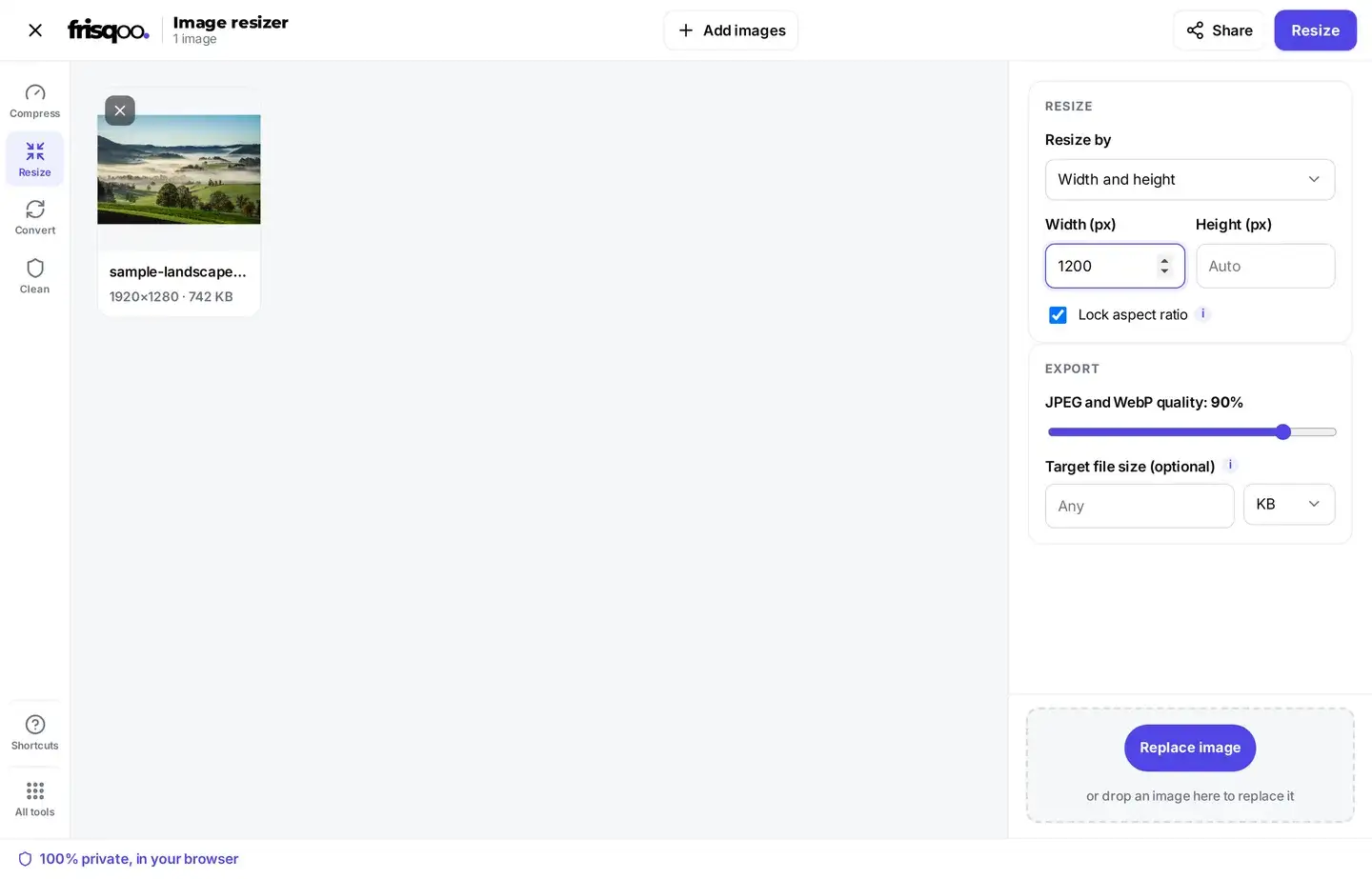
There are four modes. Width and height lets you set either side. A lock keeps the shape. Turn the lock off to stretch to an exact size. Percentage scales every image by the same amount, the easiest way to shrink a batch of mixed sizes.
Longest side sets the longer edge. A tall photo and a wide photo then match on their longest edge. Social media size picks a ready-made size for a platform, such as an Instagram post or a YouTube thumbnail. When the shape does not match, you can fit inside with a background fill, fill the frame and crop, or stretch. You can also set a target file size in KB or MB. Type your number, then press Resize.
One number is enough to start. If you press Resize with every box still empty, the tool stops and asks you to enter a width, a height, or a target file size, so a batch is never processed at its original size by accident.
Each mode remembers a sensible starting point. Percentage opens at 50, so one tap halves every image. Longest side opens at 1600 pixels, a good fit for most web and email use, and it will not grow an image past its real size unless you tick Allow enlarging past the original size first. For JPG and WebP there is an export quality slider that opens at 90, high enough to look clean while still saving space. You can slide it down for a smaller file or up for a sharper one.
Will it stretch or blur my image?
By default the lock keeps the aspect ratio, so nothing is squashed. Turn off Lock aspect ratio only if you want an exact size. That setting lives in width and height mode. Scaling a small image up works too. A much bigger copy can look soft, so enlarge only when you need to. In longest side mode, tick Allow enlarging to scale past the original.
Resize images for email, web, or upload limits
To fit an upload or email limit, set a smaller longest side, such as 1600 pixels. You can also set a target file size in KB and let frisqoo hit it for you. For a website, resize each image to the width it is really shown at. Pages then load faster and still look crisp. For a social post or avatar with an exact width, use width and height mode and type that number.
The saving is usually bigger than people expect. A photo shrunk to the width a page really uses drops to a fraction of its original weight, while still looking crisp on screen.
Email services and web forms often set their own ceiling, sometimes a few megabytes, sometimes far less. Two settings get you under it. A smaller longest side cuts the pixel count, which does most of the work, and a target file size trims the rest by lowering the quality a little. Used together they land a large phone photo well within a tight limit while keeping it clear enough to read.
Resize for Instagram, YouTube and other social sizes
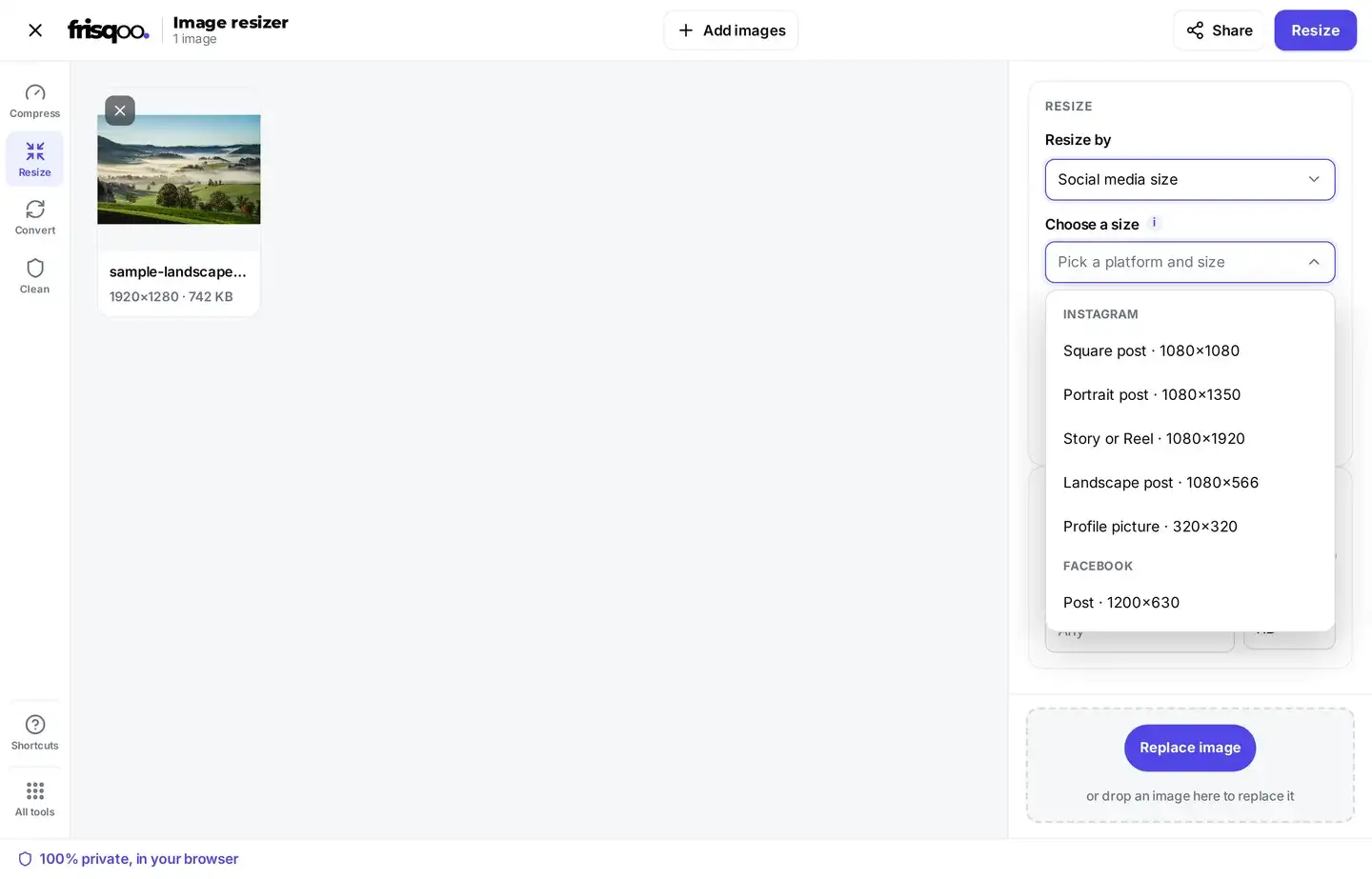
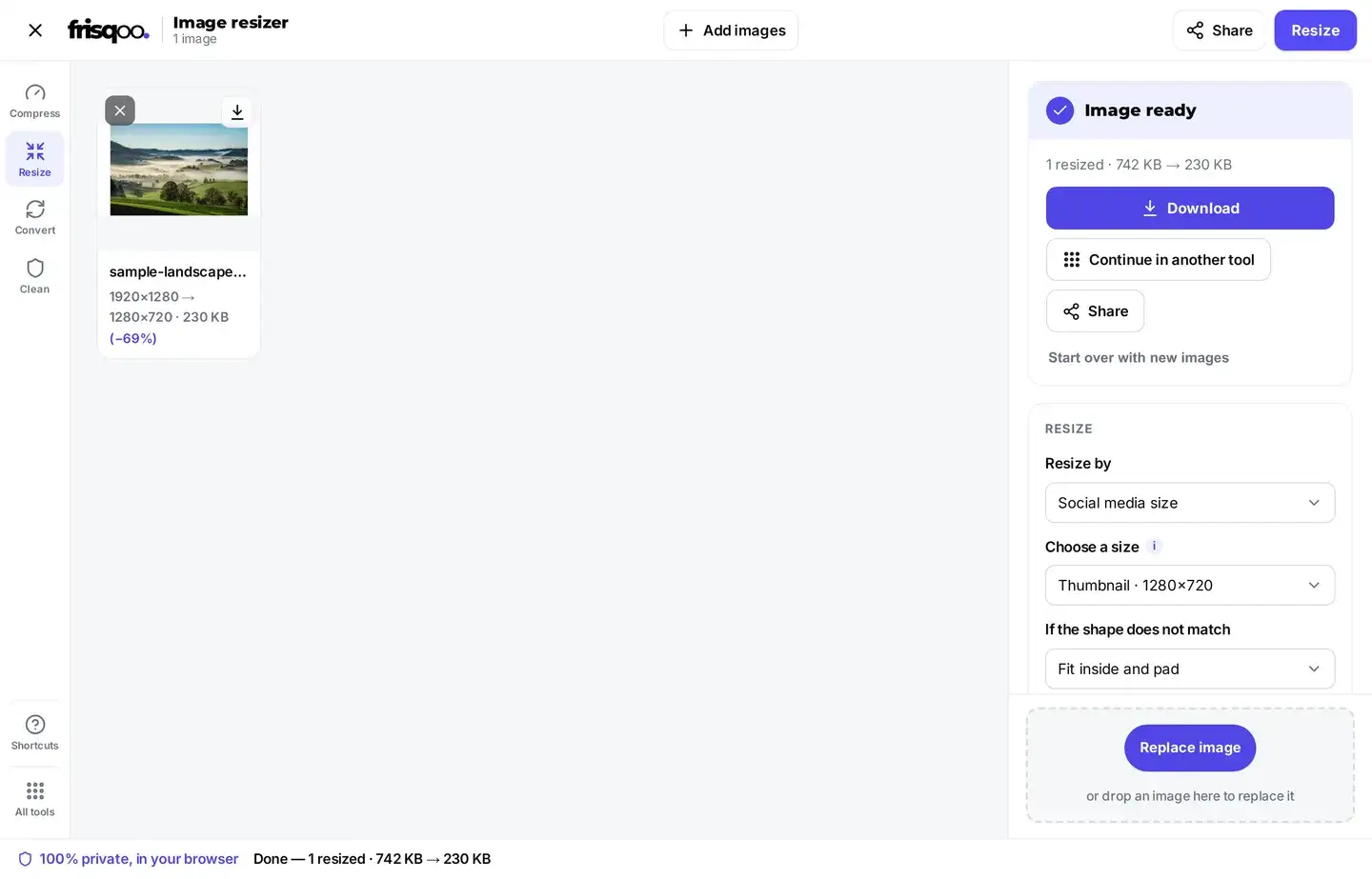
Pick Social media size and the width and height boxes give way to one list. The sizes are grouped by platform. Instagram, Facebook, X, LinkedIn, YouTube and Pinterest are all there, along with plain web and screen sizes such as Full HD and a square icon. Choose an entry and the exact size is filled in for you.
Most presets are a different shape from your photo, so a second choice appears. You can fit inside and pad, fill the frame and crop, or stretch to the exact size. A background fill covers any padding, and it can be transparent for PNG and WebP. A 3:2 photo sent to the YouTube thumbnail preset lands at exactly the preset size and is padded at the sides, because a 3:2 photo cannot fill a 16:9 frame without cropping.
The background colour behind a padded image is yours to choose. Leave it white for a clean frame, match it to your brand, or set it to transparent for a PNG or WebP so the padding disappears against any page. Fill and crop skips the padding by trimming the edges to fill the frame, which suits a busy photo where the centre is what matters.
Resize a whole batch at once
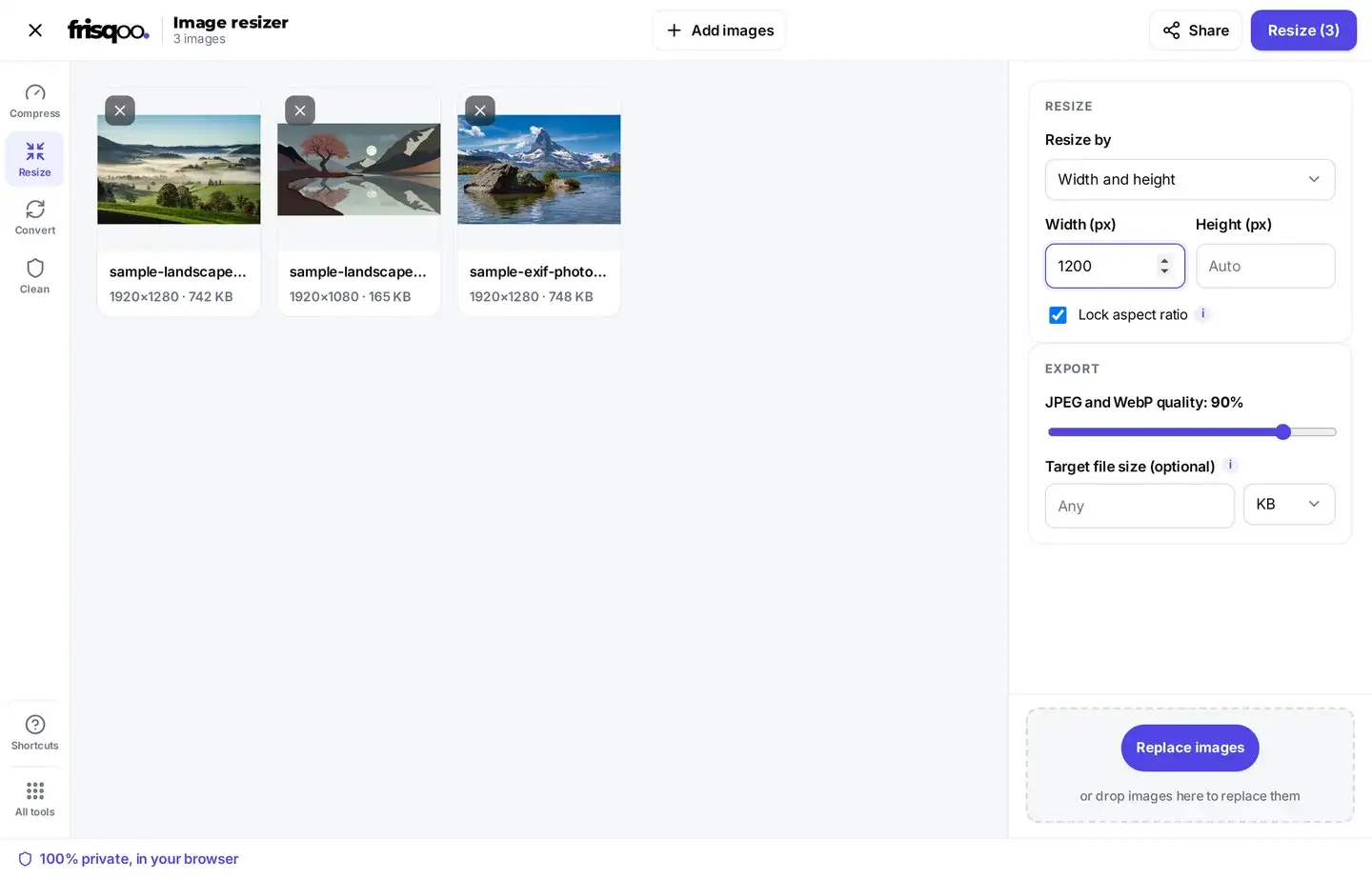
Add as many images as you like. They are all resized with the same settings. A mixed folder of screenshots and photos ends up at one steady width. Each image keeps its own name and shows its own before and after size.
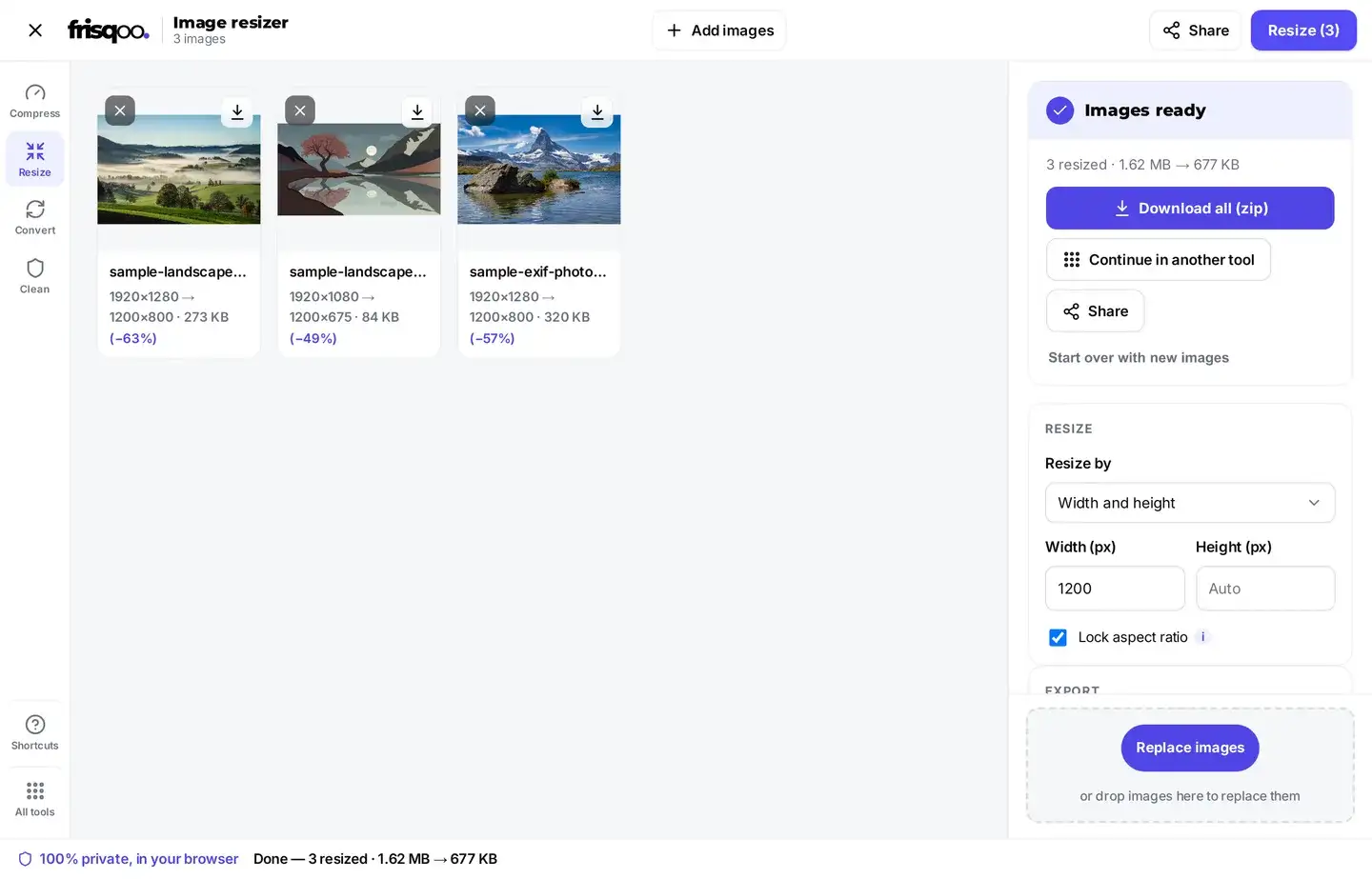
Every image in the queue uses the same mode, the same size, and the same quality, so a folder of mismatched photos comes out even. You can remove a file from the list before you start, or add more at any time. When the run finishes, each row shows its own new size next to the old one, so you can check every file before you save.
With more than one image, the download button becomes Download all (zip). The set saves as frisqoo_resized-images.zip, and every file keeps its own name inside. A file the tool cannot rewrite is marked kept as is and returned untouched, so a mixed batch is never reported as smaller than it really is.
Formats you can resize
Five formats are resized in place, and three come back untouched.
- JPG is resized and saved as a JPG.
- PNG is resized and keeps its transparent background.
- WebP is resized and saved as a WebP.
- TIFF is resized and stays a TIFF.
- BMP is resized and saved as a PNG, because a browser cannot write BMP back out.
Three formats come back as the same file you added. Each is marked kept as is in the summary:
- GIF, so an animation keeps every frame.
- SVG, because a vector already scales to any size on its own.
- AVIF, which a browser cannot write back out yet.
Watch the count in the summary line when you resize a mixed folder. It tells you how many files were really rewritten, so a batch is never reported as smaller than it is.
Resize an image to 100 KB or 20 KB
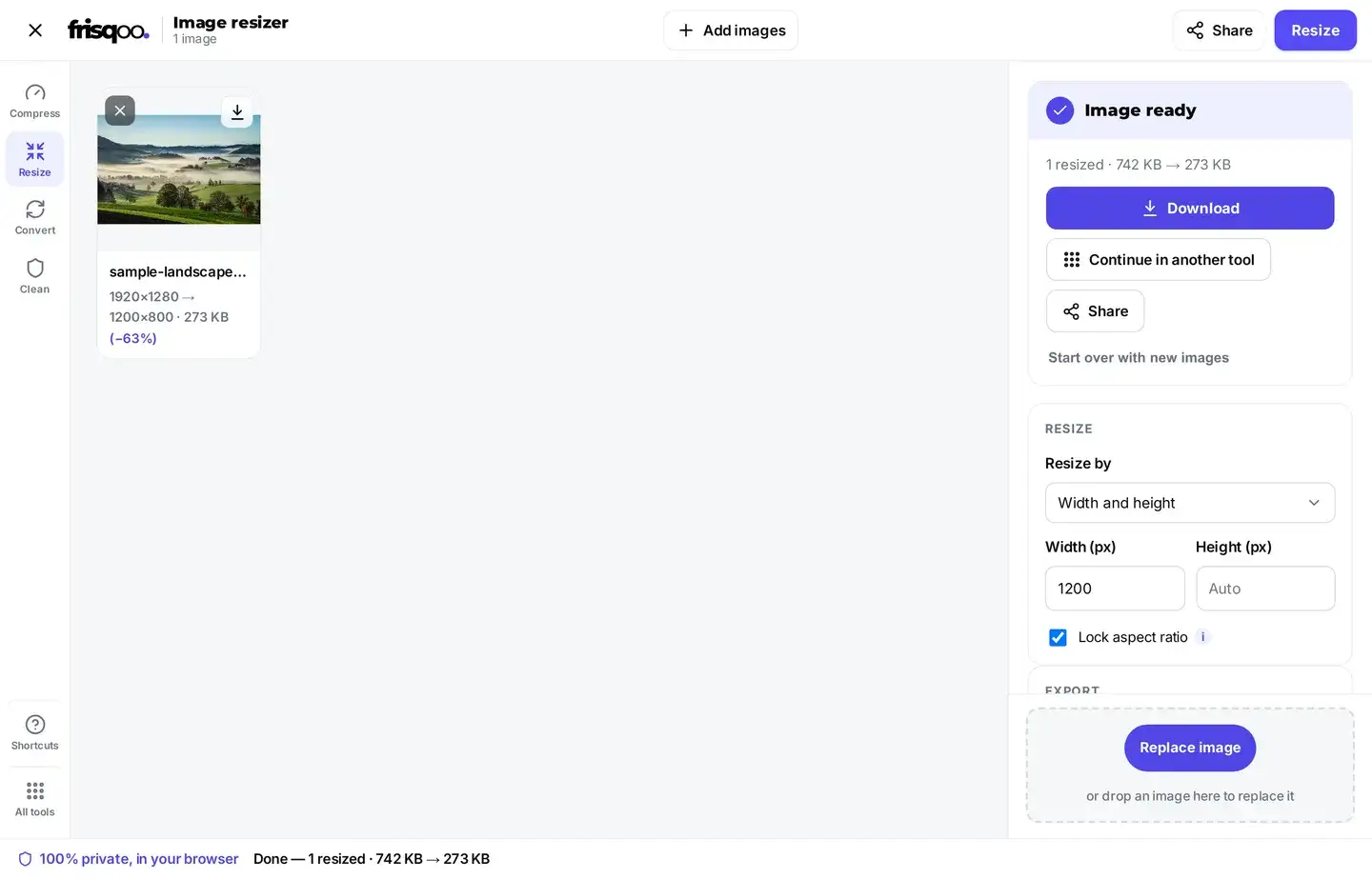
Some upload forms cap the file size rather than the width. Set Target file size in KB or MB and frisqoo works down to it for you. It lowers the JPEG or WebP quality in small steps until the file fits.
The target works on JPG and WebP, the two formats a browser can re-encode. PNG, TIFF, GIF and SVG keep their normal size, since a browser cannot trade their quality for a smaller file in the same way. If you need a PNG photo under a strict limit, save it as a JPG first, then set the target.
Pick a width first, then a target. A tiny target on a wide image has to drop a lot of quality. A narrower width does more of the work, so the picture still looks clean.
Make an image bigger
You can scale up as well as down. In width and height mode, type a number larger than the original. In percentage mode, use anything above 100. In longest side mode, tick Allow enlarging past the original size first.
A bigger copy will never gain detail that was not there. Small jumps look fine. A big jump looks soft. If you need a large print, start from the biggest file you have.
Resize on a Mac, on Windows, or in Paint
Every device has a built-in way to do this. On a Mac, open the photo in Preview, then use Tools and Adjust Size. On Windows, open it in Paint and use Resize. In Photoshop it is Image size.
Those all work on one file at a time. This page runs in the browser, so it works the same on a phone, and it takes a whole batch in one go. Nothing is installed and Frisqoo does not upload the source file for processing.
Is it safe to resize images here?
Yes. Many free image tools upload your photos to their own servers to do the work. This tool does not. Your images are read and resized right inside your browser. They are never uploaded, stored, or seen by anyone else. That makes it a widely compatible choice for personal photos, ID scans, and anything else you would rather keep off a server you do not control.
Common ways people use Resize images
- Shrinking phone photos so they fit an email or upload limit.
- Setting product or blog images to one width so a page loads faster.
- Scaling a whole batch down by a percentage before sharing them as a zip.
- Making a large scan or TIFF smaller without changing its format.
- Setting a target file size in KB to slip under an upload limit.
- Resizing a logo to an exact width while keeping its transparent background.
FAQs about Resize images
How do I resize an image?
Add your images, pick a mode such as width and height or percentage, type a number, then press Resize. Each image is resized on your device, and you can save them one by one or all together as a zip.
Is it free to use?
Yes, it is free, with no sign-up and no watermark. Add as many images as you like. The only real limit is your device memory, since all the work happens on your device.
Are my images uploaded anywhere?
No. They are read and resized by your own browser. Nothing is sent to a server, so even private photos stay with you.
Does it keep the aspect ratio?
Yes, by default. In width and height mode you can fill one box and let the other scale to match, or turn off Lock aspect ratio to stretch to an exact width and height. The percentage and longest side modes always keep the shape.
Can I make an image bigger?
Yes. In width and height or percentage mode, a number larger than the original scales the image up. In longest side mode, tick Allow enlarging first, so a photo is never blown up by mistake.
What do the modes mean?
Width and height lets you set either side, with a lock to keep the shape. Percentage scales every image by the same amount, which is handy for a mixed batch. Longest side sets the longer edge and scales the rest to match. Social media size makes an image at an exact preset size.
Can I resize for Instagram, Facebook, or other social sites?
Yes. Pick Social media size, then choose a platform and size, such as an Instagram square post, a Facebook cover, or a YouTube thumbnail. frisqoo makes an image at that exact size, ready to post.
What is the background fill for?
When a preset shape does not match your image, Fit inside keeps the whole picture and fills the empty edges with a background colour you pick, including transparent for PNG and WebP. You can also fill the frame and crop, or stretch to the exact size instead.
Which formats can I resize?
JPG, PNG, WebP and TIFF are resized and saved in the same format. A BMP is resized and saved as a PNG, since a browser cannot write BMP. GIF, SVG and AVIF are kept at their size with a note.
Why does nothing happen when I press Resize?
Because no size has been set yet. In width and height mode the boxes start empty, so the tool asks you to enter a width, a height, or a target file size first. Fill in one of them and press Resize again.
How do I resize an image without losing quality?
Making an image smaller always drops pixels, but at the default quality of 90 the result looks the same on screen. Keep the lock on so the shape stays right, and avoid scaling a small image up.
Can I resize many images at once?
Yes. Add as many as you like, resize them together with the same settings, then download them one by one or as a single zip.