

Convert to JPG
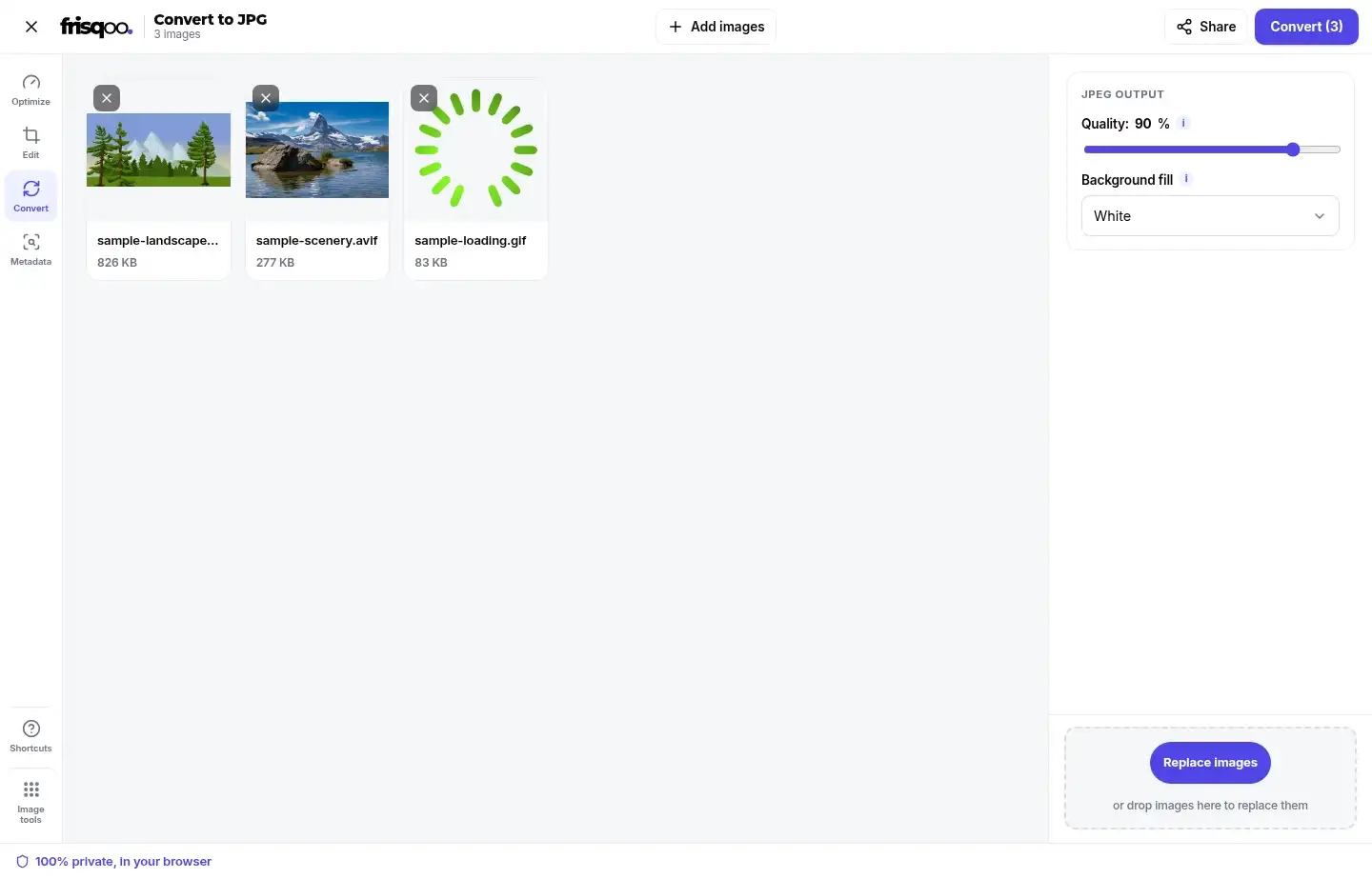
Turn almost any image into a JPG. Add PNG, WebP, AVIF, GIF, BMP or JPG files together, set the quality and a background colour for any transparent areas, then press Convert. Everything runs in your browser, so Frisqoo processes the images locally without uploading them.
100% private. Your files are processed entirely in your browser and never uploaded.
Why convert to JPG with frisqoo
Local processing
Processing runs in your browser, and Frisqoo does not upload the source files for this task.
Any format, one batch
PNG, WebP, AVIF, GIF, BMP and JPG can all go in together. No need to find a separate converter for each one.
Background you choose
Transparent areas are filled with white, black, or a custom colour, since a JPEG cannot be see-through.
Quality you control
Set the JPEG quality to trade file size for sharpness, or keep it high for photos that look the same.
Widely accepted files
JPG opens everywhere. It is the widely compatible choice for forms, portals, and older software that rejects newer formats.
Free, with no caps
No sign-up, no watermark, and no daily quota. Your device memory is the only real limit.
How to convert an image to JPG
- Add your images. Mix PNG, WebP, AVIF, GIF, BMP and JPG files in the same batch.
- Set the JPEG quality and choose the colour that will replace transparent areas.
- Press Convert, then download one JPG or save the whole batch as a zip.

When converting to JPG is the right choice
JPG is useful when a form, portal, print shop or older program refuses a newer image format. It is also a practical format for photographs because it can make a detailed picture much smaller than a lossless PNG.
Keep the original file as well. PNG is better for sharp text, logos and transparent graphics. WebP and AVIF are often smaller for websites. Convert to JPG when wide support or a lighter photo matters more than transparency and lossless storage.
Formats you can convert to JPG
- PNG: useful for turning a heavy photo PNG into a smaller JPG.
- WebP: useful when an app or upload form does not accept WebP.
- AVIF: decoded by a current browser and saved as a standard JPG.
- GIF: converted as one still frame because JPG cannot animate.
- BMP: converted from an uncompressed or lightly compressed bitmap.
- JPG, JPEG and JFIF: re-encoded with the quality and background settings you choose.
Choose a JPEG quality that fits the job
The quality control starts at 90. A high value keeps more fine detail but usually makes a larger file. A lower value can help with an email or upload limit, but may soften hair, leaves, fabric and small text.
Start at 90 for a photo that should look close to the source. Lower it in small steps when file size matters. The result card shows the old and new sizes, so you can judge the real trade-off instead of guessing.
Quality does not improve a weak source. Raising the setting cannot restore detail that was already removed by an earlier JPEG, WebP or AVIF save.
What happens to transparent areas
JPEG has no alpha channel, so it cannot store clear or partly clear pixels. The converter fills those areas before it writes the JPG. White is the default. You can choose black or enter a custom colour when the image must sit on a known background.
This choice matters for logos, cut-outs, icons and screenshots. A white fill works well for documents and most shop pages. A custom colour avoids a visible box when the final page uses another solid background.
Keep the PNG, WebP or AVIF original if transparency must remain editable. Converting to JPG makes the fill permanent in the new file.
What the converter does to each image
Your browser decodes the source into pixels, paints any transparent areas onto the chosen background and writes a new JPEG. The work begins only after you press Convert. The file is not sent to a conversion server.
Pixel width and height stay the same. Conversion does not crop, rotate or resize the picture. Use Resize image when an upload form needs a different width, height or target file size.
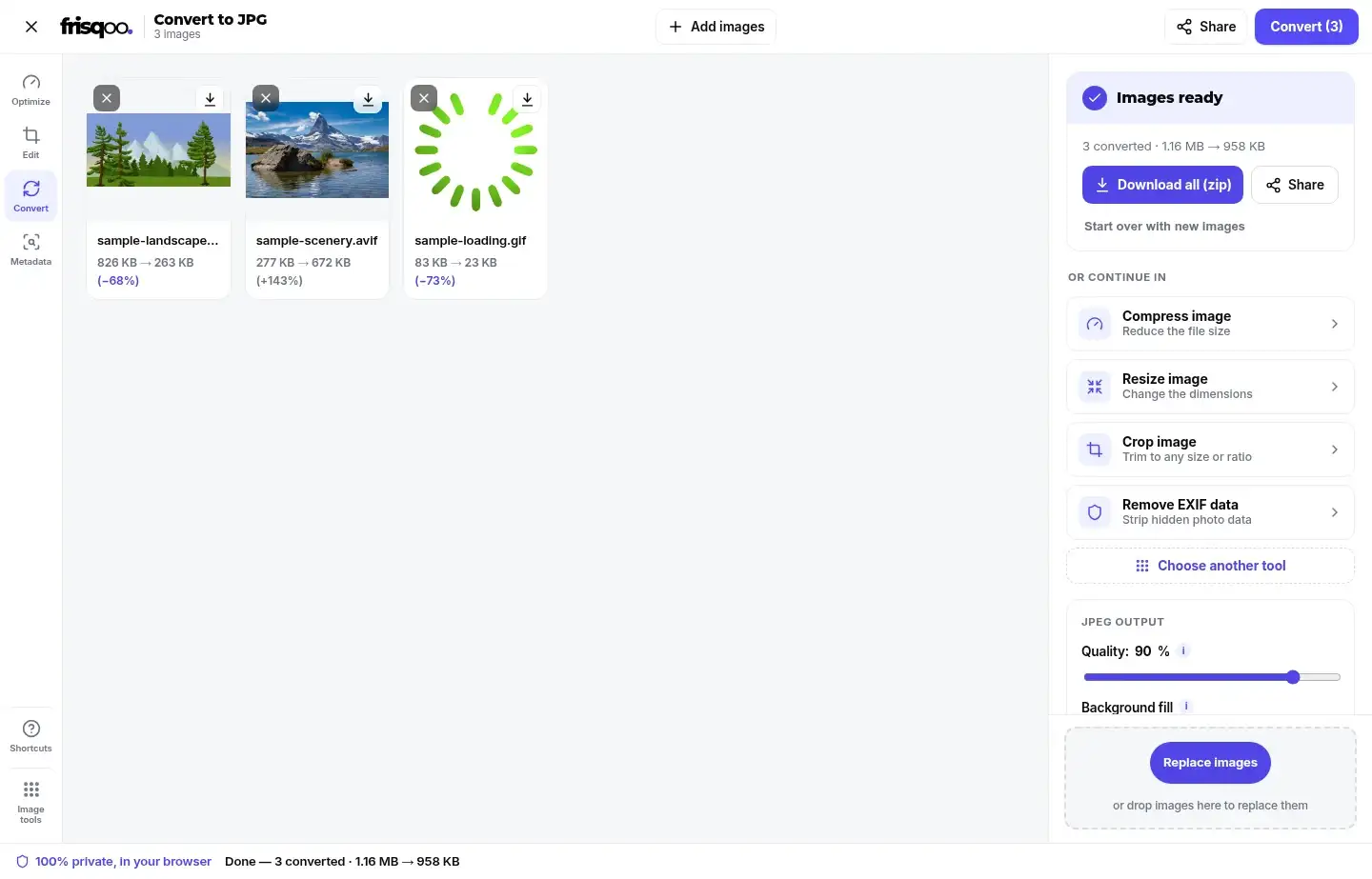
The output keeps the original base name and changes the extension to `.jpg`. Each finished card shows the old size, the new size and its own Download control.
Why converting can make a file smaller or larger
A photo stored as PNG or BMP often becomes much smaller as JPG because JPEG is designed for smooth colour changes. A highly compressed WebP or AVIF may become larger because those formats can store the same picture more efficiently.
The result depends on image detail, dimensions, source compression and the quality setting. There is no honest fixed saving. Check the numbers shown on the result card and keep the source when the JPG is not useful.
Animated GIF becomes a still JPG
JPG cannot contain animation. When you add an animated GIF, the converter writes one decoded frame as a still picture. The movement, frame timing and loop settings are not carried into the result.
This works for a thumbnail or document image. Keep the GIF when the animation must continue, or use a frame extraction tool when you need every frame.
Metadata is not copied into the new JPG
The new JPEG is built from decoded pixels. Camera details, GPS coordinates, comments and other source metadata are not copied across. This can be useful for sharing, but it also means conversion is not a metadata-preserving archive step.
Keep the original when its capture details matter. Use the EXIF data viewer when you want to inspect a photo before deciding what to share.
Convert mixed image formats in one batch
You can add PNG, WebP, AVIF, GIF, BMP and JPG files together. One quality setting and one background choice apply to the batch, which keeps the results consistent.
After conversion, download files one by one or choose Download all (zip). The batch is saved as frisqoo_convert-to-jpg.zip, with each supported source written as JPG.
Large images use browser memory. If an older phone slows down, use smaller groups instead of converting a full folder at once.
Split a batch when images need different settings
One quality setting and one background choice apply to every file in a batch. That works well when the images have a similar purpose, but mixed content may need more care. Group photographs together when they can share one quality level. Put screenshots and graphics in another batch if their sharp edges need a higher setting.
Transparent logos may also need separate batches when they will be placed on different background colours. Test one representative image before converting a large folder. Check fine detail, text and the filled background, then use the same settings for the rest of that group. Smaller, consistent batches make the results easier to review and reduce the chance of repeating the whole job.
Convert images to JPG on a phone
Open the page in a current mobile browser, tap the drop area and choose images from Photos or Files. Set the quality and background, press Convert, then use the browser download control to save a JPG or the zip.
No app or account is required. Since the phone does the work, smaller batches are safer on an older device or when several apps are open.
Is it safe to convert images here?
The conversion runs in your browser. Your images are not uploaded to a conversion server or stored there after the job. This is useful for personal photos, draft designs and document scans.
The first visit still downloads the page and its tool code. After that code is available, the image work happens on your device. Save the downloads to the right folder when other people share the device.
Check colour and sharp edges before you delete the source
JPEG stores colour differently from some source formats. Most everyday photos look as expected, but strong reds, smooth skies and graphics with tiny text deserve a quick check. Open the downloaded JPG at full size and compare it with the source before using it for print or a product listing.
Hard edges can show faint ringing at lower quality values. This is most visible around dark letters on a light background. If a screenshot or diagram looks fuzzy, raise the quality or keep it as PNG. JPG is strongest with photographs, not with every kind of image.
Avoid repeated JPEG conversions
JPEG compression is lossy. Each save can discard a little more detail, even when the file was already a JPG. One conversion from a clean original is normally better than several conversions passed between apps.
Use the PNG, WebP, AVIF or camera original as the master when possible. Make the JPG for delivery, then return to the master if you need another size or quality later. Converting a JPG again is useful only when a service requires a different setting or when you must flatten a background.
How to check the finished JPG
Open the download and confirm the width, height, background colour and orientation. Zoom into faces, text and high-contrast edges. If the file is too large, convert the source again with a slightly lower quality. If it looks soft or blocky, move the quality upward.
Also test the JPG in the form or app that asked for it. A correct extension does not guarantee that a service accepts every file size or pixel dimension. The converter changes the format, while the resize and compression tools handle those separate limits.
For an important submission, keep one untouched source and one tested JPG. Clear file names make it easier to identify the approved version later.
Common uses for Convert to JPG
- Opening a WebP or AVIF image in older software.
- Preparing a photo for a form that accepts JPG only.
- Making a heavy PNG photograph easier to email.
- Choosing a solid background for a transparent product image.
- Converting a mixed folder and downloading one zip.
FAQs about Convert to JPG
How do I convert an image to JPG?
Add your images, set the JPEG quality, then press Convert. Every image is converted on your own device, and you can save them one by one or all together as a zip.
Which formats can I convert to JPG?
PNG, WebP, AVIF, GIF, BMP and JPG. You can mix them freely in one batch, and each file is converted with the same quality and background settings.
Is it free to use?
Yes. There is no sign-up, watermark or daily quota. Browser memory is the practical limit because the images are processed on your device.
Are my images uploaded anywhere?
No. They are read and converted by your own browser. Nothing is sent to a server, so even private images stay with you.
What happens to a transparent background?
A JPEG cannot store transparency, so any see-through areas in a PNG, WebP or AVIF are filled with the background colour you pick. White is the default, and you can choose black or a custom colour.
Should I use one quality setting for every image?
Use one setting when the images have similar content. Split photos, screenshots and transparent graphics into separate batches when they need different quality or background choices.
Will converting lose quality?
JPEG is a lossy format, so there is a small change. Keep the quality at 90 percent or higher and a converted photo keeps a close visual match to the original to the eye. Converting a JPG again also re-encodes it, so avoid repeated round trips.
Can I convert many images at once?
Yes. Add as many as you like, convert them together with the same settings, then download them one by one or as a single zip.
Does it work on my phone?
Yes. It runs in a current browser on a phone, tablet or computer. Smaller batches are more reliable on older devices.
Does converting an animated GIF keep the animation?
No. JPG is a still-image format, so the converter saves one decoded frame. Keep the GIF when the motion matters.
Are the image dimensions changed?
No. Conversion keeps the decoded pixel width and height. Use the resize tool when the JPG needs different dimensions.
Is image metadata copied to the JPG?
The converter rebuilds the image from decoded pixels. Camera details, GPS data and other source metadata are not copied into the new JPG.
Should I convert a JPG to JPG again?
Only when you need a new quality setting or background treatment. Each JPEG save is lossy, so repeated conversions can soften detail.