

Flatten PDF
Make filled form fields and selected annotations part of the PDF page, so they stop behaving as separate interactive objects. Inspect one file in the editor or flatten several PDFs as a batch. Processing runs locally in your browser, and Frisqoo does not upload the source file for processing.
100% private. Your files are processed entirely in your browser and never uploaded.
Flatten PDF fields and annotations
Local processing
The source PDF is inspected and rewritten in your browser without being uploaded to Frisqoo.
Inspect before flattening
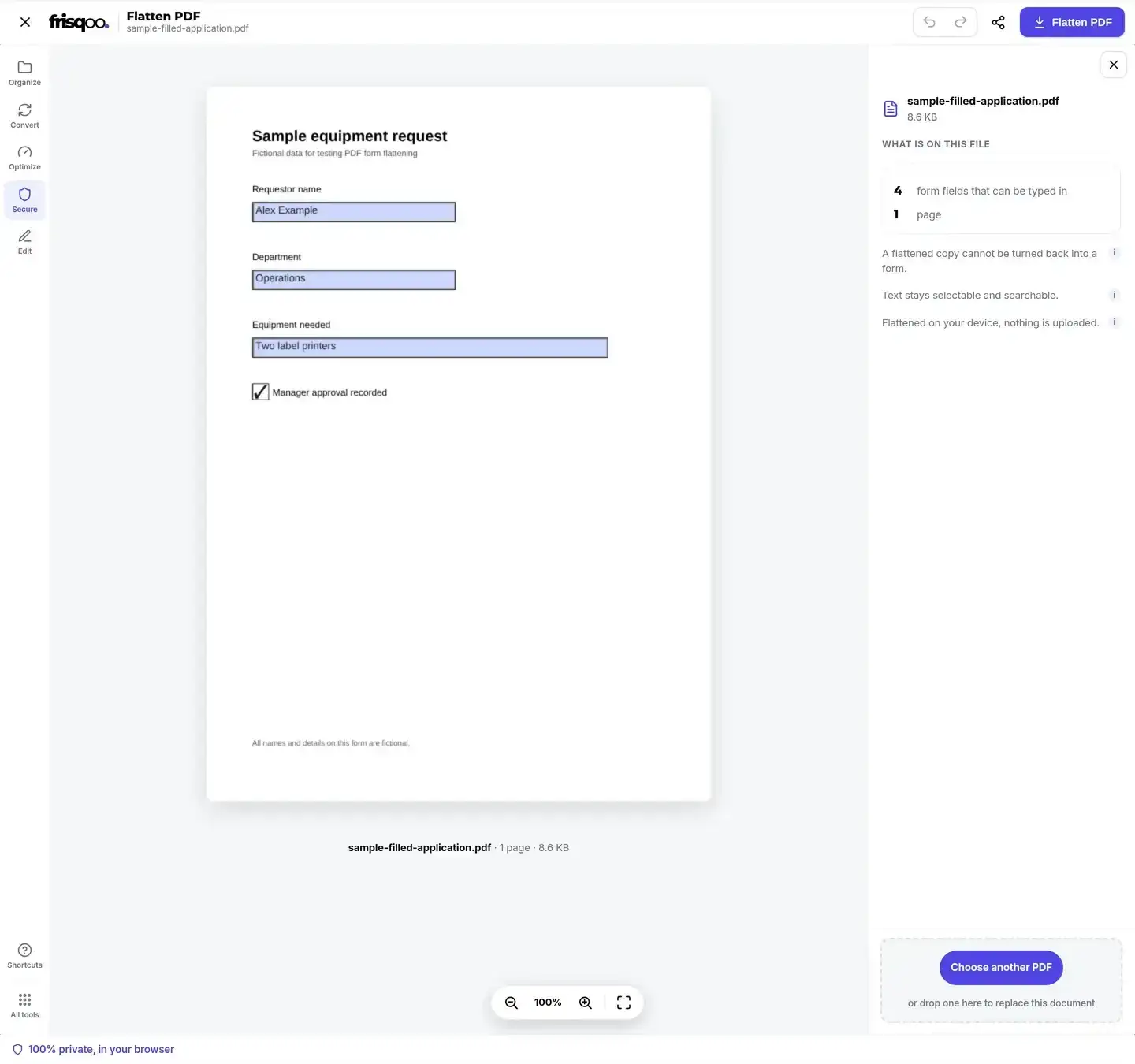
See the number of form fields, visible marks, and pages before choosing the action.
Fields and marks
Flatten fields with comments, highlights, stamps, and ink, or keep the marks editable.
Page text remains text
The default process rewrites PDF objects without rasterizing every page.
Single or batch
Review one file in the editor or process several PDFs and download a ZIP.
Separate output
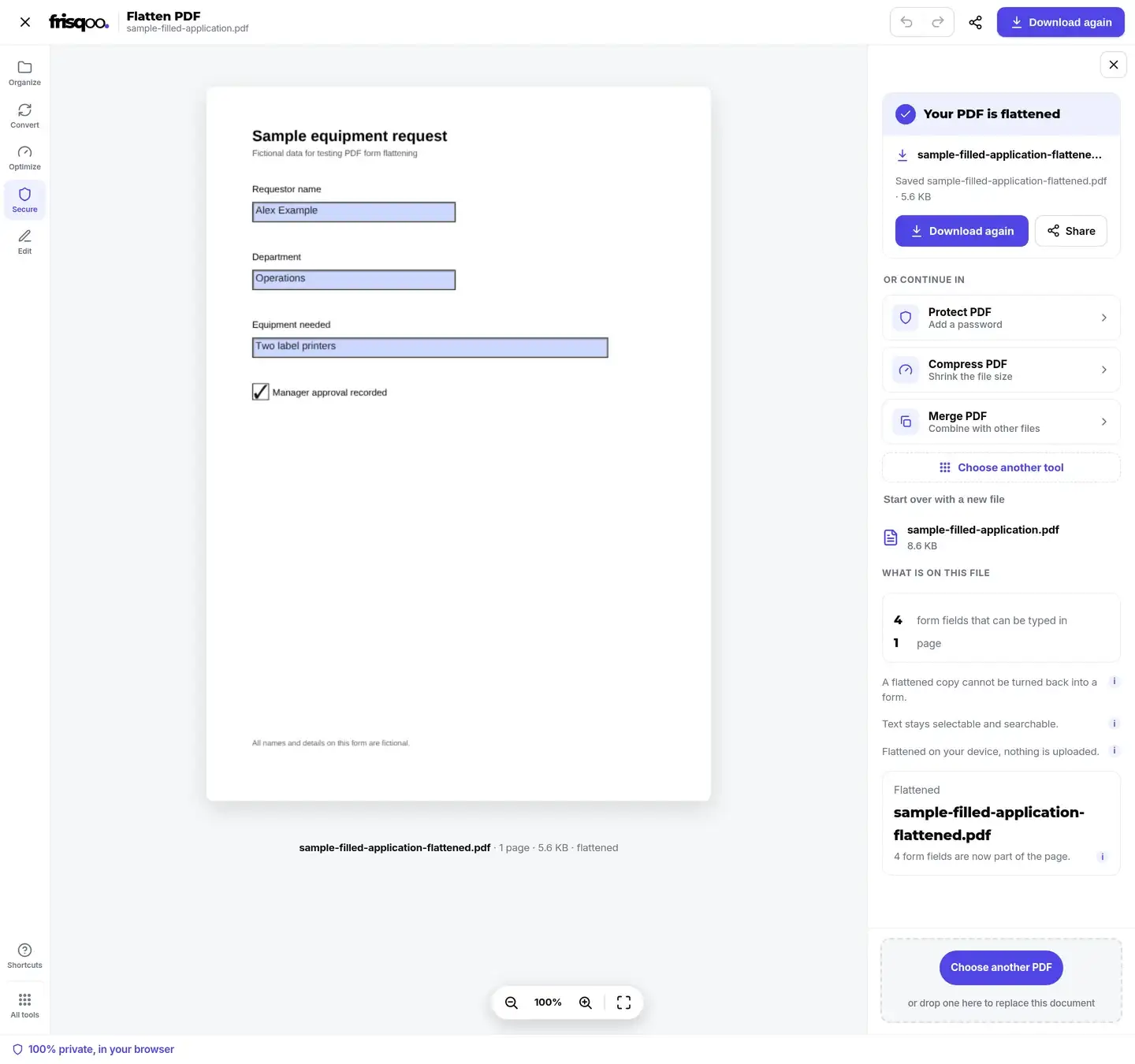
The source stays unchanged and the new filename ends in -flattened.pdf.
How to flatten a PDF
- Add one PDF to open the editor, or add several PDFs to open the batch options.
- Review the field, mark, and page counts. Choose whether comments, highlights, stamps, and ink should also be flattened when the switch is available.
- Select Flatten PDF, then inspect and download the file ending in
-flattened.pdf.
The change applies to the downloaded copy. Keep the original PDF when its editable fields or annotations may be needed later.
What changes in a flattened PDF
Interactive form fields and PDF annotations sit above the page as separate objects. A reader can type into a field, select a highlight, open a comment popup, move an ink mark, or delete a stamp while those objects remain interactive. Flattening draws their current appearances into the page content and removes the selected interactive objects.
The output is a new file whose name keeps the source base name and adds -flattened.pdf. The original remains unchanged on the device. Keep it when another person may need to revise an answer, update a checkbox, respond to a comment, or reuse the form.
Flattening is a structural rewrite rather than a security boundary. It can reduce accidental changes to fields and annotations, but a PDF editor may still alter ordinary page content. It also does not certify the accuracy of the values that were present before flattening.
PDF content kept in the output
- Current form-field appearances, including text, selected options, and checked controls.
- Visible comments, highlights, stamps, and ink when annotation flattening is enabled.
- Existing page dimensions, orientation, and page count.
- Existing page text without converting the whole page into a raster image.
- Editable controls for fields that were flattened.
- Comment popups or controls for marks that were flattened.
- A built-in way to reconstruct the removed objects from the output.
- Automatic password protection on the newly written copy.
Review the downloaded PDF in a reader before sending it. Check filled text, checkboxes, radio buttons, dropdowns, visible signatures, annotations, links, and any page with unusual fonts or appearance settings.
Review the flattened copy
Open the downloaded result in a PDF reader before sending, archiving, or protecting it. Compare the first and last pages with the source, then inspect each page that contains a form field or annotation. Confirm that long answers are fully visible, selected controls still show the intended state, and flattened marks remain in the expected position.
When you flatten a PDF document, the rewrite changes its internal structure and file bytes. The output size can increase or decrease depending on the source objects and appearance streams. Avoid using file size alone as proof that flattening succeeded; the field count, result message, visual review, and a check that controls are no longer editable provide better evidence.
Test links, bookmarks, attachments, accessibility behavior, print output, and digital signatures whenever they matter to the workflow. Annotation flattening can change interactive behavior, and any rewrite can affect a signature that covered the original bytes. A receiving system may also have its own requirements for forms, PDF versions, or security settings.
This free PDF flattener creates a separate output, so failed checks do not require rebuilding the original. Return to the source, correct the form or annotations in the appropriate editor, and run the flattening step again. Keep both versions until the destination accepts the final copy.
Flatten all marks or only form fields
The default path uses the bundled PDF engine to flatten form fields and visible annotations together. Comments, highlights, stamps, and ink become page content along with the field appearances. This is useful for a final record where the markup should remain visible without staying movable or deletable.
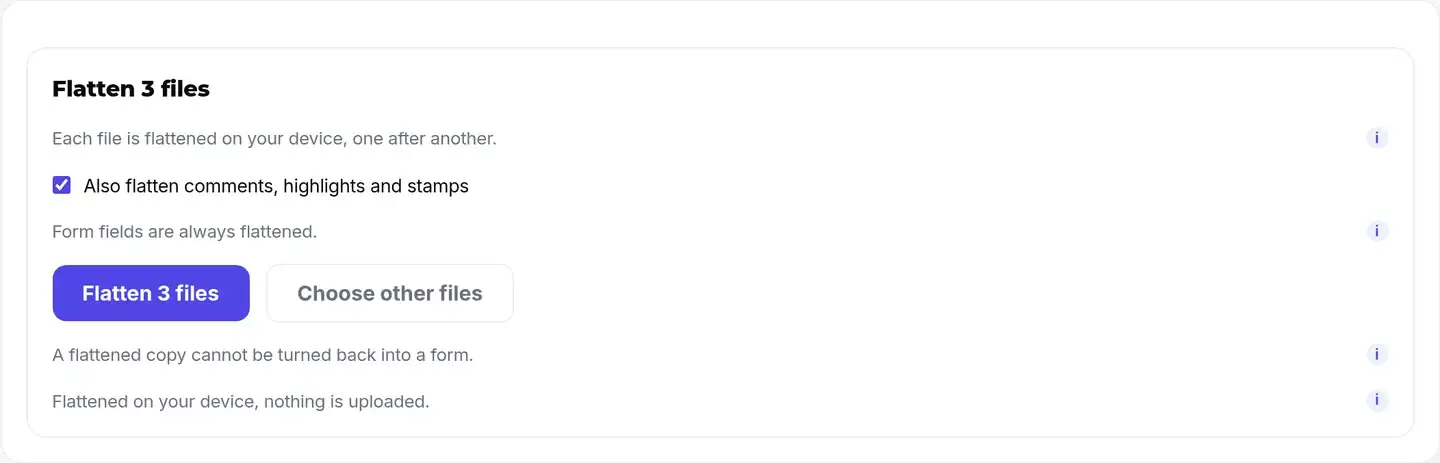
When the file contains both fields and marks, the panel shows Also flatten comments, highlights and stamps. Turn it off to keep those annotations interactive while flattening the fields. The fields-only path uses a different library and can reject forms whose fields have no stored appearance. The panel reports that result instead of claiming the file was changed. Turn annotation flattening back on and retry when the full path is appropriate.
If inspection finds no fields and no visible marks, the action changes to Save a copy. The tool does not label an unchanged copy as flattened.
Flatten several PDFs in one batch
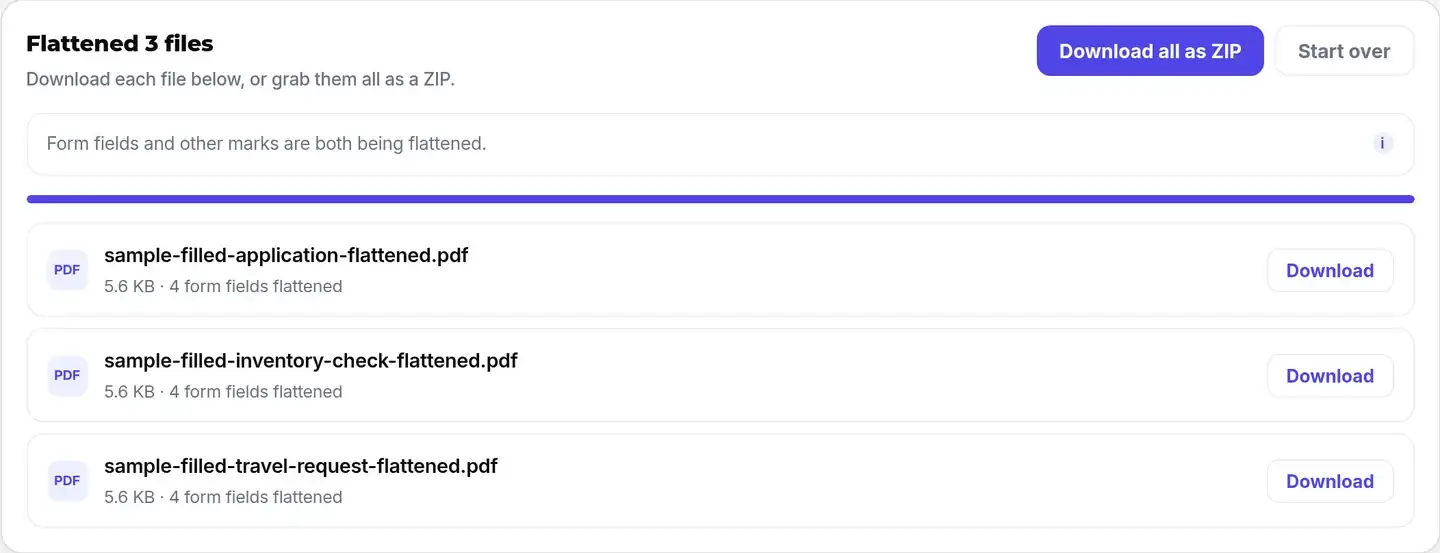
Add two or more PDFs to choose one annotation setting for the batch. Each file is inspected and processed sequentially. The result row reports what was flattened, and completed files can be downloaded separately or through Download all as ZIP.
Dynamic XFA files are left out and identified by name. Files with no fields or marks return a clearly labelled copy. A password prompt appears for any file that requires an open password, and Skip this file allows the remaining batch to continue.
The ZIP is named frisqoo_flattened.zip. Every contained PDF keeps its own source base name with -flattened.pdf added, which avoids collisions between unrelated files.
Flattening differs from protection and signing
Flattening removes selected interactive objects. Protect PDF adds an open password or permissions settings, while a digital signature records a cryptographic state of a document. These operations solve different problems.
Rewriting a digitally signed PDF can invalidate the existing signature because the document bytes change. Flatten first and sign afterward when the workflow permits it. If a signed document has already been received, check the signature policy before changing the file and verify the status again in a trusted reader.
Password-protected input can be flattened after the known open password is entered. The downloaded flattened copy is not automatically protected with that password. Apply protection again after reviewing the result when access control is still required.
Dynamic XFA forms
Dynamic XFA forms do not expose ordinary printable AcroForm fields in the same way. Their live content is generated by a compatible viewer when the document opens. Frisqoo detects a pure XFA document, disables the flatten action, and explains why it was left unchanged.
Open that file in Adobe Reader or Acrobat and print it to a regular PDF if your permissions and workflow allow. The printed copy can then be checked in Flatten PDF. Printing can alter links, accessibility information, signatures, and other interactive features, so review the result carefully.
Flatten password-protected PDFs
If a PDF requires a password to open, an unlock box appears in the file row. Enter the known open password and select Unlock. The file is decrypted locally for this operation, inspected, and flattened in the browser.


Browser limits and local processing
Processing runs locally in your browser. Frisqoo does not upload the source file for processing, and the tool does not add a watermark or require an account. The page can continue after its required application assets have loaded, while reloading may require a connection again.
PDF complexity, page count, form fields, annotations, and batch size all use browser memory. Large or complex jobs may work better on a computer or as smaller batches. Keep the page open until the rewrite and download finish.
Common uses for Flatten PDF
- Finalize a completed application before sending a review copy.
- Keep filled answers visible when a receiving system rejects interactive forms.
- Preserve visible review marks while removing their editing controls.
- Prepare completed forms before merging them into a larger PDF pack.
- Create a non-interactive copy before adding password protection.
FAQs about Flatten PDF
What does flatten PDF mean?
Flattening draws the current appearance of form fields and selected annotations into the page content, then removes those interactive objects. The saved copy keeps their visible appearance but readers can no longer type into the removed fields or move the flattened marks.
Will filled answers remain visible?
The current field appearances are written into the page during the default flattening path. Review the editor preview and downloaded PDF, especially checkboxes, radio buttons, dropdowns, signatures, and fields that use unusual fonts or appearance settings.
Can a flattened PDF be turned back into a form?
The output does not retain the removed fields as editable controls, so the tool cannot restore them. The source file remains unchanged on your device; keep that original when further editing may be needed.
Does flattening turn every page into an image?
No. The default engine rewrites PDF objects and does not rasterize the whole page. Existing page text can remain searchable and selectable, while flattened field appearances and annotations become part of the page content.
Is flattening the same as password protection?
No. Flattening removes selected interactive objects, but a PDF editor can still modify page content. Use Protect PDF after reviewing the flattened copy when the file also needs an open password or permissions settings.
What happens to comments, highlights, stamps, and ink?
The default setting flattens them with the form fields. Their visible appearances become page content, while comment popups and the ability to select, move, or delete those annotation objects are removed.
Can fields be flattened while comments stay editable?
Yes, when the file contains both fields and marks. Turn off Also flatten comments, highlights and stamps. This fields-only path uses a different engine and can reject fields that lack stored appearances; turn the option back on if that happens.
What happens when the PDF has nothing to flatten?
The panel reports that no form fields or visible marks were found and changes the action to Save a copy. The tool does not describe that copy as a flattened result.
Can several PDFs be flattened together?
Yes. Choose the annotation option once for the batch. Each file is inspected and processed in sequence, with its own result row, and the completed outputs can be downloaded separately or together as a ZIP.
Can a password-protected PDF be flattened?
Yes, when you know the open password. Enter it in the inline unlock box. The flattened output is a newly written PDF and is not automatically protected with the source password, so protect the downloaded copy again if required.
Can this flatten an XFA PDF?
Dynamic XFA forms are detected and left unchanged because their live form content is generated by a compatible viewer instead of ordinary page fields. Open the file in a viewer that supports XFA and print it to a regular PDF before using this tool.
Will flattening affect a digital signature?
Rewriting a signed PDF can invalidate its existing digital signature. Verify the document’s signature status first, flatten before signing when possible, and check the downloaded copy in a trusted PDF reader.
What limits the file size or batch size?
The tool does not add a watermark or show a fixed page limit. Available browser memory, PDF complexity, annotation count, and device speed determine the practical job size. Large batches may work better as smaller groups.