

PNG to WebP
Turn PNG images into smaller WebP files while keeping any transparency. Add your PNG files, set the WebP quality, then press Convert. It all runs in your browser, so Frisqoo processes the files locally without uploading them.
100% private. Your files are processed entirely in your browser and never uploaded.
Why convert PNG to WebP with frisqoo
Local processing
Processing runs in your browser, and Frisqoo does not upload the source files for this task.
Much smaller files
A detailed PNG is often several times larger than it needs to be. WebP brings it down to a size that is quick to load and share.
Transparency kept
WebP has an alpha channel, so any see-through areas in your PNG are preserved exactly, with nothing flattened onto a background.
Quality you control
Set the WebP quality to trade file size for sharpness, or keep it high for a copy that looks the same as the PNG.
A whole batch at once
Convert many PNG files with the same settings, then download them one by one or together as a single zip.
Free, with no caps
No sign-up, no watermark, and no daily quota. Your device memory is the only real limit.
How to convert PNG to WebP
- Add your PNG images. Drop them on the box or pick them from your device, one or many.
- Set the WebP quality. Transparency is kept automatically, so see-through areas stay see-through.
- Press Convert. Save each WebP on its own or download them all in a zip.

When to convert PNG to WebP
PNG is the right format for logos, icons, screenshots and anything with sharp edges or a transparent background. It keeps every pixel exactly, which is ideal for graphics but can make the files heavy, especially for detailed or photographic images saved as PNG.
WebP gives you a much lighter file while still supporting transparency, so it suits the same graphics when you want them to load faster on a website or app. Keep the PNG when you need the widest possible support or a truly lossless copy, and choose WebP when size matters and you still want see-through areas to survive.
PNG and WebP, and what each format is good at
PNG uses lossless compression and stores an alpha channel, so it keeps both fine detail and transparency perfectly. The cost is size: a detailed PNG can be several times heavier than it needs to be for the web.
WebP was built for the web, with compression that handles graphics and photographs alike, and it supports the same transparency PNG does. Converting from PNG to WebP is about getting a far smaller file that still shows crisp edges and keeps its see-through areas, ready to load quickly online.
What the tool does to each image
Each PNG is decoded into raw pixels, painted onto a canvas that keeps its alpha channel, and written back out as a WebP, all on your own device. The transparency comes along untouched, and the quality you pick decides how hard WebP compresses the rest.
Each card in the workspace shows the size before and after, so you can see how much lighter the WebP is. Because the file is rebuilt from the decoded image alone, any notes or tags an editor tucked into the PNG do not come along with it. Nothing is sent anywhere while this happens, and the conversion starts only when you press Convert.
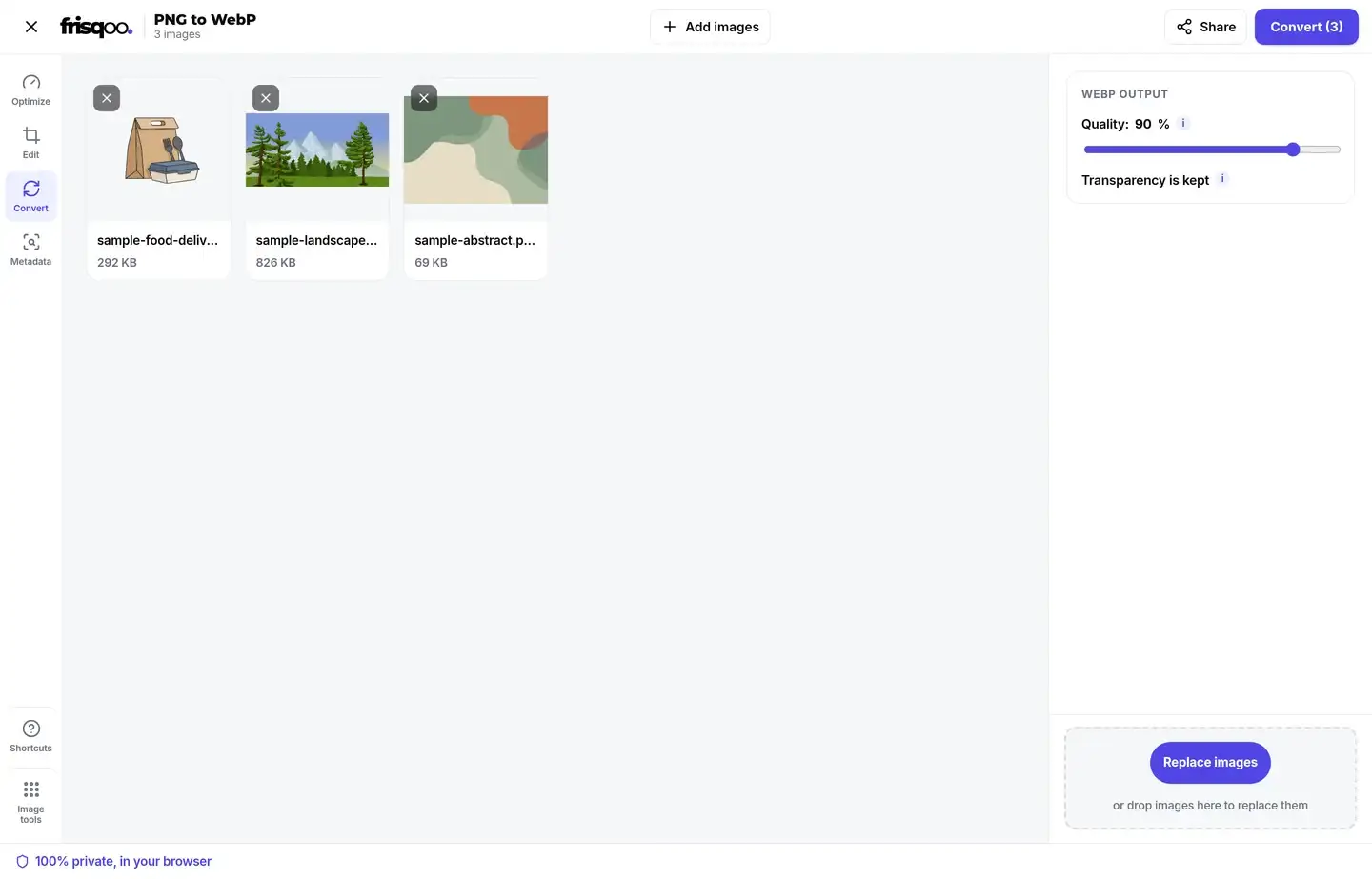
Choosing the WebP quality
The quality control sets how hard WebP compresses the picture. A higher number keeps more detail and makes a larger file, while a lower number saves more space and can start to show soft edges or blocks in smooth areas.
For most images a setting between 85 and 92 percent gives a file that keeps a close visual match to the original while cutting the size well. Push higher for graphics with fine lines or small text you want to keep crisp, and lower only when a small file matters more than a near-original appearance. The same setting is applied to every image in the batch, so a whole folder comes out to one consistent standard.
How transparency is preserved
A PNG can have see-through areas, and so can a WebP, because both formats store an alpha channel alongside the colour. When the image is painted onto the canvas, that channel is carried through, so a transparent background stays transparent in the WebP rather than turning white or black.
That makes this the right conversion for logos, icons and cut-out graphics that need to sit on any colour behind them. If you would rather flatten the image onto a solid background instead, the PNG to JPG tool fills transparent areas with a colour you choose.
How much smaller WebP files are
It depends on the picture, but a WebP is usually much smaller than the same PNG, and detailed or photographic images saved as PNG tend to save the most. Simple flat graphics save less, since PNG already handles those efficiently. Keep the quality near 90 percent and the WebP looks the same to the eye at a fraction of the size.
The saving adds up across a folder or a whole website. Lighter images mean pages that load faster and less storage used, which is a big part of why WebP has become so common online.
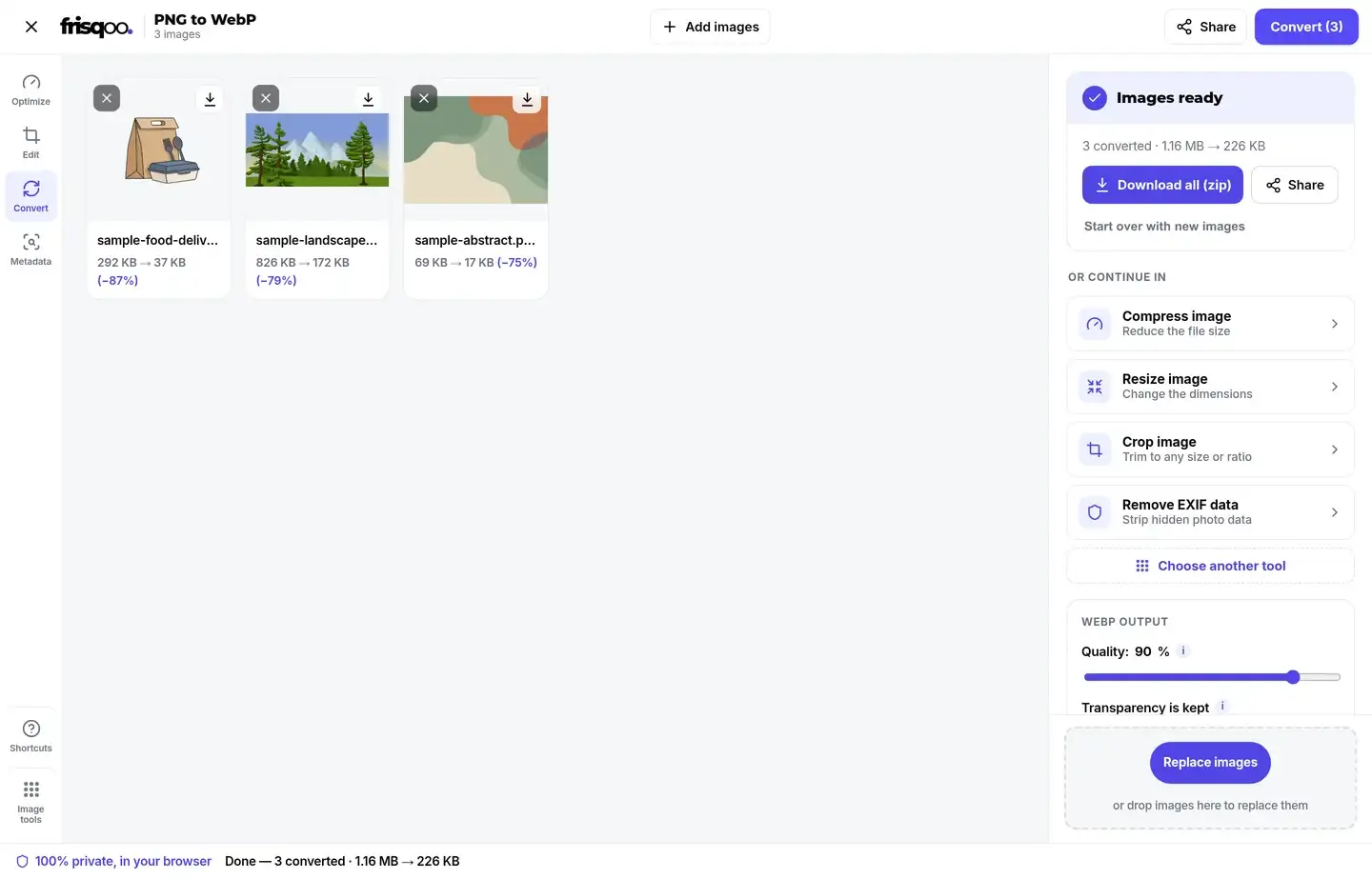
Convert a whole batch at once
A folder of images is quicker to handle in one go. Add as many PNG files as you like, set the quality once, then press Convert. The button carries the count, so it reads Convert followed by the number waiting. An Add images button lets you drop in more before you start, and a small x on any card removes one you did not mean to include.
When more than one image is ready, the button becomes Download all (zip) and saves everything as frisqoo_png-to-webp.zip, with each file keeping its original name and a .webp ending inside the archive. A single image gives you a plain Download button instead. Once a batch is done, a short row of cards offers to pass the WebP files straight into another tool, so you can compress, resize or crop without saving and adding them again. The whole set is handled one file after another, so a large batch will not freeze the page while it works.
Convert PNG to WebP on an iPhone or Android phone
The page works the same on a phone as on a computer. Open it in Safari or Chrome, tap the box, choose the PNG images from your files, set the quality, then press Convert. Every step runs on the phone itself, Frisqoo does not upload the source file for processing. There is no app to install or account to create.
Saving works the usual way for your phone, either straight to Files or through the share sheet. A big batch of high-resolution images asks more of an older phone, since the whole job runs in its memory, so convert in smaller groups if the page starts to slow down.
Is it safe to convert images here?
Yes. Many free converters upload your images to their own servers to do the work. This tool does the conversion in your browser instead, so your images are never uploaded, stored, or seen by anyone else. That makes it a sound choice for personal images, screenshots, and anything else you would rather keep off a server you do not control.
You can check it for yourself. Open your browser's network panel before you convert, run a file through, and watch that no upload takes place while the WebP is made.
Common ways people use PNG to WebP
People reach for this conversion for a handful of everyday reasons.
- Shrinking a heavy PNG for a website while keeping its transparency.
- Saving storage on a folder of PNG graphics.
- Preparing logos or icons for an app or theme that prefers WebP.
- Cutting the weight of screenshots before adding them to a page.
- Converting a whole folder of PNG files in one pass and saving them as a zip.
FAQs about PNG to WebP
How do I convert PNG to WebP?
Add your PNG images, set the WebP quality, then press Convert. Each image is converted on your device, and you can save them one by one or all together as a zip.
Is it free to use?
Yes. There is no sign-up, no watermark and no daily quota. Add as many images as you like. The only real limit is your device memory, since all the work happens on your own device.
Are my images uploaded anywhere?
No. They are read and converted by your own browser. Nothing is sent to a server, so even private images stay with you.
Is transparency kept?
Yes. WebP has an alpha channel, so any see-through areas in your PNG are preserved exactly in the WebP. Nothing is flattened onto a background.
Why convert PNG to WebP?
WebP is usually much smaller than PNG, especially for detailed images, while still supporting transparency. It loads faster on the web and takes less space.
Will converting lose quality?
WebP is lossy at these settings, so there is a small change. Keep the quality at 90 percent or higher and the result looks the same as the PNG to the eye, at a fraction of the size.
Can I convert many PNG files at once?
Yes. Add as many as you like, convert them together with the same settings, then download them one by one or as a single zip named for this tool.
What quality should I choose?
For most images, 85 to 92 percent gives a strong balance of size and sharpness. Push higher for graphics with fine lines or text, or lower when a small file matters more than a near-original appearance.
Does the WebP keep hidden data from the PNG?
No. The image is repainted onto a fresh canvas, so any text notes or editor tags stored in the PNG are left behind. Only the picture, including its transparency, carries over.
Is WebP supported everywhere?
Every current browser on desktop and mobile can display WebP, and most apps and content systems accept it. A few older desktop programs still prefer PNG, so keep the original if you need to open it in one of those.
Does it work on my phone?
Yes. It runs in current desktop and mobile browsers on a phone, tablet, or computer, with nothing to install. The whole job runs on the device itself.
Can I turn a WebP back into a PNG?
Yes. Use the WebP to PNG tool for that. Remember that a lossy WebP has already dropped some detail, so going back to PNG cannot rebuild what was lost.