

PDF to PNG
Convert PDF to PNG free in a visual page workbench. Add one PDF, preview every page, select the pages you need, choose a render size, then download a numbered PNG or ZIP. Processing runs locally in your browser, and Frisqoo does not upload the source file. No sign-up or watermark; large jobs depend on available device memory.
100% private. Your files are processed entirely in your browser and never uploaded.
Why convert PDF to PNG with frisqoo
Local rendering
The PDF and any open password stay in the browser during conversion.
All pages or a selection
Export the complete PDF, selected cards, or complete page ranges.
Four render sizes
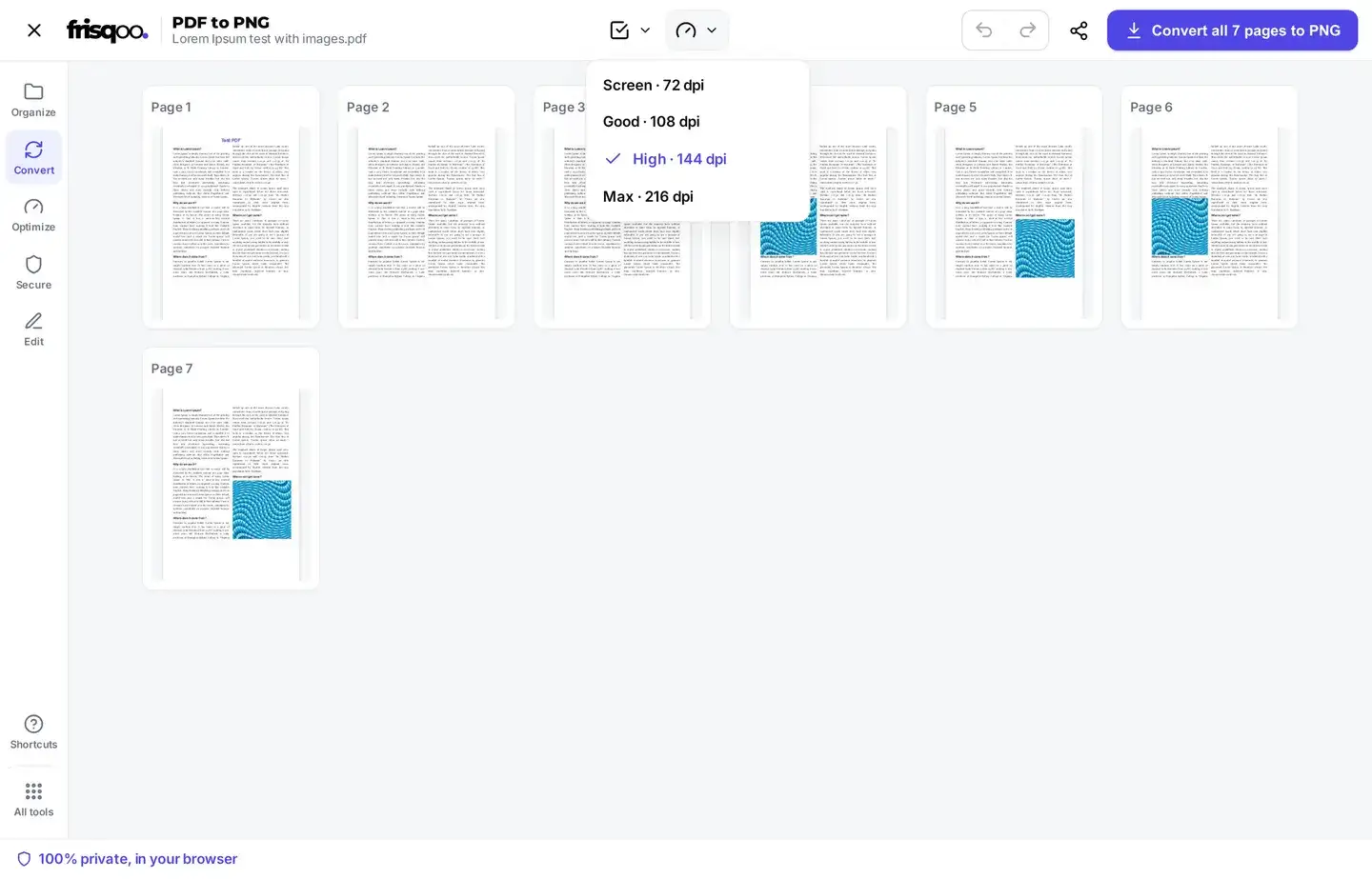
Choose Screen, Good, High, or Max to control output pixel dimensions.
Numbered output
One page becomes a PNG; several become a ZIP with original page numbers.
Download or share
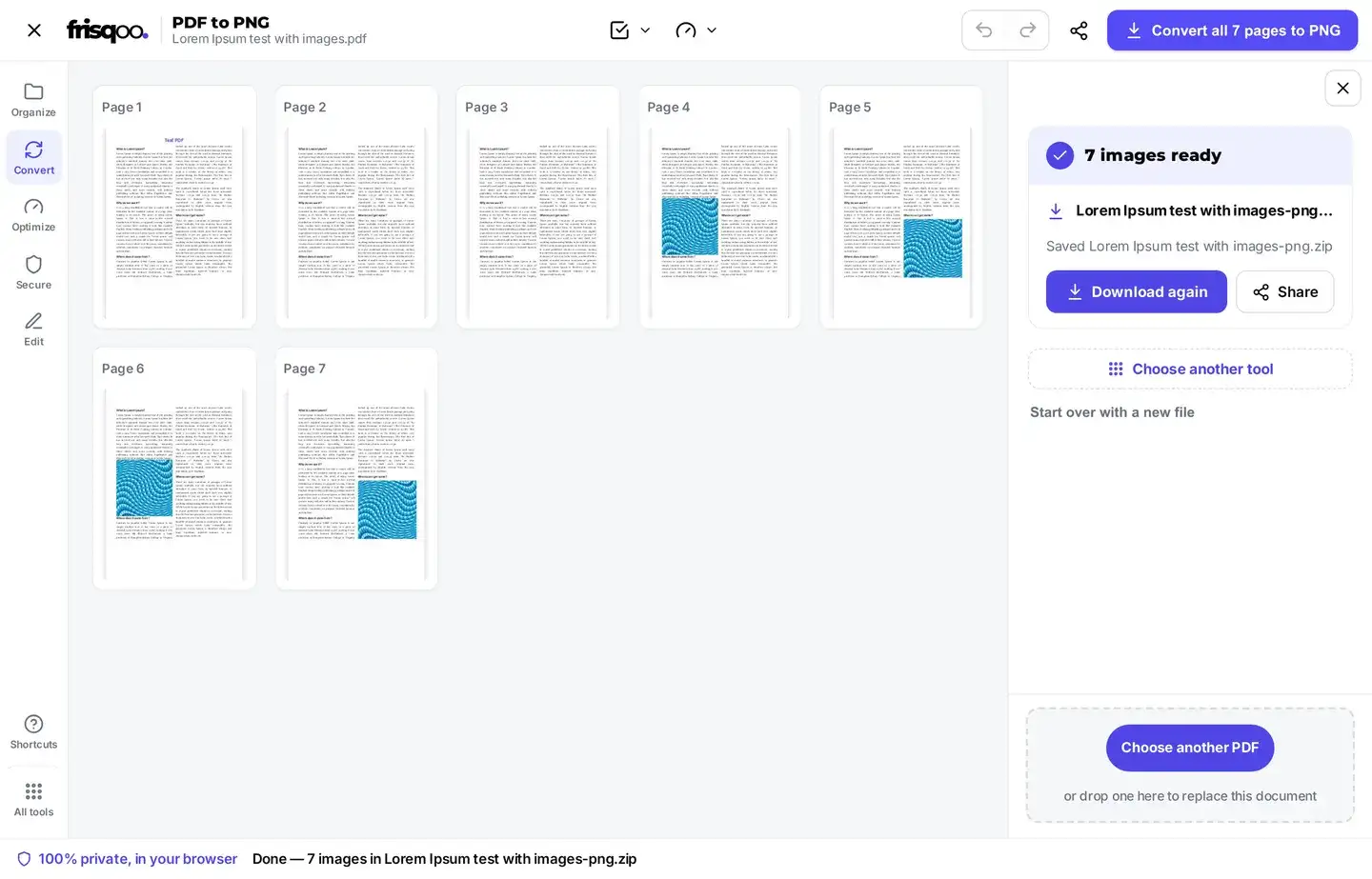
Download again from the result panel or share image files when supported.
Free on your device
No sign-up or watermark. Browser memory sets the practical job size.
How to change PDF to PNG
- Add one PDF by dropping it in the box above or choosing it from your device.
- Leave all pages unselected to export the full document, or use Select to mark pages and ranges.
- Choose Screen, Good, High, or Max from the Quality menu.
- Click Convert to PNG, then check the numbered image or ZIP saved by the browser.
The source PDF is not overwritten. The tool creates new image files on your device.
PDF to PNG high quality settings
The Quality menu controls render scale rather than PNG compression. Screen renders at 1x and is labeled 72 dpi. Good uses 1.5x and 108 dpi. High, the default, uses 2x and 144 dpi. Max uses 3x and 216 dpi. A larger scale creates more pixels for the same PDF page.
High is a useful starting point for reports, slides, diagrams, and ordinary text. Screen can suit thumbnails and quick previews. Max can help when readers will zoom into fine lines or small type. The source still matters: increasing render size cannot restore detail that is absent or already blurred inside the PDF.
PDF to PNG high resolution and file size
Render scale affects width, height, memory use, processing time, and final file size. Max creates a canvas three times the PDF page's base width and height, so it contains nine times as many pixels as Screen before PNG encoding. A long document at Max can therefore require much more memory than a short Screen export.
PNG uses lossless image encoding for the rendered canvas. This avoids an added JPEG compression step, but it does not mean the PNG reproduces PDF vectors, fonts, or source images as editable originals. Detailed photos can also make large PNG files. Use PDF to JPG when smaller image downloads are the priority.
Select complete pages and ranges
Every PDF page appears as a numbered thumbnail. With no selection, the main button exports all pages. Click cards directly, choose Select all, clear the selection, invert it, or enter a list such as 1-3, 5, 8. The field accepts individual numbers and complete ranges. Open-ended entries such as 5- are not part of the current parser.
Out-of-range numbers are ignored, and repeated pages are included once. The selected cards remain in source order, even if the numbers were typed in a different order. The main button updates to show the number of pages that will become PNG files. Clear all selections to restore full-document export.
Numbered PNG and ZIP delivery
A one-page result downloads directly as a PNG named from the source PDF and its original page number. Page 3 of report.pdf, for example, becomes report-3.png. Exporting two or more pages creates report-png.zip, with each PNG inside retaining its original page number.
The result panel reports the image count and saved filename. Download again repeats the finished result. Share passes the individual PNG files to the device share sheet when the browser supports sharing those files; Frisqoo does not send them through a sharing server.
Choose PNG or JPG for each purpose
PNG and JPG begin with the same browser-rendered page, but they store that canvas differently. PNG uses lossless encoding, so the export adds no JPEG artifacts around small text, thin lines, diagrams, or interface elements. It often produces a larger file, especially when a page contains detailed photographs or textured backgrounds.
JPG uses lossy image encoding and can be more practical for photo-heavy pages, email attachments, and quick web previews. The separate PDF to JPG tool uses the same page selection and render-size controls, then saves JPEG output. Changing to JPG does not preserve selectable PDF text or links; both formats create flat page images. Compare one representative page when image size and edge detail are both important.
PDF to PNG transparent background behavior
The current renderer fills each canvas with white before drawing the PDF page. Any transparent page area becomes white in the PNG. This gives predictable page-shaped images, but it does not create a transparent cut-out around logos or artwork.
When transparency is required, return to the original design or image source and export the graphic there. PDF transparency may also involve blending, masks, and overlapping objects that do not map to one simple transparent PNG layer.
What becomes part of the PNG
The renderer draws visible text, pictures, vector shapes, page backgrounds, and supported annotations into one flat image. The PNG keeps their appearance as pixels at the chosen scale. It does not keep selectable text, document structure, bookmarks, metadata, clickable links, or interactive form controls.
Keep the original PDF when search, copying, accessibility structure, signatures, links, or forms matter. Use PDF to Text for an existing text layer, or OCR PDF when scanned pages need searchable text before image export.
Password-protected PDF conversion
If a document needs a password to open, the page shows an inline unlock prompt. Enter a password you know and tap Unlock. The browser decrypts that working copy locally, then loads its pages into the same PNG workbench. An unknown open password cannot be recovered by this conversion.


PDF to PNG without uploading the document
PDF loading, thumbnail creation, page selection, password handling, final rendering, and ZIP creation run on the device in the active browser tab. Frisqoo does not upload the source PDF or open password for this operation.
The resulting PNG or ZIP is saved wherever the browser sends downloads. Sharing and storage after that point follow the controls of your browser, device, and chosen apps. Keep sensitive exports only in locations appropriate for the document.
Change PDF to PNG and review the result
Open one downloaded image and compare it with the matching PDF page. Check the original page number, crop edges, white background, small text, colors, and any annotations or filled fields that should be visible. Inspect gradients, thin rules, non-Latin text, and pages with unusual dimensions when they are important to the document. For a ZIP, confirm the first and last requested page names and the total file count.
Compare High and Max on one detailed page before exporting a long document at the largest setting. This gives a practical view of the extra pixels, file size, and processing time on the current device. If a page looks wrong in the workbench preview, keep the source PDF and resolve that issue before relying on the PNG.
Large PDFs and mobile browsers
Current phone, tablet, and desktop browsers can use the same page selection and quality controls. Large PDFs take more memory because the browser first creates page previews and then renders each selected page at the chosen scale. Max is the most demanding setting.
If a device slows down, select fewer pages and export the document in groups, or lower the quality to High or Good. Keep the tab open until the download completes and leave enough storage for the PNG files or ZIP. Processing speed depends on the PDF, selected pages, render scale, browser, and available device resources.
FAQs about PDF to PNG
Do my PDF files get uploaded?
No. The PDF is opened, previewed, and rendered locally in your browser. Frisqoo does not upload the source file for this conversion. Keep the tab open until the image or ZIP finishes downloading.
What can the PDF to PNG converter do?
It renders every page or a selected set as PNG images. The workbench provides page thumbnails, complete-range selection, four render sizes, original page-number filenames, single-image download, multi-image ZIP delivery, and sharing when supported.
What do Screen, Good, High, and Max change?
They change render scale and pixel dimensions: Screen is 1x and labeled 72 dpi, Good is 1.5x and 108 dpi, High is 2x and 144 dpi, and Max is 3x and 216 dpi. High is the default.
Can I convert only certain PDF pages?
Yes. Select cards directly, or enter single pages and complete ranges such as 1-3, 5, 8. Out-of-range numbers are ignored. Clear every selection to return to exporting all pages.
How are PNG files named and delivered?
One page from report.pdf downloads as a file such as report-3.png, using its original PDF page number. Several pages download in report-png.zip, and each image keeps its numbered name.
Does PDF to PNG create a transparent background?
No. The current renderer paints each page onto white before creating the PNG. Transparent areas therefore become white. Export a graphic from its original source when a transparent cut-out is required.
What happens to text, links, and forms?
Visible page content becomes pixels. Text is no longer selectable or searchable, links are not clickable, and form controls are flattened into their visible appearance. Keep the PDF when those interactive features matter.
Can I convert a password-protected PDF?
Yes, when you know the password required to open it. Enter that password in the inline prompt and the document is unlocked locally for this session. This tool does not recover an unknown password.
Can I use PDF to PNG on a phone?
Yes. Current mobile browsers can load the PDF, select pages, change quality, and save the image or ZIP. Long documents and Max quality need more available device memory.
Can I use PDF to PNG offline?
Once the page and required code have loaded, rendering runs locally. Keep the tab open while working; reopening or reloading the site may require a connection again.
Is PDF to PNG free?
Yes. There is no sign-up or watermark. Frisqoo does not set a fixed page-count cap here, but browser memory and device storage set practical limits.
When should I use PDF to JPG instead?
Use PDF to JPG when smaller image files matter more than avoiding an added lossy compression step. PNG often suits text, diagrams, interface captures, and line work.
Which setting should I use for printing?
Start with High and inspect the image at the intended print size. Max creates more pixels when small text or detailed graphics need them, but the result also uses more memory and storage. Output quality still depends on the source PDF.