

Rotate image
Rotate an image online without sending it to a server. Turn a sideways photo by 90 degrees, spin it by 180 degrees, or enter an exact angle to straighten a horizon or scan. Choose how to fill exposed corners, then save one image or a complete batch.
100% private. Your files are processed entirely in your browser and never uploaded.
Why rotate images with frisqoo
Private in your browser
The browser decodes and rotates the image on your device. It is not sent to a remote image rotator, so personal photos and work files stay with you.
Clean quarter turns
Left 90°, Right 90° and 180° turns keep source pixels without an off-axis scaling step. Portrait and landscape dimensions swap when needed.
Exact angle control
Drag the slider or type a whole-degree angle from -180 to 180 when a horizon or scanned page needs careful straightening.
Corner fill choices
Choose transparent, white, black or a custom colour for the corners left by an off-axis rotation.
Rotate a full batch
Give each queued image its own angle, apply one angle to all when useful, and download the completed results together.
Free to use
No sign-up, watermark or daily quota. Browser memory is the practical limit for large images and large batches.
How to rotate an image
- Add your images. Drop them on the box or choose one or more files from your device.
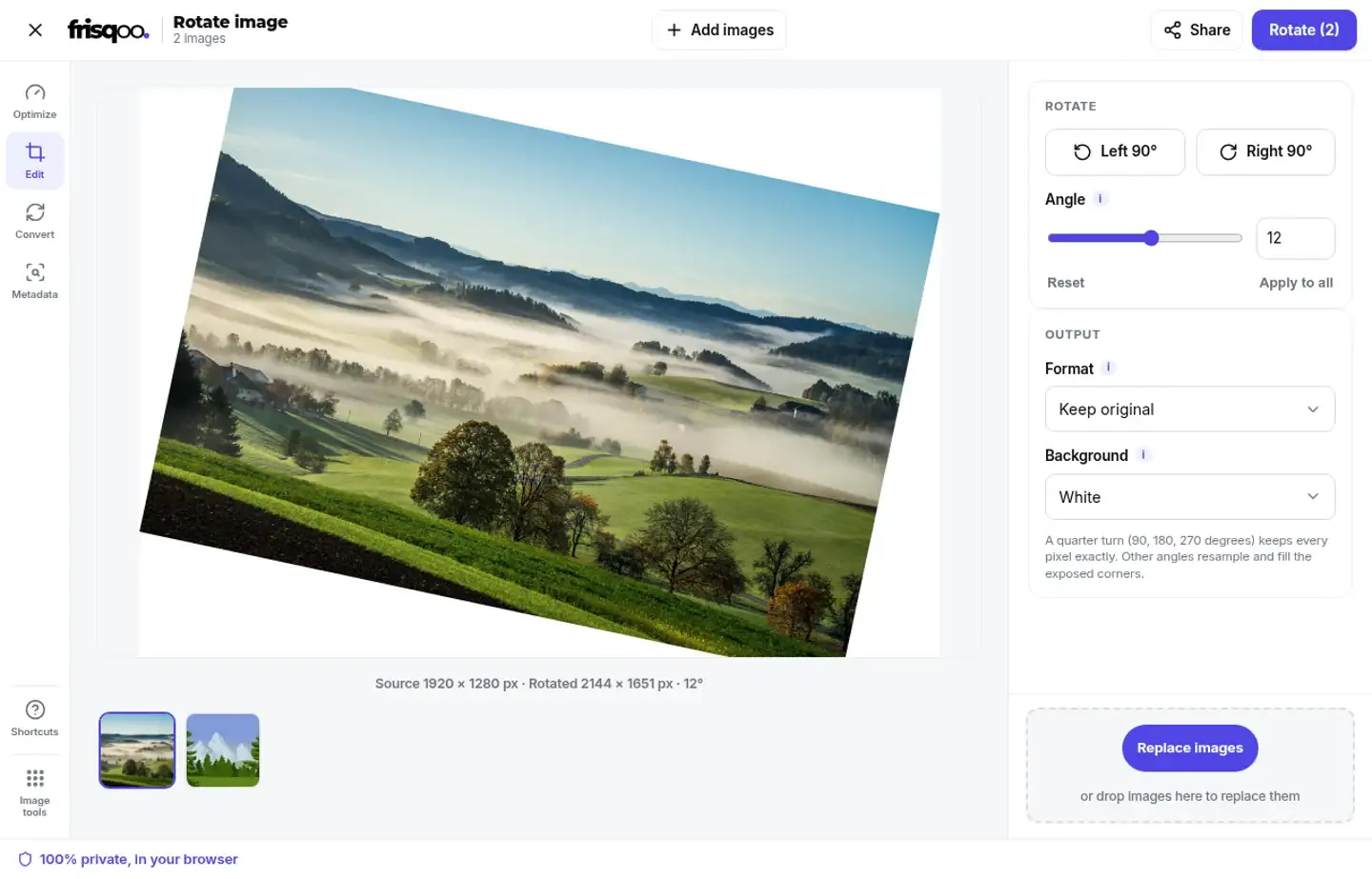
- Set the angle. Use a 90-degree button, the slider or the exact angle field, then choose the corner background.
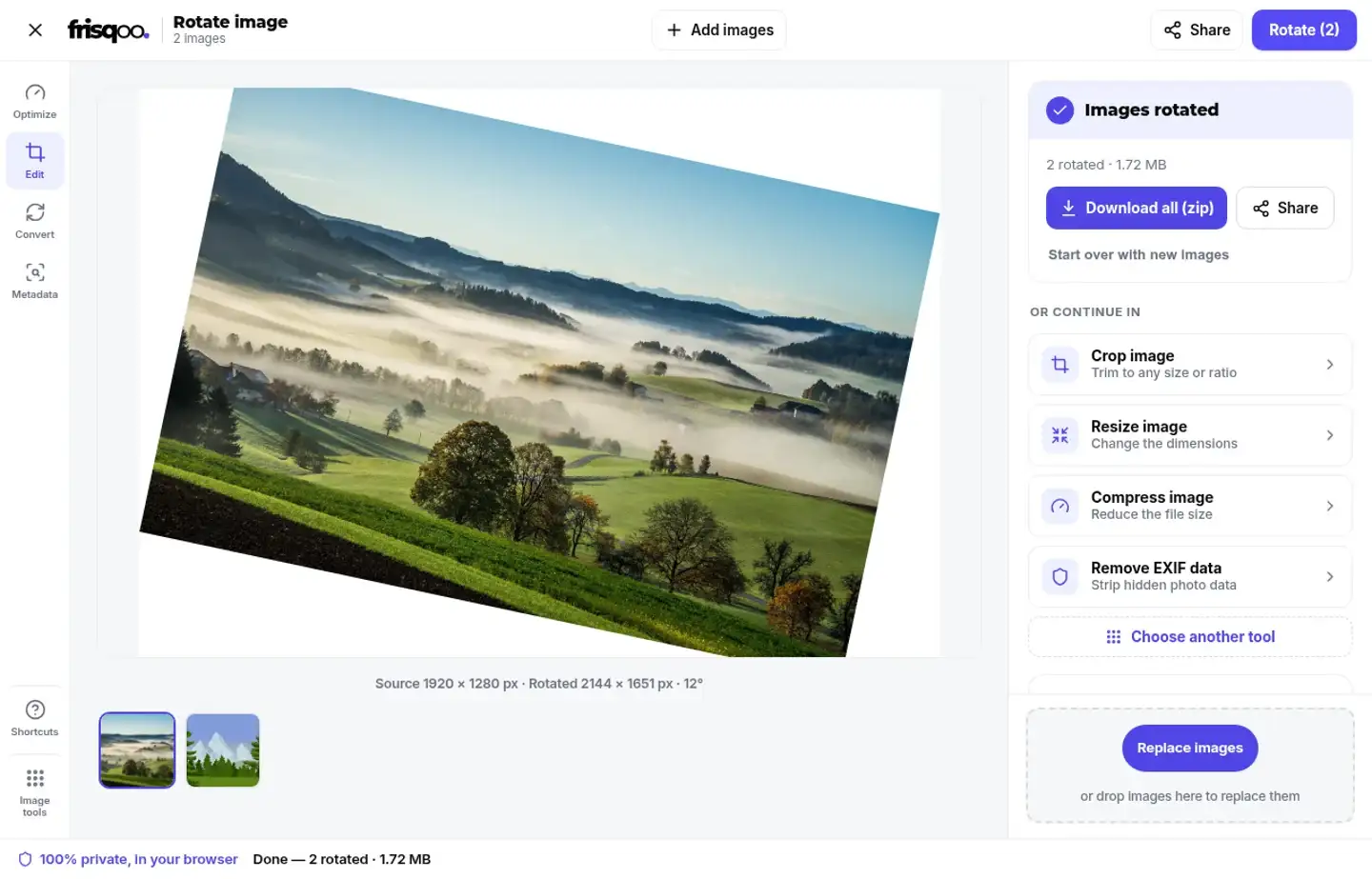
- Press Rotate. Download one file or save the completed batch in a zip.
Rotate image online without an upload
An online image rotator is useful when a photo arrives sideways, a scan is slightly crooked, or a graphic needs to face the other way. Frisqoo reads the source file from your device, decodes it in the browser and paints the rotated result locally. The source is not uploaded for processing. That makes the rotate image online workflow suitable for personal photos, document scans, screenshots and client work that should not pass through a conversion server.
The page still needs to load in a browser, and a downloaded result can remain on a shared computer. Local processing describes what happens to the image after the tool is open. Use the same care you would use for any file saved on a shared device, and keep the original until you have checked the rotated copy.
This free image rotator has no account step, watermark or daily quota. Device memory is the practical limit. A large photograph needs more working memory than a small screenshot, and a batch needs room for each decoded image and its output. If a phone becomes slow, rotate fewer large files at a time.
Turn a sideways photo by 90 degrees
Use Left 90° or Right 90° when the image is on its side. These quick controls are easier than entering a number for a quarter turn. The preview changes immediately, and the dimension line shows the width and height of the rotated output.
A 90-degree turn changes a 1920 by 1280 source into a 1280 by 1920 result. A 180-degree turn keeps 1920 by 1280 but flips the image around its centre. A 270-degree turn is the same orientation as a 90-degree turn in the other direction. These quarter turns move whole source pixels instead of interpolating between them.
Use a quarter turn for a sideways phone photo, an upside-down scan or a landscape image that was saved in portrait orientation. The tool rotates the visible image content itself. It does not change the original file, and it does not write back to the source on your device.
Straighten a photo by an exact angle
A tilted horizon usually needs a small angle rather than a 90-degree turn. Drag the slider for a quick adjustment, or type a whole-degree value from -180 to 180 in the angle field. The preview redraws as the value changes, and the output dimensions update to show the rotated bounding box.
Negative and positive values turn in opposite directions. Use the direction that brings a horizon, scan edge or document line level. Reset returns the active image to zero degrees. If several images are selected, Apply to all gives every queued image the angle shown for the active image. You can still switch between thumbnails and set a different value when the files need separate corrections.
An off-axis rotation does not crop away the corners automatically. The canvas grows to contain the rotated rectangle, which can leave triangular areas around the image. Pick a background before downloading, or follow the result with Crop image when you want a tidy rectangular frame.
Choose a background for exposed corners
Transparent is useful when the output will be placed over another design or when you want to decide the background later. White is practical for a document scan or a photo on a light page. Black can suit a dark graphic. Custom colour lets you match a brand panel or another part of the composition.
The background only fills areas exposed by an off-axis angle. It does not paint over the original image. Quarter turns fit the source rectangle exactly, so there are no new corner gaps to fill. If you choose transparent, select PNG or WebP when the browser can write alpha. JPG cannot store transparency, so the encoder uses white for a transparent request.
Check the preview around fine edges before you download. A pale subject against a white fill can need a different background from a dark subject on a black fill. Keeping the source file also gives you a way to make another version later without rotating a previously encoded result again.
What happens to quality after rotation
Quarter turns at 90, 180 and 270 degrees keep the source pixels without an off-axis scaling step. The output canvas swaps width and height for a quarter turn, or keeps them for a half turn. This is the right path when you need to correct orientation without introducing a resampling pass.
Any other angle must be drawn into a new bounding box. The browser uses high-quality canvas smoothing while it redraws the source, so the result is suitable for a normal straighten, but it is not a pixel-for-pixel copy. The new corners also need a fill choice. Rotating cannot restore detail already missing from the source.
The output format matters as well. Keep original uses the source format when the browser can write it. PNG is a lossless choice for an image that needs transparency. JPG and WebP use encoded outputs with a high quality setting, and a requested format that the browser cannot write falls back to PNG.
Rotate a batch with separate angles
Add several images before opening the workspace. The top action shows the queue count, such as Rotate (2). Each thumbnail has its own angle, so a sideways photo can receive a quarter turn while a scanned page receives a small straighten. Select a thumbnail to edit it and look at the dimension line before moving to the next file.
Use Apply to all when the batch was captured with the same orientation and needs the same correction. The active angle is copied to every queued image. You can then press Rotate once. If the browser cannot decode or encode one file, it is skipped while successful results remain available for download.
Each completed result receives the original base name plus -rotated. When more than one output is ready, Download all (zip) creates frisqoo_rotated-images.zip. The browser assembles that archive locally from the generated files.
Common reasons to rotate a picture
Rotation fixes direction without asking you to rebuild the image. It is useful when a phone photo was saved sideways, when a scan entered the feeder at an angle, or when a landscape graphic needs a quarter turn for a different layout.
- Rotate a photo back to the correct portrait or landscape direction.
- Rotate a picture online before placing it in a slide, document or form.
- Straighten a horizon in a landscape photo with a small angle.
- Turn a scanned page so its text reads upright.
- Rotate a group of product images and save them as one zip.
- Make a transparent rotated PNG for a logo or design element.
Rotate JPG, PNG, WebP or AVIF files
The picker accepts common image files that the browser can read, including JPG, PNG, WebP and AVIF. Other filename types such as GIF, BMP and SVG are also allowed by the intake filter, but the browser still has to decode the actual file. A damaged file or a format unsupported by the current browser can be skipped.
Keep original is a good default when the next app accepts the source format. Select PNG when transparency matters, JPG for a broadly accepted photo output with no transparent corners, or WebP when the next workflow supports a compact web image. The result name uses the selected output extension.
Use the rotator on a phone
The rotate image online workflow works on a phone or tablet with a modern browser. Choose a photo, tap Left 90° or Right 90° for a quick correction, or enter the angle when a horizon needs a smaller adjustment. Choose the background and output format before downloading.
Phones can have less free memory than desktop computers. Start with one large photo, save the result and then continue with the next file if a batch is heavy. Keep the originals until the orientation and corner fill look right in the saved results.
Rotate first, then crop or resize
Rotation fixes direction and angle. It does not remove the triangular corners created by an off-axis turn, and it does not set a new delivery width. Use Crop image after a straighten when you want a clean rectangle. Use Resize image when the rotated output needs exact final dimensions. Use Compress image when the dimensions are correct but the file is too large.
Separating the steps makes each result easier to inspect. First confirm the image faces the right direction. Then choose whether the corners should stay transparent or use a solid fill. Finally crop, resize or compress for the destination.
Check the angle and background before downloading
Look at the subject first. Make sure a face, label, page edge or horizon is upright. Read the displayed rotated dimensions when the width and height matter. For a quarter turn, confirm that the swapped dimensions are expected. For a small straighten, check that the expanded canvas and corner fill suit the destination.
Then check the format. PNG or WebP is the safer choice for transparent corners when supported. JPG is useful for a normal photo with a solid background. If the output format falls back to PNG, use the new extension when you attach or upload the result. Keep the original until the rotated file has passed your visual check.
FAQs about Rotate image
How do I rotate an image online?
Add an image, choose Left 90° or Right 90° for a quarter turn, or set an angle with the slider and number field. Press Rotate when the preview looks right, then download the result.
Can I rotate an image by an exact angle?
Yes. Enter a whole-degree value from -180 to 180, or drag the angle slider. The preview and displayed output dimensions update as the angle changes.
Can I rotate an image 90 degrees?
Yes. Use Left 90° or Right 90°. A quarter turn swaps the output width and height while keeping the source pixels without an off-axis resampling step.
Can I rotate an image 180 degrees?
Yes. Press the same 90-degree button twice, or enter 180 in the angle field. The result keeps the source width and height and turns the image upside down.
Will rotating reduce image quality?
Quarter turns at 90, 180 or 270 degrees keep each source pixel without scaling. Other angles redraw the image into a larger bounding box, so the browser resamples it and fills the exposed corners.
What happens to the corners when I straighten a photo?
An angle other than a quarter turn can leave triangular areas around the image. Choose Transparent, White, Black or Custom colour for those areas. JPG uses white when transparency cannot be written.
Can I keep a transparent background after rotating?
Yes. Choose PNG or WebP and use Transparent for the background. PNG and WebP can carry transparency when the browser supports the format. JPG cannot store transparent corners.
Can I rotate multiple images at once?
Yes. Add several images, switch between their thumbnails and set each angle. Use Apply to all when every image needs the active angle, then press Rotate once for the batch.
What formats can I rotate?
You can add common browser-readable image files, including JPG, PNG, WebP and AVIF. GIF, BMP and SVG filenames are also accepted by the picker when the browser can decode them.
What is the rotated image zip called?
A batch download is named frisqoo_rotated-images.zip. Individual files keep their base name and add -rotated before the output extension.
Are my images uploaded when I rotate them?
No. The browser decodes, rotates and encodes the image on your device. The source is not sent to a remote rotation service.
Is this a free image rotator?
Yes. There is no sign-up, watermark or daily quota. The practical limit is browser memory, especially when you add many large images.
Can I rotate a photo on my phone?
Yes. Open the page in a modern mobile browser, choose a photo, set the angle and download the result. Smaller batches use less phone memory.