

EXIF data viewer
See the hidden details inside a photo before you share it. This EXIF viewer reads the camera, lens, exposure, dates, dimensions and GPS tags that a file contains, then puts them into clear groups. It works in your browser, so the photo stays on your device while you inspect it.
100% private. Your files are processed entirely in your browser and never uploaded.
Why view EXIF data with frisqoo
Local processing
Processing runs in your browser, and Frisqoo does not upload the source files for this task.
Find the saved location
If GPS tags are present, the result shows coordinates and a Google Maps link that you open only when you choose.
See camera and lens
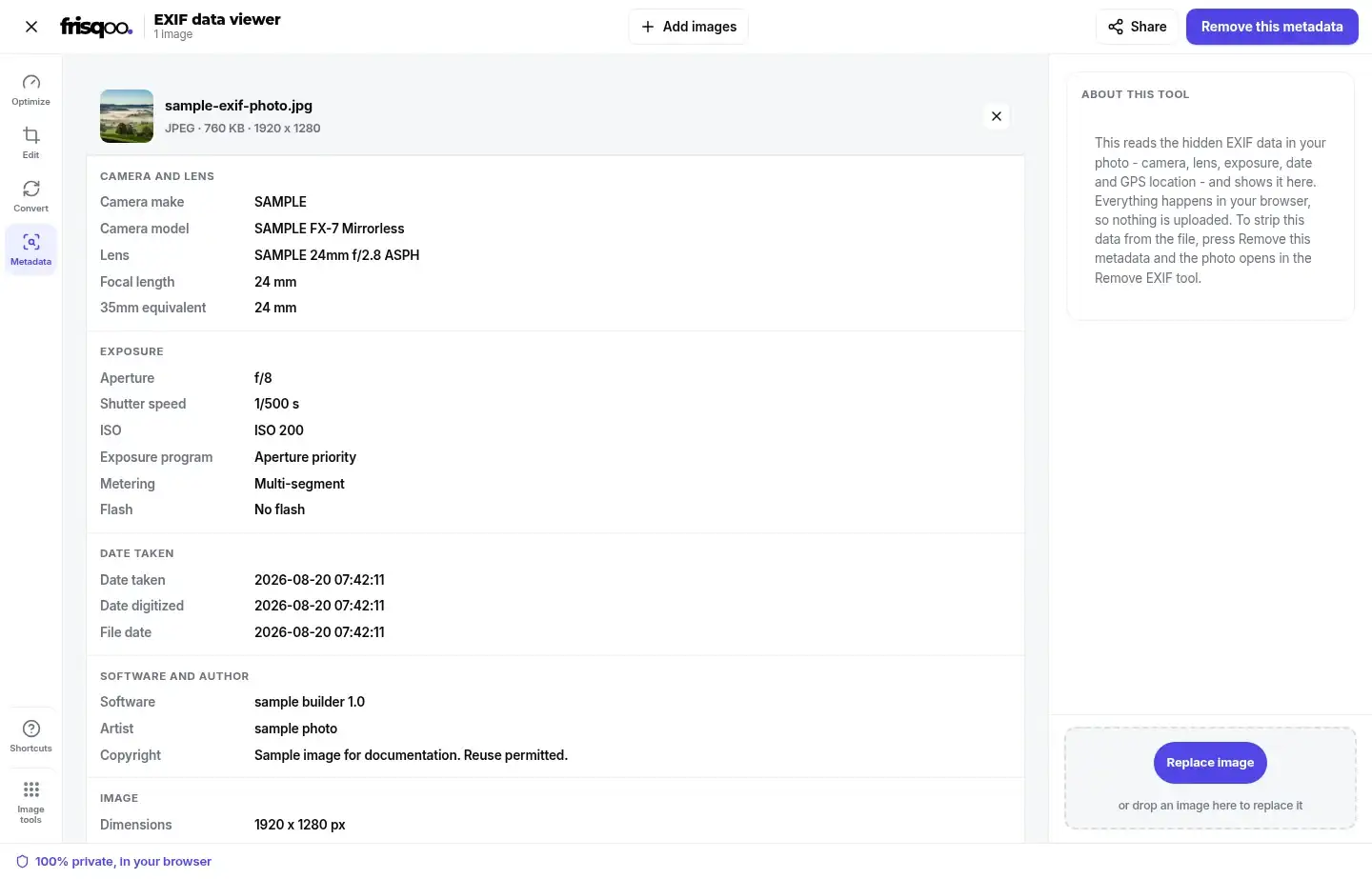
Read the camera make, model, lens, focal length and 35mm equivalent when the file records them.
Check exposure
See aperture, shutter speed, ISO, exposure bias, metering and flash in one readable group.
Review a set
Add multiple photos and get a separate result card for each one, including a clear no-metadata message when needed.
Inspect, then clean
Viewing does not alter the source. When you are ready, hand the same files to Remove EXIF data for a clean copy.
How to view EXIF data
- Add your photos. Drop them on the box or pick them from your device, one or many.
- Read the result. Scan the camera, exposure, date, image and location groups that the file contains.
- Remove it if needed. Press Remove this metadata to open the same files in the Remove EXIF tool.

What EXIF data tells you
EXIF stands for Exchangeable Image File Format. It is a set of tags stored alongside the image pixels, usually added by a camera or phone. These tags are not visible in the picture, but they can travel with the file when you email it, upload it or pass it to another app.
The useful part is often the story around the picture. Camera make and model identify the device. Lens and focal length show the glass and field of view. Aperture, shutter speed and ISO describe the exposure. Date taken records when the camera says the shot was made. Orientation tells software how the image should be displayed.
The viewer turns those values into named rows rather than showing a block of raw numbers. A result can include Camera and lens, Exposure, Date taken, Software and author, Image and Location (GPS). Groups appear only when there is something to show, so a short result does not mean the file failed.
Check GPS before you share
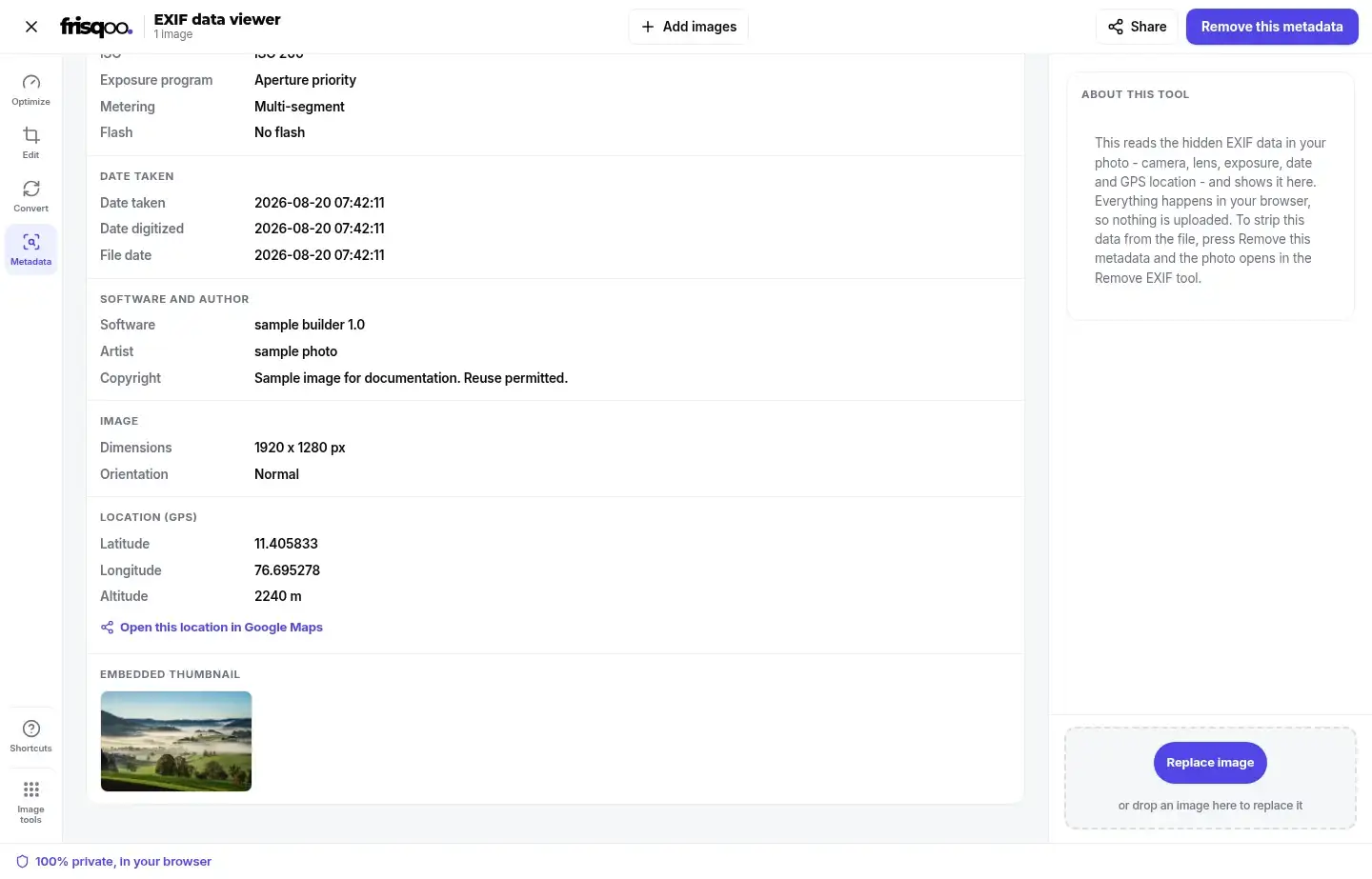
Location data deserves a separate check because it can be more revealing than the camera model. A phone photo may contain latitude, longitude and altitude from the moment it was taken. That can point to a home, a school, a workplace or a private event even when the image itself gives no obvious clue.
If the file has GPS tags, the viewer shows decimal coordinates under Location (GPS). It can also show altitude and adds an Open this location in Google Maps link. The link is an action, not an automatic map load: the map opens only after you click it in a new tab.
No Location (GPS) group means the reader did not find usable latitude and longitude tags in that file. It does not prove that every possible metadata field is absent, so treat the result as a practical check of what this viewer can read.
Camera, exposure and dates in one place
When a file has a full camera record, the result can show the manufacturer and model, the lens name, focal length and 35mm equivalent. That helps when you are sorting a shoot, checking which device made a file or comparing images from two cameras.
The Exposure group makes the capture settings easy to scan: aperture, shutter speed, ISO, exposure bias, exposure program, metering and flash. Some phones and editors write only a few of these values. The viewer does not invent missing rows; it displays the tags that are actually present.
Date taken and Date digitized are kept separate when both exist. The Image group shows pixel dimensions and orientation. Software, Artist and Copyright appear in their own group when those fields were written into the file.
Formats and previews
The drop area advertises JPG, TIFF, PNG, WebP and AVIF. The reader looks for an EXIF or TIFF metadata block in the file rather than assuming that the file extension means metadata is present. JPG is the common case, while PNG and WebP show data when they contain the relevant EXIF chunk.
TIFF is different because its image and metadata use the TIFF structure itself. The viewer decodes a TIFF for its on-screen preview while continuing to read metadata from the original bytes. AVIF metadata can be inspected when an Exif item is present, while the browser remains responsible for displaying the AVIF preview.
A supported format can still have no EXIF. A screenshot or an exported image may be perfectly readable and still return No EXIF metadata found in this photo. That is a valid result, not a conversion error.
Inspect first, remove only when ready
The viewer does not rewrite, compress or rename your source. It reads the file, creates a local preview and leaves the original untouched. You can remove a result card with its close button and add another photo without changing any file on disk.
If the result exposes a location or author detail that you do not want to share, use Remove this metadata. The button hands the same file to the Remove EXIF tool in your browser, where you can strip the metadata and download a clean copy. Viewing and removal are separate actions, so you can inspect first and decide what to do.
For a batch, each file receives its own card. That makes it possible to check a group before sending it to the cleanup tool. Large sets still use your device memory, because the work is local rather than performed by a server.
When a photo has no metadata
No EXIF is common after a screenshot, a social export, a design-tool export or a previous cleanup pass. It can also happen when the camera never wrote metadata in the first place. In those cases the viewer shows the detected format, file size and dimensions, then says No EXIF metadata found in this photo.
That message is useful when you are checking a file for privacy, but do not treat it as a complete forensic guarantee. Applications can store other kinds of information outside the EXIF tags this reader understands, and a filename or the visible pixels can still reveal context.
Use the result before posting
Make an EXIF check part of your sharing routine for travel photos, marketplace listings, property images, family pictures and work documents. Look at the Location (GPS) group first, then scan the camera, dates, author and copyright fields. These details may be harmless in one context and sensitive in another.
The viewer is designed for that quick decision: add the file, read the grouped fields, then either leave the original alone or send it to Remove EXIF data. Because the read happens in your browser, the file can stay on your device throughout the inspection.
What missing fields mean
Metadata is optional, and different cameras and apps write different tags. A phone may record a date and GPS position but leave the lens name blank. An editor may keep the camera model while dropping the original exposure values. The result shows only values that are present and readable, so an absent row should not be read as a zero or a default.
The same applies to GPS. A photo can contain camera information without a location, or a location without altitude. The viewer needs usable latitude and longitude before it creates the Location (GPS) group and map link. If coordinates are missing or incomplete, the photo can still show its other groups normally.
File size and dimensions are separate from EXIF. The result header can still identify the format, size and pixel dimensions for a clean image. This helps you tell the difference between a readable picture with no metadata and a file that could not be opened.
Embedded thumbnails and image details
Some camera files include a small embedded thumbnail inside their EXIF structure. When the reader finds one, it displays it under Embedded thumbnail. This gives you a quick way to recognize the stored preview and compare it with the main image without exporting anything.
A thumbnail is still part of the file's metadata. If you send the photo to Remove EXIF data, remove the metadata from the copy you plan to share rather than assuming that deleting a visible field is enough. The viewer is for inspection; the cleanup tool is the step that creates a new file for sharing.
The Image group also records orientation when that tag exists. A value such as Rotated 90 degrees describes an instruction stored in the file. It does not mean the viewer has rotated or re-saved your original photo.
Compare a batch without losing track
When you add several photos, keep the filenames visible in the result headers. Compare one field at a time: camera and lens for a mixed shoot, Date taken for a timeline, or Location (GPS) for files collected on a trip. Each card has its own close button, so you can remove a result from the workspace while leaving the source file untouched.
After the check, use the same batch for cleanup if needed. The editor changes its main action to Remove metadata with the number of selected files, then hands those originals to the Remove EXIF tool. This keeps the review step and the removal step connected without silently changing the files you first inspected.
FAQs about EXIF data viewer
What is EXIF data?
EXIF is information saved inside an image by a camera or phone. It can include the camera and lens, exposure settings, dates, image orientation and GPS coordinates. It travels with the file even though it does not appear in the visible picture.
How do I view EXIF data online?
Open the viewer, add a photo, and wait for its result card. The tool reads the file in your browser and groups the values under Camera and lens, Exposure, Date taken, Image and Location when those groups are present.
Does it show where a photo was taken?
Yes, if the file contains GPS tags. The Location group shows decimal latitude, longitude and altitude when available, with a link that opens the coordinates in Google Maps after you click it.
Are my photos uploaded?
No. The viewer reads the file in your browser. Viewing a result does not send the photo or its metadata to a server. Google Maps is opened only if you choose the location link.
What does EXIF data include?
The available fields depend on the file. This viewer can show camera make and model, lens, focal length, aperture, shutter speed, ISO, exposure bias, metering, flash, dates, software, author, copyright, dimensions, orientation, GPS and an embedded thumbnail.
Why does my photo have no EXIF data?
Some files do not contain EXIF. Screenshots, images exported by apps and photos that have already been cleaned may have none, so the result says No EXIF metadata found in this photo.
Does viewing EXIF change the photo?
No. The viewer only reads the file. It does not write to or re-encode the original photo, so you can inspect it without changing the copy on your device.
How do I remove EXIF after viewing it?
Press Remove this metadata in the editor. The same files are handed to the Remove EXIF tool, where you can strip the metadata and download clean copies.
Can I view EXIF data from multiple photos?
Yes. Add several files at once. Each photo gets its own result card, which makes it easier to compare camera details, dates or locations across a set.
Can I view EXIF data on an iPhone or Android phone?
Yes. Open the page in a modern mobile browser, choose a photo from your camera roll and read the result on the device. There is no app to install and the file is read locally.
Does it show the camera and lens?
When those tags are present, the result shows camera make and model, lens make and model, focal length and the 35mm equivalent, followed by the exposure values.
Can I see the original photo dimensions?
Yes. The result header shows the detected format, file size and pixel dimensions. The Image group also lists dimensions and orientation when they are available.
Is this EXIF viewer free?
Yes. There is no sign-up or watermark. Your device is the practical limit because the work happens in your browser.