

WebP to PDF
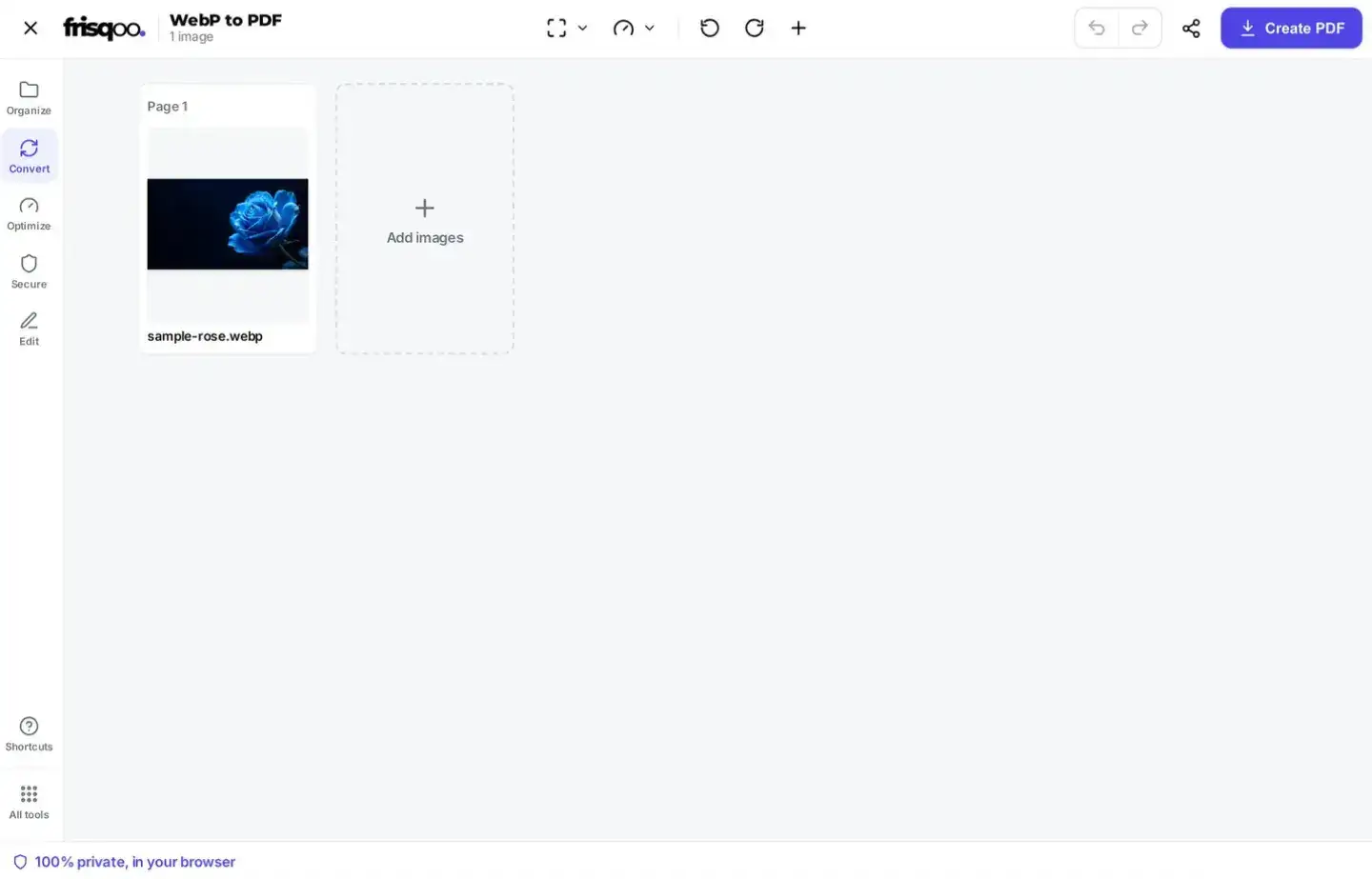
Convert WebP to PDF free with a visual image workbench. Add one WebP or a batch, drag images into order, rotate or remove them, choose page and quality settings, then tap Create PDF. Processing runs locally in your browser, and Frisqoo does not upload the source files. No sign-up or watermark; large jobs depend on available device memory.
100% private. Your files are processed entirely in your browser and never uploaded.
HEIC and HEIF photos need Safari on iPhone or Mac. In other browsers, export them as JPG first.
Why convert WebP to PDF with frisqoo
Local processing
The source images are decoded and combined in your browser rather than uploaded for processing.
Page previews
See page size, orientation, margins, placement, order, and rotation before creating the PDF.
Two quality modes
Choose PNG-based Best quality or JPEG-based Smaller file for decoded formats such as WebP.
Arrange every image
Drag cards into order, rotate images, remove mistakes, or add more files.
Undo and Redo
Step through order, rotation, removal, and setting changes before building the file.
Free on your device
No sign-up or watermark. Large image sets depend on available browser memory.
How to convert WebP to PDF
- Add one or more WebP files by dropping them in the box above or choosing them from your device.
- Drag cards into page order. Rotate or remove individual images, or add more files to the current set.
- Choose Fit to image, A4, or Letter, then select Best quality or Smaller file.
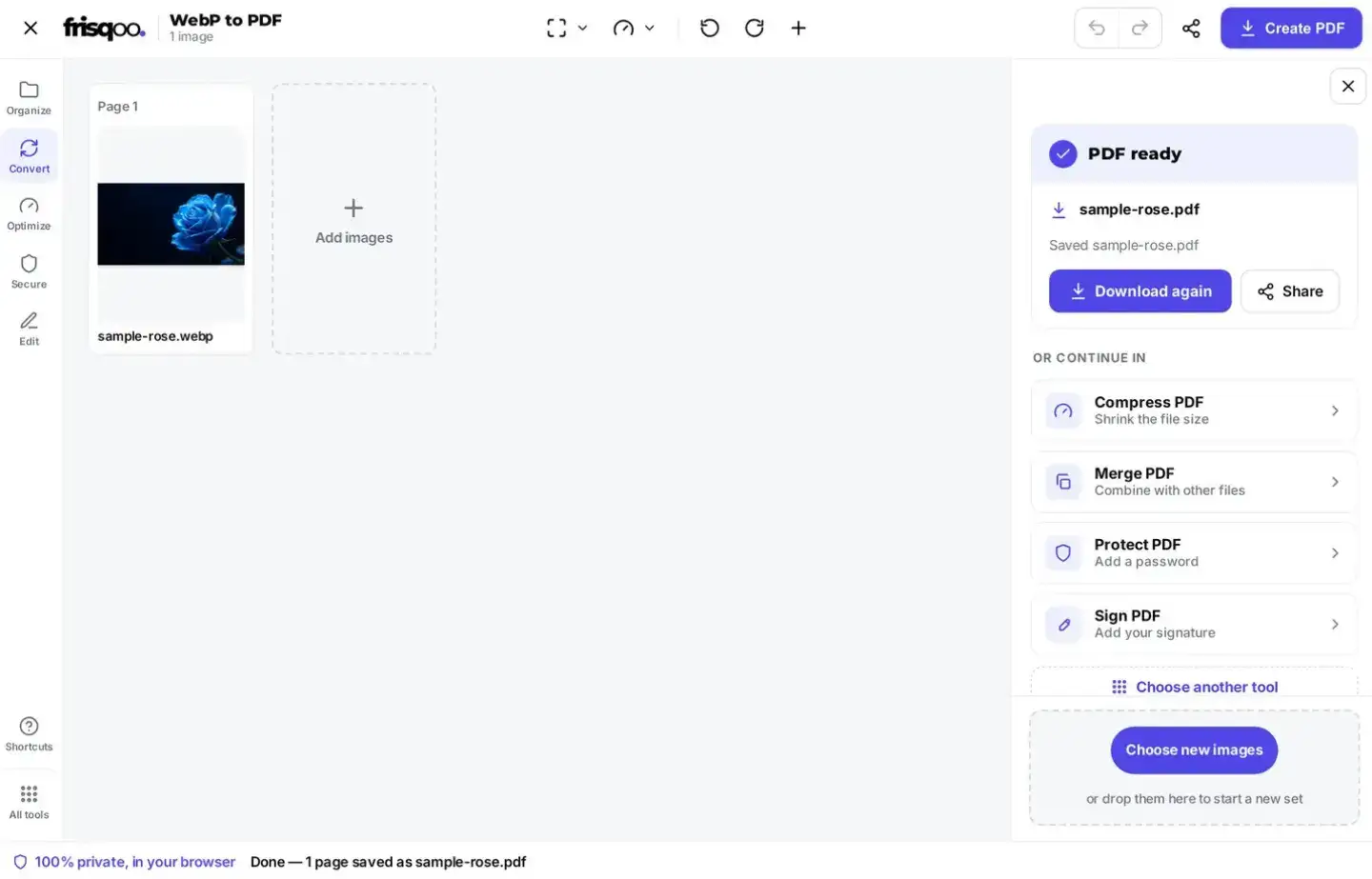
- Click Create PDF. Check the filename and page count, then use Download again if needed.
The original images are not overwritten. Frisqoo creates a separate PDF on your device.

Arrange images and preview PDF pages
Every source image appears as a numbered card. Drag cards into reading order, rotate an image left or right, remove one, or use Add images to extend the current document. Toolbar actions rotate the complete set. Undo and Redo cover ordering, rotation, deletion, and setting changes.
The preview uses the same page dimensions and placement calculations as export. It shows orientation, margins, image position, and manual rotation before the PDF is built.
What changes when WebP becomes a PDF page
WebP is an image container that can use lossy compression, lossless compression, transparency, and animation. A PDF page created by this workbench is different: it contains a static image placed on a page with a chosen size and margin. The browser decodes the WebP pixels, then the selected quality mode determines whether the converted image is embedded through PNG or JPEG output.
The conversion does not create editable shapes or a searchable text layer. Words visible inside a WebP remain image pixels, just as they were in the source. Transparency can survive through Best quality, while Smaller file uses a white canvas before JPEG encoding. Animation is not carried into the PDF, so check the static page when the source WebP contains movement.
For documents that mix photographs and interface graphics, split the work into separate PDFs when the ideal quality setting differs. Photos may suit Smaller file, while transparent logos, diagrams, and small text usually benefit from Best quality. The PDFs can be combined afterward with Merge PDF.
Change WebP to PDF with the right quality mode
WebP cannot be embedded directly by the current PDF path, so the browser decodes it first. Best quality draws the image into PNG output before embedding and can retain transparency. Smaller file uses JPEG encoding at the engine's current quality setting. JPEG is lossy and fills transparent pixels with white.
Best quality suits logos, interface graphics, diagrams, and images with transparency. Smaller file can suit photos when a reduced PDF size matters more than preserving every decoded pixel. The setting can also affect other browser-decoded formats mixed into the job, while direct PNG and JPG inputs follow their own embedding paths.
Page size, layout, and margins
Fit to image makes each page follow its picture dimensions and places the image edge to edge. A4 and Letter create standard paper pages. Those standard sizes unlock Auto, Portrait, or Landscape layout and None, Small, or Large margins.
Auto follows each image shape; fixed orientation keeps pages consistent. Images are scaled proportionally into the available area rather than deliberately stretched. Review unusually wide or tall files in the thumbnails before creating the PDF.
Combine WebP to PDF in a fixed order
Add several WebP files to make one ordered document. Each readable WebP creates one static PDF page. A multi-page TIFF mixed into the same job can create several pages even though the editor shows one source card. Animated WebP content does not remain animated in the PDF.
One source image uses its base filename with a .pdf extension. Several source cards download as frisqoo_webp-to-pages.pdf. The completed panel reports saved pages and notes unreadable images that were skipped.
Save WebP as PDF and review the result
Open the downloaded PDF and inspect the first and last pages, card order, rotations, transparency, and page count. For printing, confirm paper size, orientation, and margins. Zoom into one detailed image to compare the selected quality mode with the source.
WebP to PDF without uploading source images
Decoding, previews, ordering, rotation, and PDF creation run locally in the browser. Frisqoo does not upload the source files for this operation. Camera, location, and other source metadata is not promoted into the new PDF; the document receives Frisqoo producer and creator values.
Browser support still matters for mixed formats. HEIC and HEIF may open in Safari on supported Apple devices but fail in other browsers. When that happens, save or share the photo as JPG and add that version. Unreadable files are reported instead of becoming blank pages.
WebP to PDF on phone or tablet browsers
Current mobile browsers can use the same controls. Choose saved WebP images, drag cards into order, rotate them, set the pages and quality, and create the PDF. Touch layouts keep image-card actions visible and use a narrower grid.
High-resolution images and long batches need more memory. Keep the tab open until download finishes and close other memory-heavy tabs when necessary.
Formats you can add
- WebP, PNG, JPG, and JPEG
- AVIF, BMP, and GIF
- TIFF, including readable multi-page files
- SVG graphics, rasterized through the browser for PDF embedding
- HEIC and HEIF when the browser and device can decode them
For a format-neutral entry point, JPG to PDF uses the same mixed-image workbench.
FAQs about WebP to PDF
Do my WebP images get uploaded?
No. Processing runs locally in your browser. Frisqoo does not upload the source images for this task. Keep the tab open until the PDF finishes downloading.
Why did an image download as WebP?
Websites often serve WebP because it can reduce web image size. Saving the displayed image may therefore produce a .webp file even when the page does not mention the format.
What is the difference between the quality modes?
WebP must be decoded before PDF embedding. Best quality draws it into PNG output and can preserve transparency. Smaller file uses JPEG at the engine's current quality setting, which can reduce size but is lossy and fills transparent areas with white.
Can I preview page size, layout, and margins?
Yes. The thumbnails use the same size and placement calculations as the PDF. Fit to image follows picture dimensions. A4 and Letter add Auto, Portrait, or Landscape layout and None, Small, or Large margins.
Can I combine WebP to PDF in a chosen order?
Yes. Add several images and drag the cards into order. Each WebP becomes one page, and the Create PDF button shows the current page count.
Can I rotate or remove an image?
Yes. Each card has Rotate left, Rotate right, and Remove image controls. The toolbar rotates every image together, and Undo or Redo restores earlier order, rotation, deletion, and setting states.
Can I mix other image formats with WebP?
Yes. The workbench accepts JPG, PNG, AVIF, BMP, GIF, TIFF, SVG, HEIC, and HEIF. Multi-page TIFF files can create several PDF pages. HEIC and HEIF depend on browser and device decoding support.
Will an animated WebP remain animated?
No. PDF pages created by this workbench are static image pages. Do not use this conversion when animation must remain playable.
What filename will the PDF use?
With one image, the PDF uses that image's base filename. With several image cards, WebP to PDF downloads frisqoo_webp-to-pages.pdf. The ready panel also offers Download again and sharing when supported.
Is source image metadata copied into the PDF?
The tool builds a new PDF from decoded image pixels and writes its own PDF producer and creator values. Do not rely on camera, location, or other source image metadata being carried into the document.
Can I use WebP to PDF on phone browsers?
Yes. Current mobile browsers can add files, reorder cards, rotate images, change page settings, and download the result. Large batches need more available device memory.
Can I use WebP to PDF offline?
Once the page and required code have loaded, conversion runs locally. Keep the tab open while working; reloading the site may require a connection again.
Is WebP to PDF free?
Yes. There is no sign-up or watermark. Frisqoo does not impose a fixed image-count cap here, but the practical limit is browser memory.