

JPG to PDF
Convert images to a PDF free. Add JPG, PNG, WebP, AVIF, BMP, GIF, TIFF, or SVG files, arrange them, choose the page settings, then tap Create PDF. Conversion runs locally in your browser, and Frisqoo does not upload your source images for processing. No sign-up or watermark.
100% private. Your files are processed entirely in your browser and never uploaded.
HEIC and HEIF photos need Safari on iPhone or Mac. In other browsers, export them as JPG first.
Why convert images to PDF with frisqoo
Local processing
Your images are combined in the browser without being uploaded to Frisqoo for conversion.
Mixed formats
Combine JPG, PNG, WebP, AVIF, BMP, GIF, TIFF, and SVG files in one PDF.
Reorder freely
Drag any image into a new spot to set the page order before you build.
Quality your way
Choose lossless PNG or high-quality JPEG for formats that need conversion.
Free to use
No sign-up or watermark. Large jobs depend on the memory available on your device.
Desktop and mobile
Runs in current desktop and mobile browsers with nothing to install.
How to convert images to PDF
- Add your images by dropping them in the box above, or click to browse and pick them.
- Drag the images into the order you want, choose Fit to image, A4, or Letter, and choose Best quality or Smaller file for any format that needs converting.
- Click Create PDF. One image keeps its base name with
.pdf; several images download asfrisqoo_jpg-to-pages.pdf.
Everything runs locally in your browser. Frisqoo does not upload the source file, and the tool can keep working without internet once the page has loaded.
Formats you can convert
- JPG / JPEG: embedded directly at full quality
- PNG: embedded directly, transparency preserved
- WebP: modern web photos and graphics
- AVIF: newest high-efficiency photo format
- BMP: uncompressed Windows bitmaps
- GIF: the first frame is used
- TIFF: common for scans and print
- SVG: vector art, rasterized crisply into the page
JPG and PNG go straight into the PDF without another image conversion. WebP, AVIF, BMP, GIF, TIFF, and SVG are decoded in the browser and embedded using the quality setting you choose. An animated GIF uses its first frame. A multi-page TIFF is the exception to the one-image-per-page pattern: every TIFF page is carried into the result in its original order.
HEIC and HEIF support varies by browser and device. When supported, Frisqoo converts the photo normally. Otherwise, save or share the photo as JPG and add that version. Other supported images in the same set can still be converted.
Dedicated pages for specific formats
This tool handles every common image format, but if you are working with one in particular we have a dedicated page tuned for it: PNG to PDF for screenshots and transparent graphics, WebP to PDF for images saved from the web, and TIFF to PDF for multi-page scans. Each works exactly the same way and gives the same result. Pick whichever matches the files you have.
Best quality or smaller file?
The quality choice only applies to formats that must be converted: WebP, AVIF, BMP, GIF, TIFF, and SVG. Pick Best quality to use lossless PNG and retain transparency. Pick Smaller file to use high-quality JPEG and reduce the output size; transparent areas are filled with white. The JPG and PNG source files are embedded directly and are not affected by this choice.
Best quality converts those formats through PNG, which is lossless and can retain transparent areas. Smaller file converts them through high-quality JPEG and places white behind transparency. This setting does not resize the page or change its orientation. Use the size, layout, and margin controls separately to decide how each picture sits on the PDF page.
The setting affects only the copy placed inside the new PDF. Your source images remain unchanged on the device, so you can create another version later with different quality or page settings.
Put your images in the right order first
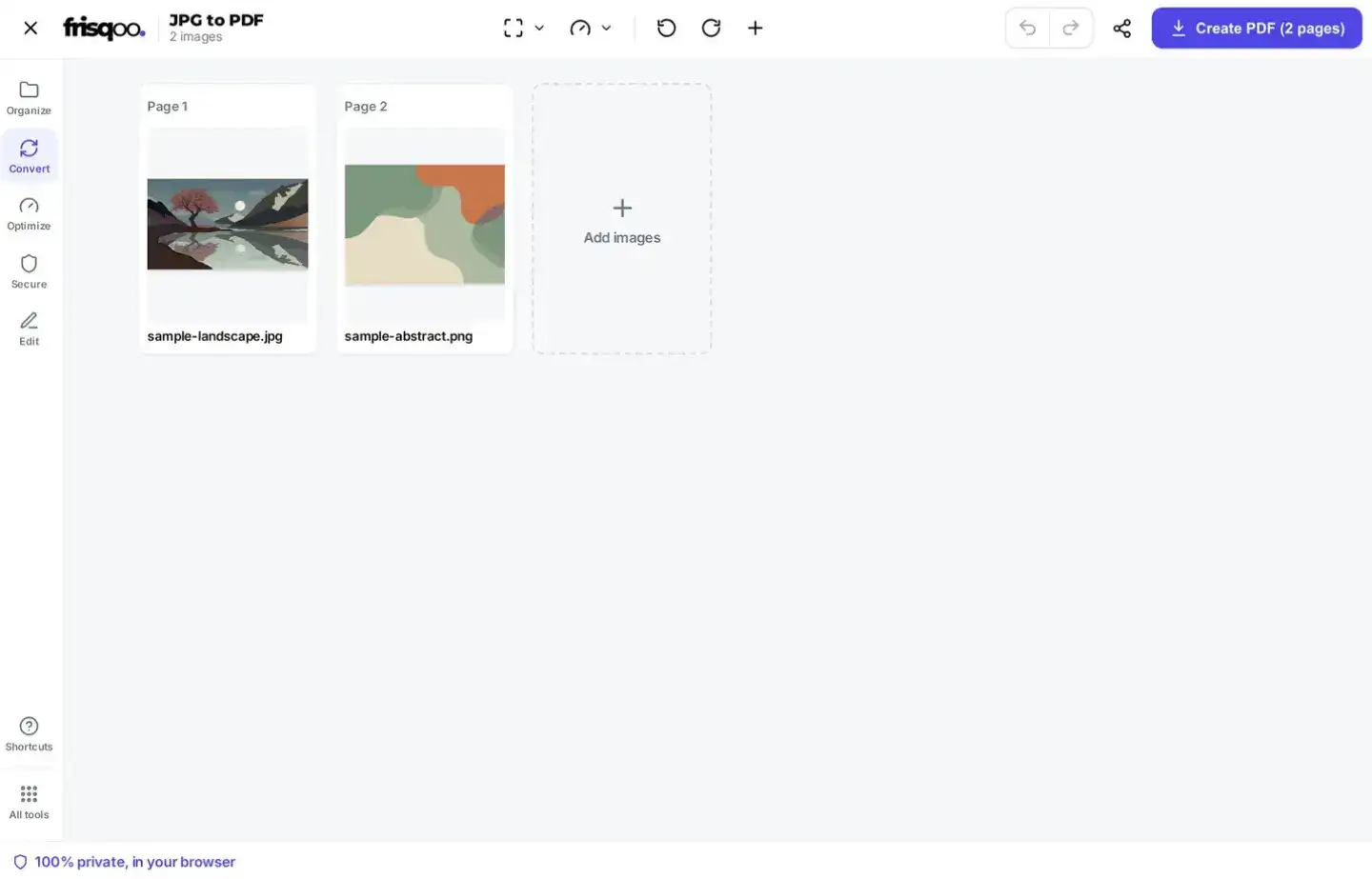
After you add your pictures, each one shows up as a page thumbnail. Drag any thumbnail to move it up or down. On a computer, just click and drag; on a phone or tablet, press and hold the thumbnail for a moment until it lifts, then drag it into place. The final PDF follows the order on screen, top to bottom, so put the picture you want first at the top. Each thumbnail also has a trash button that removes an image you added by mistake, without touching the originals on your device.
Use the left and right rotate buttons on a card to turn only that image. The toolbar can rotate every image together, and Add images appends more files without clearing the current set. Reordering, rotation, removal, and page settings are tracked by Undo and Redo, so you can test an arrangement and return to the previous one before creating the PDF.
Choosing a page size
Fit to image makes every page match its picture, edge to edge. It is the cleanest choice for photos and screenshots that will mainly be viewed on a screen. In this mode, the image controls the page dimensions, so separate layout and margin menus are hidden.
A4 and Letter create standard paper pages. Once either is selected, Layout offers Auto, Portrait, and Landscape. Auto follows each image's shape, while Portrait or Landscape gives every page the same orientation. Margin offers None, Small, and Large. The image is scaled proportionally and centered inside the available area, so choosing a paper size or margin does not crop it. The live thumbnail uses the same sizing calculations as the exported page.
Does converting reduce quality?
JPG and PNG files are added to the PDF exactly as they are, with no re-compression, so those pages keep the full resolution and detail of the original. Other formats are processed once as they are converted, so choose Best quality to keep that step lossless. A PDF made from large photos will be about as big as the photos themselves; if you need a smaller file afterwards, run it through Compress PDF.
How local image processing works
The conversion runs inside your browser. Frisqoo does not upload your source images for processing or keep a server copy of them. This local workflow is useful for receipts, personal photos, scans, and other files you prefer to process on your own device. As with any downloaded document, store and share the finished PDF according to the sensitivity of its contents.
Large image sets and browser memory
There is no fixed image count or paid size cap. The practical limit is the memory available to the browser while it decodes previews and builds the PDF. High-resolution scans, lossless converted formats, and multi-page TIFF files use more memory than ordinary phone photos. For a large set, wait for the thumbnails to finish loading, keep this tab open, and close unused apps or tabs.
If a phone reloads the page during a very large job, try the same files on a computer with more free memory or divide the set into smaller PDFs and join them with Merge PDF. This changes only how the work is divided. Every conversion still happens locally in the browser.
Combine photos, scans, and screenshots into one file
Turning images into a PDF is the easiest way to share a set of pictures as a single, tidy document that opens the same on every device. Snap photos of a multi-page paper form, gather a folder of screenshots, or collect scanned receipts, then combine them here into one file you can email, print, or archive. Because each image becomes its own page in the order you set, the result reads like a proper document rather than a loose pile of attachments.
Before building, check that every thumbnail shows the expected picture and page orientation. If the browser cannot decode a file, its card provides guidance so you can replace it with a supported version before creating the PDF. After downloading, check the page order, paper size, margins, and any transparency that matters. Keep the original images until that review is complete, because creating the PDF does not alter or delete them.
What to do after you build the PDF
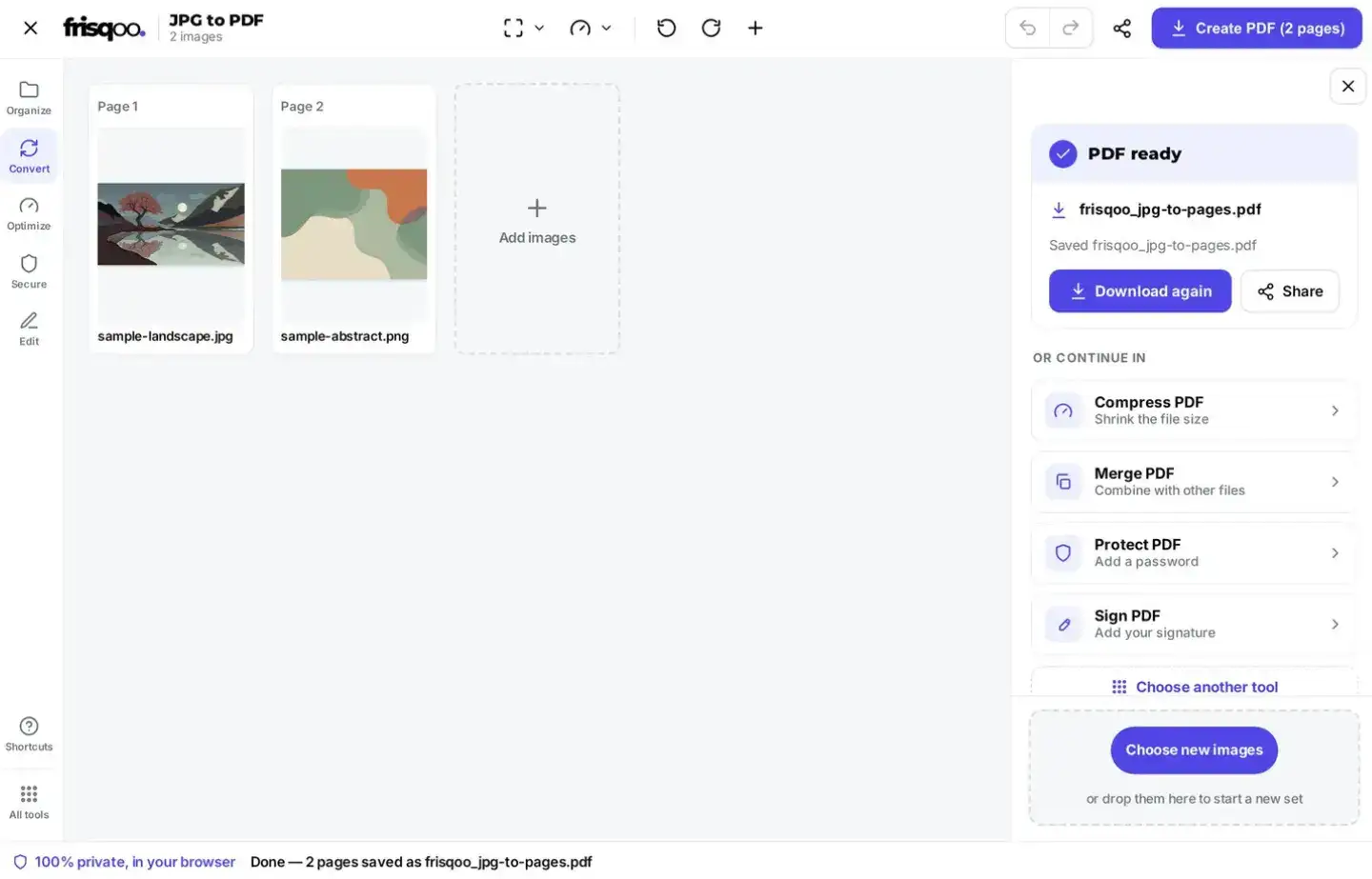
The result panel shows PDF ready, the saved filename, Download again, and Share where device sharing is available. A single input keeps its base name, such as receipt.pdf. A set of images downloads as frisqoo_jpg-to-pages.pdf. Choose new images starts a replacement set after the current result is saved.
Once you have your PDF, the rest of the toolkit is one click away. Shrink a photo-heavy file with Compress PDF, add more documents to it with Merge PDF, rearrange or drop pages with Organize pages, or straighten a sideways scan with Rotate PDF. To go the other way and render PDF pages as images, use PDF to JPG.
Can I convert images to PDF on my phone?
Yes. The tool runs in current browsers on iPhone, Android, tablets, and computers, with nothing to install. Add photos from your device, drag them into order, pick a page size, then tap Create PDF. Support for individual formats, including HEIC and HEIF, can vary by browser and operating system.
On a small screen, press and hold a thumbnail before dragging it. The finished PDF appears in the browser's normal downloads location, and the result panel can open the device share sheet when sharing is supported. If a phone photo appears sideways, rotate its card before creating the file; the updated thumbnail shows the exported orientation.
Common ways people use JPG to PDF
- Turning phone photos of a paper form into a single PDF to email back.
- Combining scanned receipts or invoices into one file for expenses.
- Bundling a set of screenshots into a tidy document to share.
- Making a simple photo album or portfolio that opens the same everywhere.
- Packaging scanned ID or certificate images into one printable PDF.
FAQs about JPG to PDF
Do my images get uploaded?
No. Conversion runs locally in your browser. Frisqoo does not upload your source images for processing or keep a server copy of them.
What image formats can I use?
You can convert JPG, JPEG, PNG, WebP, AVIF, BMP, GIF, TIFF, and SVG images and mix them in one PDF. Most files become one page. A multi-page TIFF contributes all of its pages, while an animated GIF contributes its first frame. JPG and PNG are embedded directly; the other formats are converted in your browser.
Can I convert SVG or other vector images?
Yes, SVG files work, but they are rasterized (turned into a high-resolution picture) as they go into the PDF, which is how most converters handle them. The page looks crisp, but it will not stay infinitely zoomable like the original vector. Other vector types such as EPS or AI are not supported, because reading them safely in the browser is not practical.
Should I pick best quality or smaller file?
This only affects formats that have to be converted (WebP, AVIF, BMP, GIF, TIFF, SVG). Best quality uses lossless PNG and can retain transparency. Smaller file uses high-quality JPEG and fills transparent areas with white. JPG and PNG source files are embedded directly and are not affected by this choice.
What about HEIC or HEIF photos from my iPhone?
HEIC and HEIF support varies by browser and device. When supported, Frisqoo converts the photo normally. Otherwise, save or share the photo as JPG and add that version.
Can I reorder the images?
Yes. On a computer, drag any thumbnail into a new spot. On a phone or tablet, press and hold a thumbnail for a moment until it lifts, then drag it where you want. The final PDF follows the on-screen order, top to bottom, and each thumbnail has a trash button to remove an image you added by mistake.
A photo is sideways. Can I rotate it?
Yes. Each thumbnail has a rotate-left and a rotate-right button, so you can turn any image a quarter turn at a time before you build. Photos from a phone are also stood upright automatically using their orientation tag, so most look right the moment you add them.
Can I control the page size?
Yes. Fit to image makes each page match its picture exactly, edge to edge. A4 or Letter places the image centered on a standard page with a small even margin around it, which is better for printing.
Will my images lose quality?
JPG and PNG files are added exactly as they are, with no re-compression, so they keep full detail. Formats that must be converted are processed once, so choose Best quality to keep that step lossless, or Smaller file to shrink it.
What happens to transparent images?
At Best quality, transparency is preserved, though most PDF viewers show white behind see-through areas because a PDF page has no background of its own. With Smaller file, transparent areas are filled with white. If you need a specific background, add it to the image before converting.
Can I preview the result and set layout and margins?
Yes. Every image appears as a live page thumbnail that shows what will download, and you can drag the thumbnails to reorder them. Set Size to A4 or Letter to also unlock Layout (Auto fits each image, or force Portrait or Landscape) and a Margin of None, Small, or Large. The previews update as you change them.
Can I turn a PDF back into images?
Yes. Use our PDF to JPG tool for the reverse. It renders each page of a PDF into an image you can download.
Is it free?
Yes. There is no sign-up or watermark. Very large image sets depend on the memory available to your browser and device.