

PDF to Markdown converter
Turn the text in a PDF into a Markdown file for notes, documentation, or a draft you want to edit. Compare the result with the page preview, then copy it or save an .md file. Processing runs locally in your browser. frisqoo does not upload the source file for processing.
100% private. Your files are processed entirely in your browser and never uploaded.
Why use frisqoo for PDF to Markdown
No document upload
Your browser reads the PDF from your device. frisqoo does not upload it for processing.
Headings and tables
Structured output adds Markdown for headings, lists, code blocks, and simple tables when the PDF gives enough information.
Edit before saving
The Markdown box stays editable. Check it beside the PDF, fix a passage, then copy or download the text.
One file or a batch
Review one PDF in the editor, or convert several and download their Markdown files together as a ZIP.
Structured or plain
Choose inferred Markdown structure or simpler paragraph text, then review the result.
Page cleanup
Remove repeating headers and footers, or add page comments to trace text back to its source.
How to convert PDF to Markdown
- Drop a PDF in the box above, or use Choose PDF files.
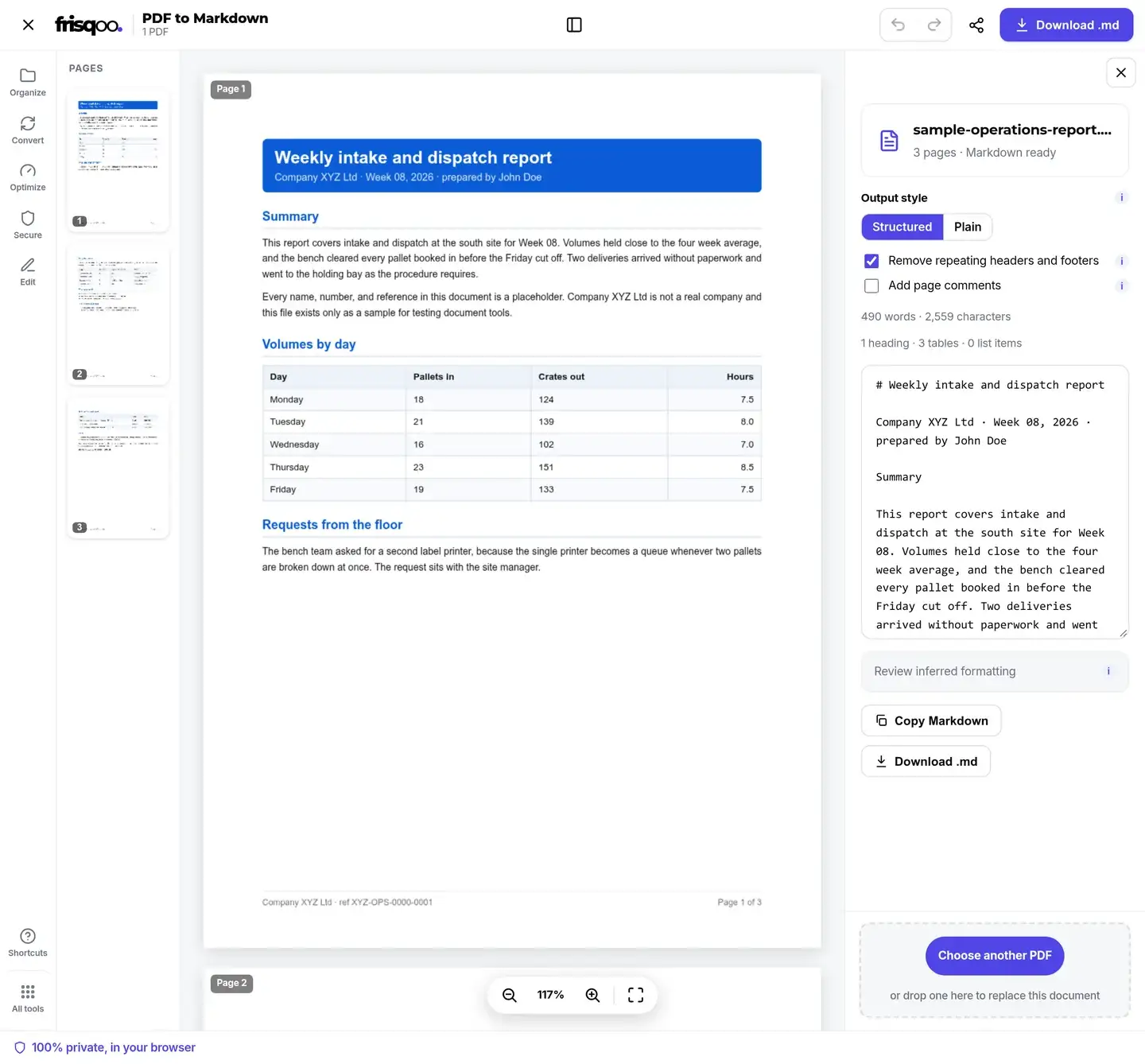
- Choose Structured or Plain, then check the text beside the source pages.
- Make your edits and use Copy Markdown or Download .md. Reopen the panel with Markdown output in the toolbar.
For a batch, select several PDFs at the first step and use Download all as ZIP when the results are ready.
What does the Markdown keep?
The Markdown keeps readable text and adds formatting where the PDF's layout makes it possible. A heading may become a Markdown heading, and a simple table may become rows of cells. The result needs a check because PDFs do not always record those parts as a document editor would.
- Text from pages with a usable text layer
- Paragraphs joined from nearby lines
- Headings and bullet or numbered lists found in the page text
- Simple tables with regular, aligned columns
- Code blocks when the font information identifies monospaced text
- Pictures, chart artwork, and words stored only in images
- Page colours, fonts, borders, and exact visual layout
- Working form fields, attachments, or PDF link destinations
Start with a PDF whose words you can select
Try selecting a sentence in the PDF before converting it. If you can copy the words, the file has text this tool can read. Reports exported from a document editor often work well, while a photo of a page has only an image unless OCR has already added text underneath.
A scan with no usable text stops with an OCR suggestion. Use OCR PDF to make a searchable copy, then bring that file back here. Check names, dates, and amounts after OCR, since a readable text layer can still contain recognition errors.
Some documents mix typed pages with scanned pages. The converter warns when pages have no usable text; those pages contribute no words to the result. Compare the page count and source preview with the Markdown before treating it as a complete transcript. If most pages have no useful text, process the scan through OCR first.
Choose your output style before editing
Structured is selected when you first open the editor. It adds Markdown headings, lists, tables, and code fences where it can recognise them. Nearby lines of prose are joined into paragraphs, so a sentence is less likely to break at every line of the printed page.
Plain keeps the detected reading order and lines without adding that formatting. Try it when a form or a heavily designed page comes back with too many headings or an unwanted table. You can switch between the two styles without reading the PDF again.
Choose the style and cleanup options before making manual changes. Changing one of those controls rebuilds the text in the box and replaces your edits. Copy or download an edited version before trying another setting. Your edits change the Markdown only; the PDF beside it stays the same.
Check headings and table rows
A PDF usually stores text at positions on a page, so the converter has to work out where a heading, paragraph, or table starts. Larger text can be picked up as a heading, but a small section title may remain a plain line. Check the heading levels in a long report before using them to build a contents list.
For a simple table, the first row becomes the Markdown header. If your table starts with data rather than labels, edit that first row before saving. Merged cells, wrapped descriptions, and tables spread over several pages may need more work. Compare each value with its row label, especially when a misplaced amount would change what the table means.
On a page with two clear text columns, the converter tries to finish the left column before moving to the right. A sidebar or a full-width paragraph can make the order harder to follow. Read across the joins between sections rather than checking only the first few lines. Code excerpts also need a check for spacing and indentation before you run them.
Remove repeated headers without losing page references
Remove repeating headers and footers is on by default. It looks for short matching lines near the top or bottom of at least three pages, such as a report name or a recurring footer. Turn it off if a repeated line contains information you need to keep.
Add page comments is off by default. Turn it on to place a comment such as <!-- Page 2 --> before each page's text. It marks the source page in the Markdown without appearing as normal text in most Markdown viewers. This helps when you need to check a quotation against the PDF.
Can I convert PDF to Markdown with images?
No. Pictures are not included in the Markdown download. A PDF may show a photo, a chart, or a diagram beside its words, but this converter reads the text layer rather than exporting the artwork. Text labels stored as real characters may be read; words inside an image need OCR.
If you need pictures separately, use Extract images and add the images to your Markdown yourself. Check captions and references too, since a paragraph that says "see the figure below" may no longer make sense without the figure. Use PDF to JPG instead when you need a picture of the whole page.
Save an MD file for your notes
A Markdown file is a text file with the .md extension. A source named report.pdf downloads as report.md, ready to open in a text editor or a notes app that supports Markdown. The file contains the text in the editable box, including any changes you have made.
Use Copy Markdown when you want to paste the result into a draft. In an app that does not read Markdown, you may see the heading marks, table bars, or code fences as text. For words without added formatting, choose Plain; use PDF to text if you specifically need a .txt download.
Use PDF to Markdown for LLMs
Converting PDF to Markdown for AI prompts gives you text you can check and trim before sending it to an assistant. Review the headings, table rows, and reading order, then copy only the passages your question needs. You can also add the .md file where text-file uploads are supported. The converter does not summarise the document or decide which sections to keep.
If you convert a PDF to Markdown for an LLM that would otherwise read both text and page images, sending the text alone can reduce input tokens. The saving depends on the model and how the app handles uploads, not just the file extension. Markdown formatting also adds characters. Keep the PDF when a chart, diagram, or page layout is needed to answer the question.
You can also use PDF to Markdown for RAG, or retrieval-augmented generation, as a text-preparation step. Review the extraction, split it into sections in your own system, and keep the source filename and page references with those sections. This tool does not create embeddings or build a retrieval index. Conversion stays local, but sending the result to an AI service is a separate action covered by that service's privacy rules.
Convert several PDFs in one batch
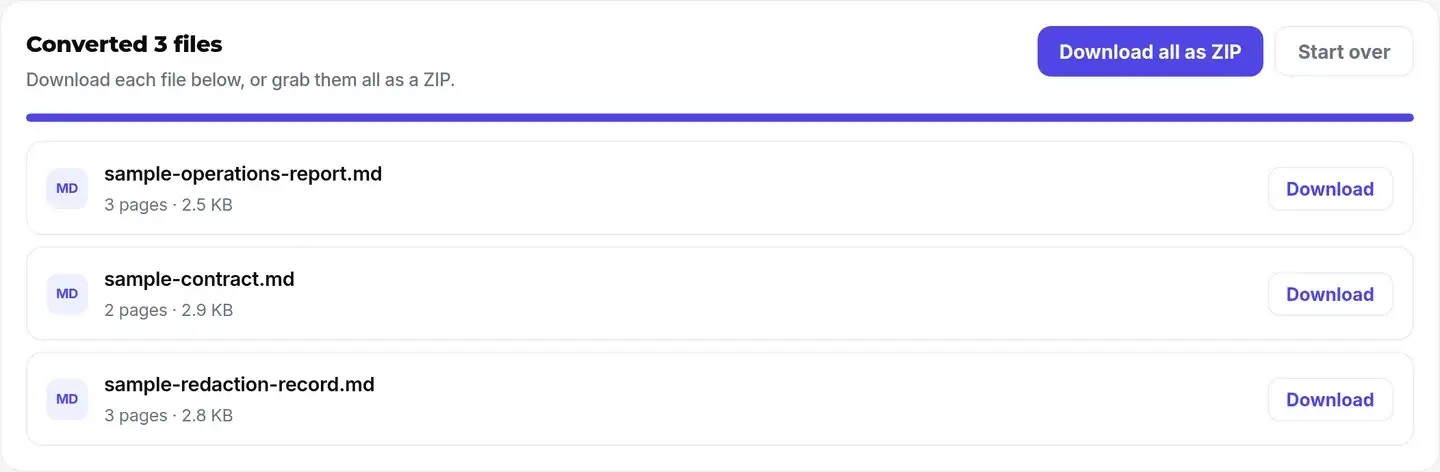
Select several PDFs together and each successful file gets its own Markdown download. Use the row's Download button for one result, or Download all as ZIP to save the set as frisqoo_pdf-to-markdown.zip. The ZIP keeps the documents separate; it does not join their text into one long file.
Batch conversion uses structured output with repeated headers and footers removed and page comments off. It does not offer the editable box for each result or carry over settings from a previous single-file job. Convert a file on its own when you need plain output, page comments, or edits before downloading it.
An unreadable file gets an error row while the rest continue. Review the result list before downloading the ZIP so you know which sources are included. A scanned file still needs OCR, and a file that cannot be parsed may need Repair PDF. Add smaller groups if a large batch makes your browser slow.
Opening locked PDFs and forms
If a PDF needs a password to open, the file chooser asks for it before conversion. Enter the known password and the file is unlocked locally. A wrong password can be retried, or you can skip that file. This converter does not recover an unknown password.
Pure dynamic XFA forms are refused because their visible pages are assembled by Adobe software. Ordinary fillable PDFs may still contain readable page text, but fields and checkboxes do not become working Markdown controls. Check any entered values against the original form before using the extracted text.
File limits on desktop and mobile
You can add up to 20 PDFs, with a limit of 50 MB and 300 pages per file. A file over the size limit is refused at intake, and one over the page limit is refused during reading. Use Extract pages to save the section you need when the document is too long.
The editor works in current desktop and mobile browsers, though speed and available memory vary by device. On a phone, scroll the controls panel to reach the Markdown box and its actions. Image-heavy PDFs still take work to read even though pictures are not exported. Keep the tab open until processing finishes.
FAQs about PDF to Markdown converter
Does converting PDF to Markdown reduce LLM tokens?
It can when the AI service would otherwise process both PDF text and page images, but there is no fixed saving. If you use PDF to Markdown for Claude or another assistant, send only the checked text your question needs. Token use depends on the model and upload method; Markdown is not token compression. Plain text may need fewer tokens than formatted Markdown, and a smaller file in bytes does not prove a lower token count.
Is PDF to Markdown free?
Yes. The converter is free to use and does not require an account. You can add up to 20 PDFs, with 50 MB and 300 pages allowed per file.
Can I convert a PDF to an MD file?
Yes. Markdown files use the .md extension. Add a PDF and choose Download .md; the download keeps the source filename with a new extension.
How do I convert a scanned PDF to Markdown?
Run the scan through OCR PDF first to create a searchable text layer. Bring that PDF back here, then check the recognised words before saving the Markdown.
Do I need Python to use this converter?
No. This page runs in your browser. You do not need to install Python, run a command, or upload the PDF to a conversion service.
Can I convert a PDF from a URL?
No. Choose a PDF file from your device. This tool does not fetch a document from a web address.
Can I use the PDF to Markdown converter offline?
The page and required browser libraries need to load first. Processing then runs on your device, but do not assume a fresh session or a feature whose code has not loaded will work without a connection.
Will converting change my original PDF?
No. The tool reads the PDF and creates separate Markdown text. Editing that text does not edit or overwrite the source file.
What happens if one file in a batch fails?
That file gets an error row. The other files continue, and the ZIP contains only successful Markdown results. Try the failed PDF on its own to check what went wrong.
Does it translate the PDF?
No. It reads the existing text and changes its format. It does not translate, summarise, or rewrite the document.
Why are some letters missing or wrong?
Some PDFs do not map their displayed characters to readable text correctly. A page can look normal while copying produces wrong letters. Check the source against the result; OCR may provide a more usable text layer.